
Connect to Databases
Introduction
The KNIME Database Extension provides a set of KNIME nodes that allow connecting to JDBC-compliant databases. These nodes reside in the DB category in the Node Repository, where you can find a number of database access, manipulation and writing nodes.
The database nodes are part of every KNIME Analytics Platform installation. It is not necessary to install any additional KNIME Extensions.
This guide describes the KNIME Database extension, and shows, among other things, how to connect to a database, and how to perform data manipulation inside the database.
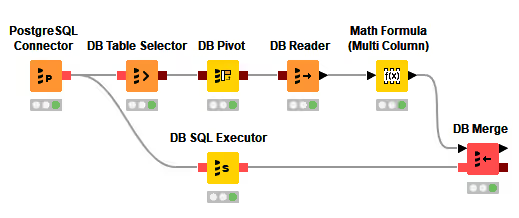
Port Types
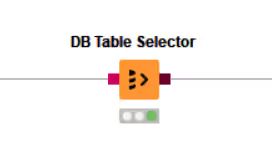
There are two types of ports in the Database extension, the DB Connection port (red) and the DB Data port (dark red).
The DB Connection port stores information about the current DB Session, e.g data types, connection properties, JDBC properties, driver information, etc.
The DB Data port gives you access to a preview of the data.
Outport views
After executing a DB node, you can inspect the result in the outport view by right clicking the node and selecting the outport to inspect at the bottom of the menu. For more information on how to execute a node, please refer to the Quickstart Guide.
DB Connection outport view
The outport view of a DB Connection has the DB Session tab, which contains the information about the current database session, such as database type, and connection URL.
DB Data outport view
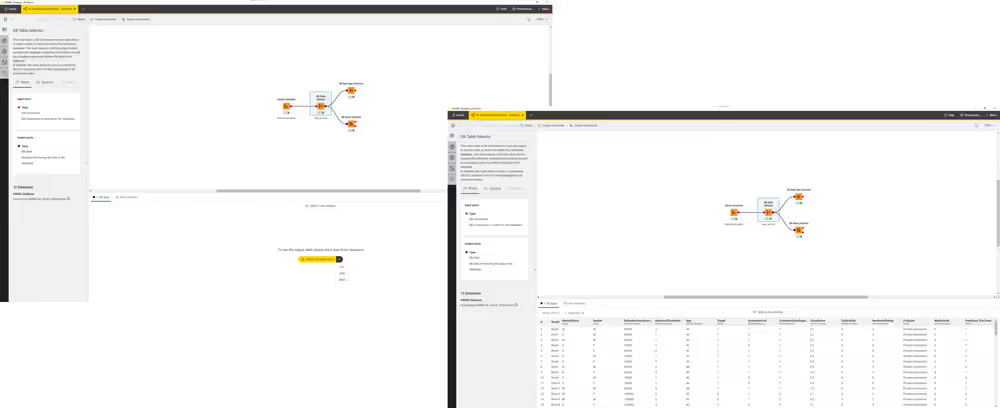
When executing a database manipulation node that has a DB Data outport, for example a DB GroupBy node, what the node does is to build the necessary SQL query to perform the GroupBy operation selected by the user and forward it to the next node in the workflow. It does not actually execute the query. However, it is possible to inspect a preview of a subset of the intermediate result and its specification.
To do so, select the node and click Fetch 100 table rows in the node monitor at the bottom of the UI.
By default only the first 100 rows are cached, but you can select also other options by opening the dropdown menu of the Fetch button. However, be aware that, depending on the complexity of the SQL query, already caching only the first 100 rows might take a long time.
The table specification can be inspected by using the DB Data Spec Extractor node The output of this node will show the list of columns in the table, with their database types and the corresponding KNIME data types.
For more information on the type mapping between database types and KNIME types, please refer to the Type Mapping section.
The generated SQL query can be extracted by using the DB Query Extractor node.
Session Handling
The DB Session life cycle is managed by the Connector nodes. Executing a Connector node will create a DB Session, and resetting the node or closing the workflow will destroy the corresponding DB Session and with it the connection to the database.
To close a DB Session during workflow execution the DB Connection Closer node can be used. This is also the preferred way to free up database resources as soon as they are no longer needed by the workflow. To close a DB Session simply connect it to the DB Connection Closer node which destroys the DB Session and with it the connection to the database as soon as it is executed. Use the input flow variable port of the DB Connection Closer node to executed it once it is save to destroy the DB Session.
Connecting to a database
The DB Connection subcategory in the Node Repository contains
a set of database-specific connector nodes for commonly used databases such as Microsoft SQL Server, MySQL, PostgreSQL, H2, etc. as well as the generic Database Connector node.
A Connector node creates a connection to a database via its JDBC driver. In the configuration dialog of a Connector node you need to provide information such as the database type, the driver, the location of the database, and the authentication method if available.
Most of the database-specific connector nodes already contain the necessary JDBC drivers and provide a configuration dialog that is tailored to the specific database. It is recommended to use these nodes over the generic DB Connector node, if possible.
Connecting to predefined databases
The following are some databases that have their own dedicated Connector node:
Amazon Redshift Amazon Athena Google BigQuery H2 Microsoft Access Microsoft SQL Server MySQL Oracle PostgreSQL Snowflake SQLite Vertica
Some dedicated Connector nodes, such as Google BigQuery or Amazon Redshift, come without a JDBC driver due to licensing restriction. If you want to use these nodes, you need to register the corresponding JDBC driver first. Please refer to the Register your own JDBC drivers section on how to register your own driver. For Amazon Redshift, please refer to the Third-party Database Driver Plug-in section.
If no dedicated connector node exists for your database, you can use the generic DB Connector node. For more information on this please refer to the Connecting to other databases section.
After you find the right Connector node for your database, double-click on the node to open the configuration dialog. In the Connection Settings window you can provide the basic parameters for your database, such as the database driver, location, or authentication. Then click Ok and execute the node to establish a connection.
If you select "Use latest driver version available" upon execution the node will automatically use the driver with the latest (highest) driver version that is available for the current database type. This has the advantage that you do not need to touch the workflow after a driver update. However, the workflow might break in the rare case that the behavior of the driver, e.g. type mapping, changes with the newer version.
KNIME Analytics Platform in general provides three different types of connector nodes the File-based Connector node , the Server-based Connector node and the generic Connector nodes which are explained in the following sections.
File-based Connector Node
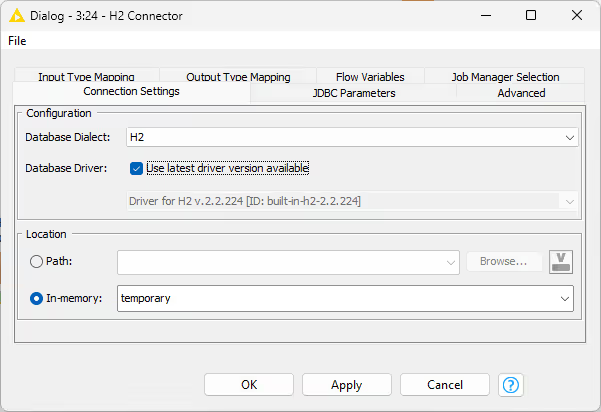
The configuration dialog above is for file-based database connectors, such as SQLite, H2, or Microsoft Access. You can select the database dialect and driver, then specify the location of the database file. Alternatively, choose "in-memory" to create a temporary database stored in memory if supported by the database.
Server-based Connector Node
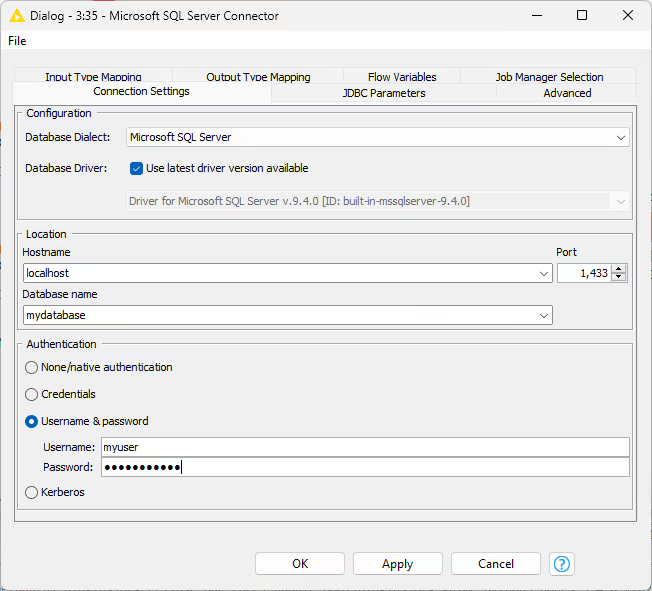
This dialog is for server-based database connectors, including MySQL, Oracle, or PostgreSQL. Here, you select the database dialect and driver, enter the server's hostname, port, and database name, and provide authentication details. Credentials can be entered directly or supplied via credential flow variables. Kerberos authentication is available for supported databases such as Hive and Impala. For more details, see the Kerberos User Guide.
For information about JDBC Parameters and the Advanced tab, refer to the relevant sections in this guide. Details about Type Mapping tabs are provided in the Type Mapping section.
Third-party Database Driver Plug-in
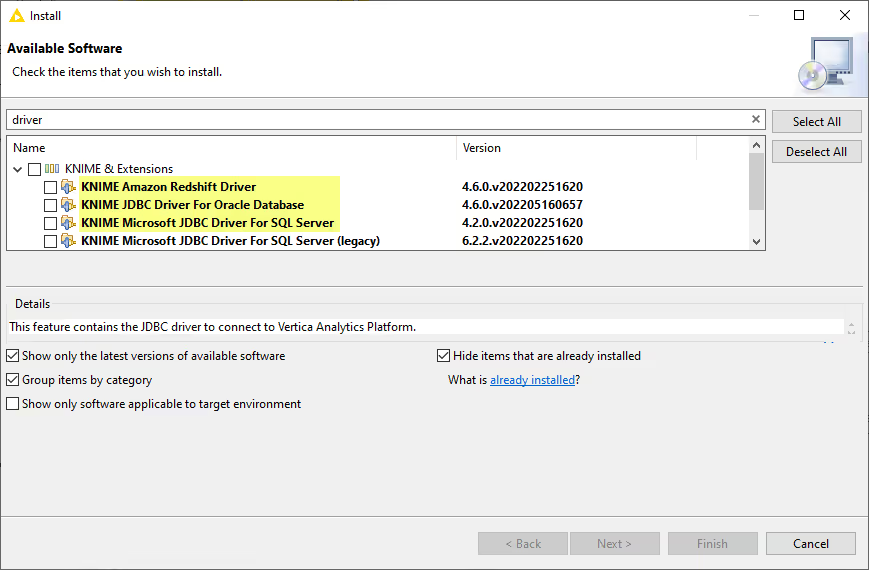
As previously mentioned, the dedicated database-specific connector nodes already contain the necessary JDBC drivers. However, some databases require special licensing that prevents us from automatically installing or even bundling the necessary JDBC drivers with the corresponding connector nodes. For example, KNIME provides additional plug-ins to install the Oracle Database driver, official Microsoft SQL Server driver or the Amazon Redshift driver which require special licenses.
To install the plug-ins, go to File Install KNIME Extensions. In the Install window, search for the driver that you need (Oracle, MS SQL Server or Redshift), and you will see something similar to the figure below. Then select the plug-in to install it. If you don't see the plug-in in this window then it is already installed. After installing the plug-in, restart KNIME. After that, when you open the configuration dialog of the dedicated Connector node, you should see that the installed driver of the respective database is available in the database driver list.
Connecting to other databases
The generic DB Connector node can connect to arbitrary JDBC compliant databases. The most important node settings are described below.
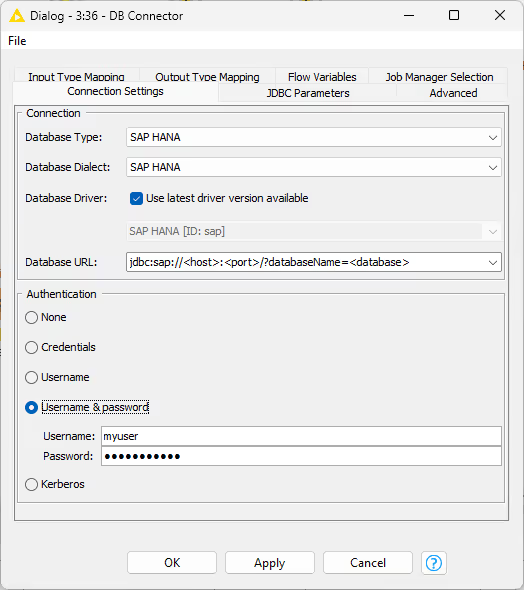
Database Type: Select the type of the database the node will connect to. For example, if the database is a PostgreSQL derivative select Postgres as database type. if you don't know the type select the default type.
Database Dialect: Select the database dialect which defines how the SQL statements are generated.
Database Driver: Select an appropriate driver for your specific database or select the "Use latest driver version available" option in which case upon execution the node will automatically use the driver with the latest (highest) driver version that is available for the current database type. If there is no matching JDBC driver it first needs to be registered, see Register your own JDBC drivers. Only drivers that have been registered for the selected database type will be available for selection.
Database URL: A driver-specific JDBC URL. Enter the database information in the placeholder, such as the host, port, and database name.
Authentication: Login credentials can either be provided via credential flow variables, or directly in the configuration dialog in the form of username and password. Kerberos authentication is also provided for databases that support this feature, e.g Hive or Impala. For more information on Kerberos authentication, please refer to the Kerberos User Guide.
The selected database type and dialect determine which data types, statements such as insert, update, and aggregation functions are supported.
If you encounter an error while connecting to a third-party database, you can enable the JDBC logger option in the Advanced Tab. If this option is enabled all JDBC operations are written into the KNIME log which might help you to identify the problems. In order to tweak how KNIME interacts with your database e.g. quotes identifiers you can change the default settings under the Advanced Tab according to the settings of your database. For example, KNIME uses " as the default identifier quoting, which is not supported by default by some databases (e.g Informix). To solve this, simply change or remove the value of the identifier delimiter setting in the Advanced Tab.
Register your own JDBC drivers
For some databases KNIME Analytics Platform does not contain a ready-to-use JDBC driver. In these cases, it is necessary to first register a vendor-specific JDBC driver in KNIME Analytics Platform. Please consult your database vendor to obtain the JDBC driver. A list of some of the most popular JDBC drivers can be found below.
The JDBC driver has to be JDBC 4.1 or above compliant.
To set up JDBC drivers on KNIME Server, please refer to the section JDBC drivers on KNIME Hub and KNIME Server.
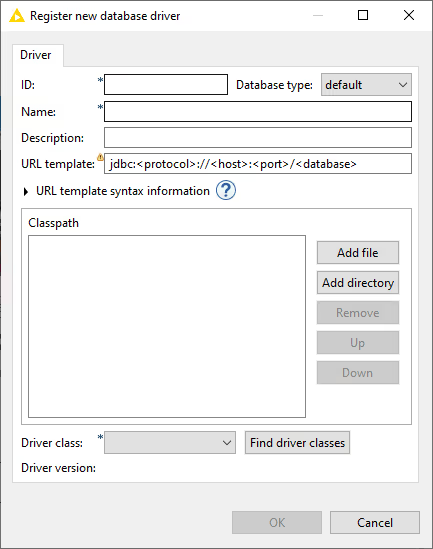
To register your vendor-specific JDBC driver, go to File Preferences KNIME Databases.
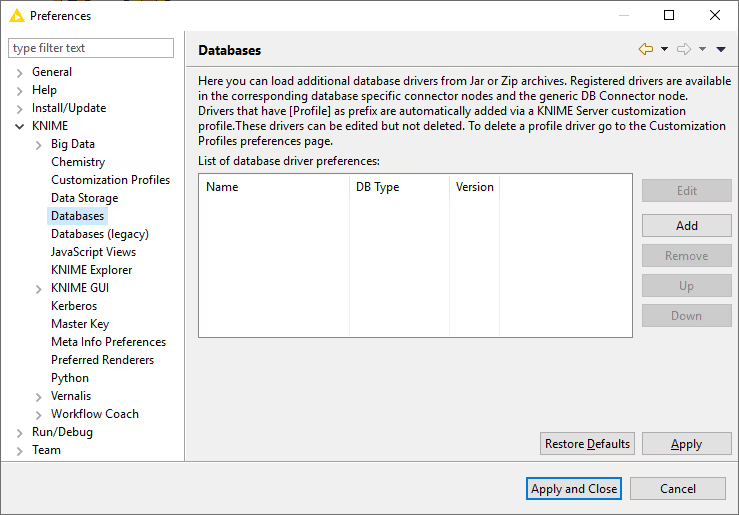
Clicking Add will open a new database driver window where you can provide the JDBC driver path and all necessary information, such as:
- ID: The unique ID of the JDBC driver consisting only of alphanumeric characters and underscore.
- Name: The unique name of the JDBC driver.
- Database type: The database type. If you select a specific database type e.g. MySQL the driver will be available for selection in the dedicated connector node e.g. MySQL Connector. However if your database is not on the list, you can choose default, which will provide you with all available parameters in the Advanced Tab. Drivers that are registered for the default type are only available in the generic DB Connector node.
- Description: Optional description of the JDBC driver.
- URL template: The JDBC driver connection URL format which is used in the dedicated connector nodes. If you select a database other than default in the Database type, the URL template will be preset with the default template for the selected database. Please refer to the URL Template syntax information below or the JDBC URL Template section for more information.
- URL Template syntax information: Clicking on the question mark will open an infobox which provides information about the URL template syntax in general. Additionally, if you select a database other than default in the Database type, one or more possible URL template examples will be provided for the selected database type, which you can copy and paste in the URL template field.
- Classpath: The path to the JDBC driver. Click Add file if the driver is provided as a single .jar file, or Add directory if the driver is provided as a folder that contains several .jar files. Some vendors offer a .zip file for download, which needs to be unpacked to a folder first.
If the JDBC driver requires native libraries e.g DLLs you need to put all of them into a single folder and then register this folder via the Add directory button in addition to the JDBC driver .jar file.
- Driver class: The JDBC driver class and version will be detected automatically by clicking Find driver classes. Please select the appropriate class after clicking the button.
If your database is available in the Database type drop down list, it is better to select it instead of setting it to default. Setting the Database type to default will allow you to only use the generic DB Connector node to connect to the database, even if there is a dedicated Connector node for that database.
KNIME Server can distribute JDBC drivers automatically to all connected KNIME Analytics Platform clients (see JDBC drivers on KNIME Hub and KNIME Server).
JDBC URL Template
When registering a JDBC driver, you need to specify its JDBC URL template, which will be used by the dedicated Connector node to create the final database URL. For example, jdbc:oracle:thin:@<host>:<port>/<database> is a valid driver URL template for the Oracle thin driver. For most databases you don't have to find the suitable URL template by yourself, because the URL Template syntax information provides at least one URL template example for a database.
The values of the variables in the URL template, e.g <host>, <port>, or <database> can be specified in the configuration dialog of the corresponding Connector node.
Tokens:
- Mandatory value (e.g. <database>): The referenced token must have a non-blank value. The name between the brackets must be a valid token name (see below for a list of supported tokens).
- Optional value (e.g. [database]): The referenced token may have a blank value. The name between the brackets must be a valid token name (see below for a list of supported tokens).
- Conditions (e.g. [location=in-memory?mem:<database>]): This is applicable for file-based databases, such as H2, or SQLite. The first ? character separates the condition from the content that will only be included in the URL if the condition is true. The only explicit operator available currently is =, to test the exact value of a variable. The left operand must be a valid variable name, and the right operand the value the variable is required to have for the content to be included. The content may include mandatory and/or optional tokens (<database>/[database]), but no conditional parts. It is also possible to test if a variable is present. In order to do so, specify the variable name (e.g. database) as the condition. E.g.
jdbc:mydb://<host>:<port>[database?/databaseName=<database>]will result injdbc:mydb://localhost:10000/databaseName=db1if the database name is specified in the node dialog otherwise it would bejdbc:mydb://localhost:10000.
For server-based databases, the following tokens are expected:
- Host: The value of the Hostname field on the Connection Settings tab of a Connector node.
- Port: The value of the Port field on the Connection Settings tab of a Connector node.
- Database: The value of the Database name field on the Connection Settings tab of a Connector node.
For file-based databases, the following tokens are expected:
- Location: The Location choice on the Connection Settings tab of a Connector node. The file value corresponds to the radio button next to Path being selected, and in-memory to the radio button next to In-memory. This variable can only be used in conditions.
- File: The value of the Path field on the Connection Settings tab of a Connector node. This variable is only valid if the value of the location is file.
- Database: The value of the In-memory field on the Connection Settings tab of a Connector node. This variable is only valid if the value of the location is in-memory.
Field validation in the configuration dialog of a Connector node depends on whether the (included) tokens referencing them are mandatory or optional (see above).
List of common JDBC drivers
Below is a selected list of common database drivers you can add among others to KNIME Analytics Platform:
Apache DerbyExasolGoogle BigQueryIBM DB2 / InformixSAP HANA
The list above only shows some example of database drivers that you can add. If your driver is not in the list above, it is still possible to add it to KNIME Analytics Platform.
Deprecated JDBC Drivers
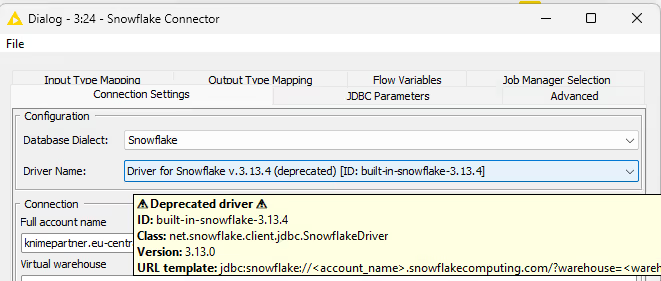
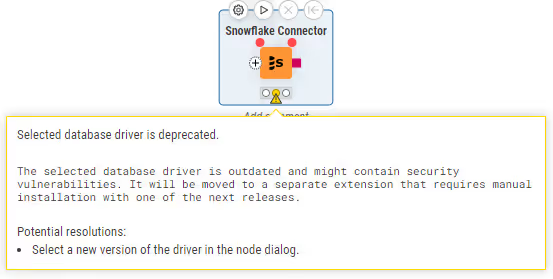
With version 5.3.0, KNIME Analytics Platform introduced the concept of deprecating JDBC drivers. Older version of JDBC drivers become deprecated if they are not supported by the database vendor anymore or if they contain security vulnerabilities. Deprecated drivers are clearly marked in the node dialog and if selected will display a warning in the workflow editor.
 |  |
|---|
After a certain time, deprecated drivers will be removed from the platform. If such a driver is still referenced in a workflow, KNIME Analytics Platform will display an exception indicating which extension needs to be installed to make the driver available again.
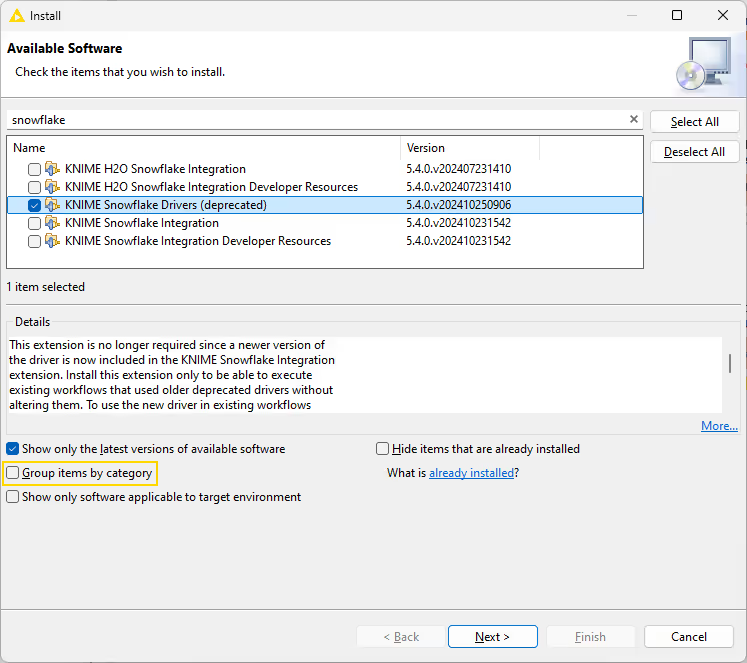
To install a deprecated driver extension you need to open the installation dialog as described here. In the installation dialog deselect the _Group items by category option, search for the mentioned extension and install it. After restarting KNIME Analytics Platform the deprecated driver will be available again.
In the example below the deprecated Snowflake driver is installed.
Advanced Database Options
JDBC Parameters
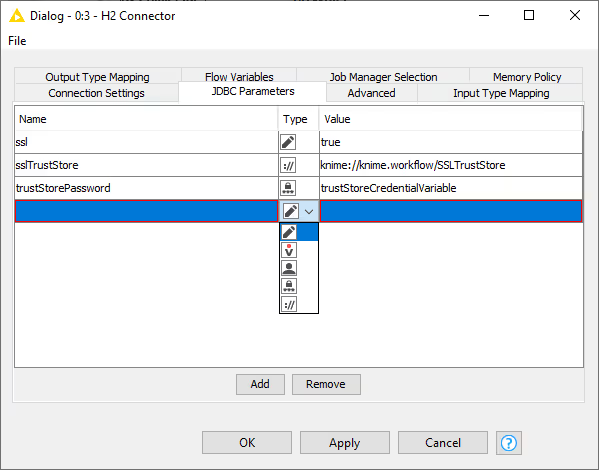
The JDBC parameters allow you to define custom JDBC driver connection parameter. The value of a parameter can be a constant, variable, credential user, credential password, KNIME URL or path flow variable. In case of a path flow variable only standard file systems are supported but no connected file systems. For more information about the supported connection parameter please refer to your database vendor.
The figure below shows an example of SSL JDBC parameters with different variable types. You can set a Boolean to enable or disable SSL, you can also use a KNIME relative URL to point to the SSLTrustStore location, or use a credential input for the trustStorePassword parameter.
Please be aware that when connecting to PostgreSQL with SSL the key file has to first be converted to either pkcs12 or pkcs8 format. For more information about the supported driver properties see the PostgreSQL documentation.
Advanced Tab
The settings in the Advanced tab allow you to define KNIME framework properties such as connection handling, advanced SQL dialect settings or query logging options. This is the place where you can tweak how KNIME interacts with the database e.g. how the queries should be created that are send to the database. In the Metadata section you can also disable the metadata fetching during configuration of a node or alter the timeout when doing so which might be necessary if you are connected to a database that needs more time to compute the metadata of a created query or you are connected to it via a slow network.
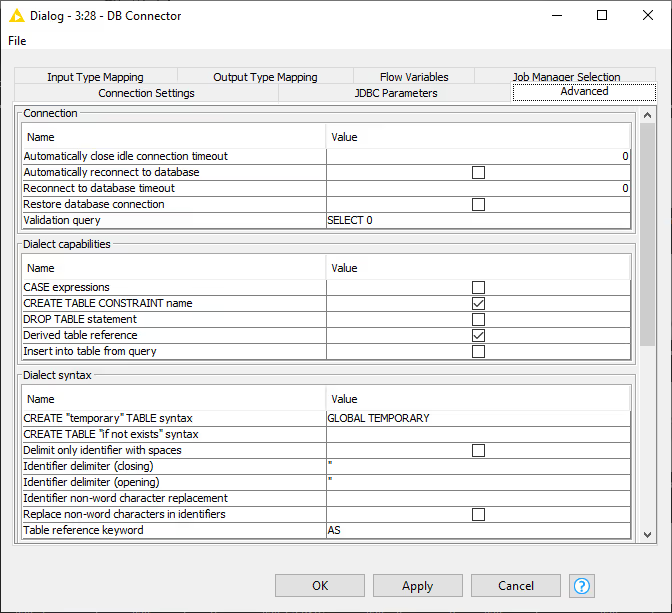
The full available options are described as follow:
Connection
Automatically close idle connection timeout: Time interval in seconds that a database connection can remain idle before it gets closed automatically. A value of 0 disables the automatic closing of idle connections. Automatically reconnect to database: Enables or disables the reconnection to the database if the connection is invalid. Connection depending object will no longer exist after reconnection. Reconnect to database timeout: Time interval in seconds to wait before canceling the reconnection to the database. A value of 0 indicates the standard connection timeout. Restore database connection: Enables or disables the restoration of the database connection when an executed connector node is loaded. Validation query: The query to be executed for validating that a connection is ready for use. If no query is specified KNIME calls the Connection.isValid() method to validate the connection. Only errors are checked, no result is required.
Dialect capabilities
CASE expressions: Whether CASE expressions are allowed in generated statements. CREATE TABLE CONSTRAINT name: Whether names can be defined for CONSTRAINT definitions in CREATE TABLE statements. DROP TABLE statement: Whether DROP TABLE statements are part of the language. Derived table reference: Whether table references can be derived tables. Insert into table from query: Whether insertion into a table via a select statement is supported, e.g. INSERT INTO T1 (C1) (SELECT C1 FROM T2).
Dialect syntax
CREATE "temporary" TABLE syntax: The keyword or keywords for creating temporary tables. CREATE TABLE "if not exists" syntax: The syntax for the table creation statement condition "if not exists". If empty, no such statement will automatically be created, though the same behavior may still be non-atomically achieved by nodes. Delimit only identifier with spaces: If selected, only identifiers, e.g. columns or table names, with spaces are delimited. Identifier delimiter (closing): Closing delimiter for identifier such as column and table name. Identifier delimiter (opening): Opening delimiter for identifier such as column and table name. Identifier non-word character replacement: The replacement for non-word characters in identifiers when their replacement is enabled. An empty value results in the removal of non-word characters. Replace non-word characters in identifiers: Whether to replace non-word characters in identifiers, e.g. table or column names. Non-word characters include all characters other than alphanumeric characters (a-z, A-Z, 0-9) and underscore (_). Table reference keyword: The keyword before correlation names in table references.
JDBC logger
Enable: Enables or disables logger for JDBC operations.
JDBC parameter
Append JDBC parameter to URL: Enables or disables appending of parameter to the JDBC URL instead of passing them as properties. Append user name and password to URL: Enables or disables appending of the user name and password to the JDBC URL instead of passing them as properties. JDBC URL initial parameter separator: The character that indicates the start of the parameters in the JDBC URL. JDBC URL parameter separator: The character that separates two JDBC parameter in the JDBC URL.
JDBC statement cancellation
Enable: Enables or disables JDBC statement cancellation attempts when node execution is canceled. Node cancellation polling interval: The amount of milliseconds to wait between two checking of whether the node execution has been canceled. Valid range: [100, 5000].
Metadata
Flatten sub-queries where possible: Enables or disables sub-query flattening. If enabled sub-queries e.g. SELECT _ FROM (SELECT _ FROM table) WHERE COL1 > 1 will become SELECT * FROM table WHERE COL1 > 1. By default this option is disabled since query flattening is usually the job of the database query optimizer. However some database either have performance problems when executing sub-queries or do not support sub-queries at all. In this case enabling the option might help. However not all queries are flatten so even enabled sub-queries might be send to the database. List of table types to show in metadata browser: Comma separated list of table types to show in metadata browser. Some databases e.g. SAP HANA support more than the standard TABLE and VIEW type such as CALC VIEW, HIERARCHY VIEW and JOIN VIEW. Retrieve in configure: Enables or disables retrieving metadata in configure method for database nodes. Retrieve in configure timeout: Time interval in seconds to wait before canceling a metadata retrieval in configure method. Valid range: [1, ).
Transaction
Enabled: Enables or disables JDBC transaction operations.
Misc
Fail if WHERE clause contains any missing value: Check every value of a WHERE clause (e.g., update, delete or merge) and fail if one is missing. Fetch size: Hint for the JDBC driver about the number of rows that should be fetched from the database when more rows are needed. Valid range: [0,). Support multiple databases: Enables or disables support for multiple databases in a single statement.
Dedicated DB connectors (e.g. Microsoft SQL Server Connector) and built-in drivers usually show only a subset of the above mentioned options since most options are predefined, such as whether the database supports CASE statements, etc.
Examples
In this section we will provide examples on how to connect to some widely-known databases.
Connecting to Oracle
The first step is to install the Oracle Database JDBC driver which is provided as a separate plug-in due to license restrictions. Please refer to Third-party Database Driver Plug-in for more information about the plug-in and how to install it.
It is also possible to use your own Oracle Database driver if required. For more details refer to the Register your own JDBC drivers section.
Once the driver is installed you can use the dedicated Oracle Connector node. Please refer to Connecting to predefined databases on how to connect using dedicated Connector nodes.
Kerberos authentication
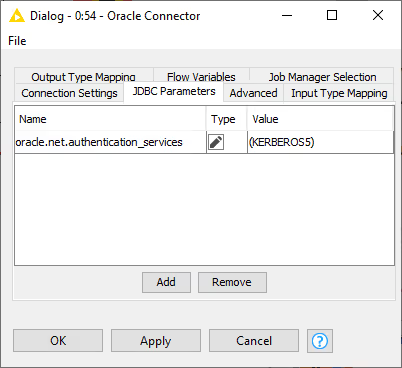
To use this mode, you need to select Kerberos as authentication method in the Connection Settings tab of the Oracle Connector. For more information on Kerberos authentication, please refer to the Kerberos User Guide. In addition, you need to specify the following entry in the JDBC Parameters tab: oracle.net.authentication_services with value (KERBEROS5). Please do not forget to put the value in brackets. For more details see the Oracle documentation.
Reading from a database
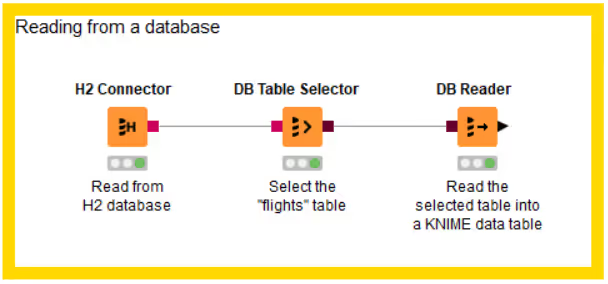
The figure above shows an example of reading data from a database. In this example, the flights dataset is stored in an H2 database and read into a KNIME data table.
To start, use a connector node to establish a connection to the database. In the example, an H2 connector is used, but there are dedicated connector nodes for various databases. For more details on connecting, refer to the "Connecting to a database" section.
After establishing the connection, use the DB Table Selector node to interactively select a table or view based on the input database connection.
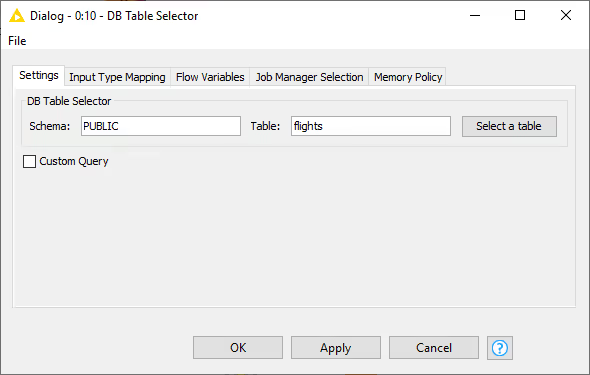
The configuration dialog of the DB Table Selector node allows you to enter the schema and table/view name you want to select. Pressing the "Select a table" button opens the Database Metadata Browser, which lists available tables and views.
You can also tick the "Custom Query" checkbox to write your own SQL query. Any SELECT statement is accepted, and the placeholder #table# refers to the table selected via the browser.
The Input Type Mapping tab lets you define mapping rules from database types to KNIME types. For more information, see the "Type Mapping" section.
The output of the DB Table Selector node is a DB Data connection containing the database information and the SQL query built by the framework to select the entered table or custom query.
To read the selected table or view into KNIME Analytics Platform, use the DB Reader node. Executing this node runs the input SQL query in the database and outputs the result as a KNIME data table stored on your machine.
Database Metadata Browser
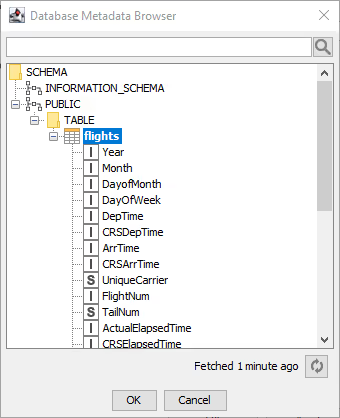
The Database Metadata Browser displays the database schema, including all tables, views, and their columns with data types. When opened, it fetches and caches metadata from the database. Clicking on a schema, table, or view shows its contained elements. To select a table or view, choose the name and click OK or double-click the element. The search box at the top lets you search for any table or view. At the bottom, a refresh button allows you to update the schema list if changes have occurred.
If you have just created a table and cannot find it in the schema list, refresh the list by clicking the refresh button in the lower right corner.
Query Generation

Once you have connected to your database, you can use a set of nodes for in-database data manipulation, such as aggregating, filtering, and joining. These nodes provide a visual user interface and automatically build SQL queries in the background according to your configuration settings, so no coding is required. The output of each node is a SQL query that matches the operations performed within the node. You can extract the generated SQL query using the DB Query Extractor node.
Visual Query Generation
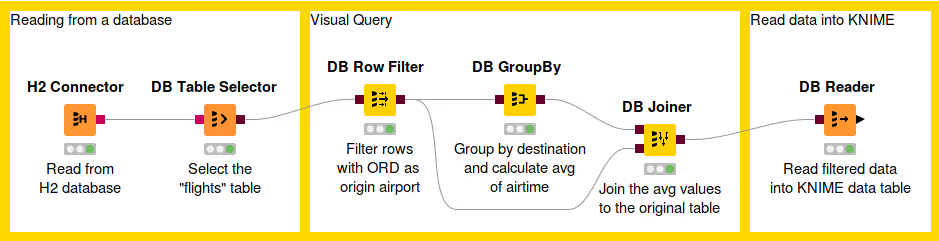
The figure above shows an example of in-database data manipulation. In this example, we read the flights dataset from a H2 database. First we filter the rows so that we take only the flights that fulfil certain conditions. Then we calculate the average air time to each unique destination airport. Finally we join the average values together with the original values and then read the result into KNIME Analytics Platform.
The first step is to connect to a database and select the appropriate table we want to work with.
DB Row Filter
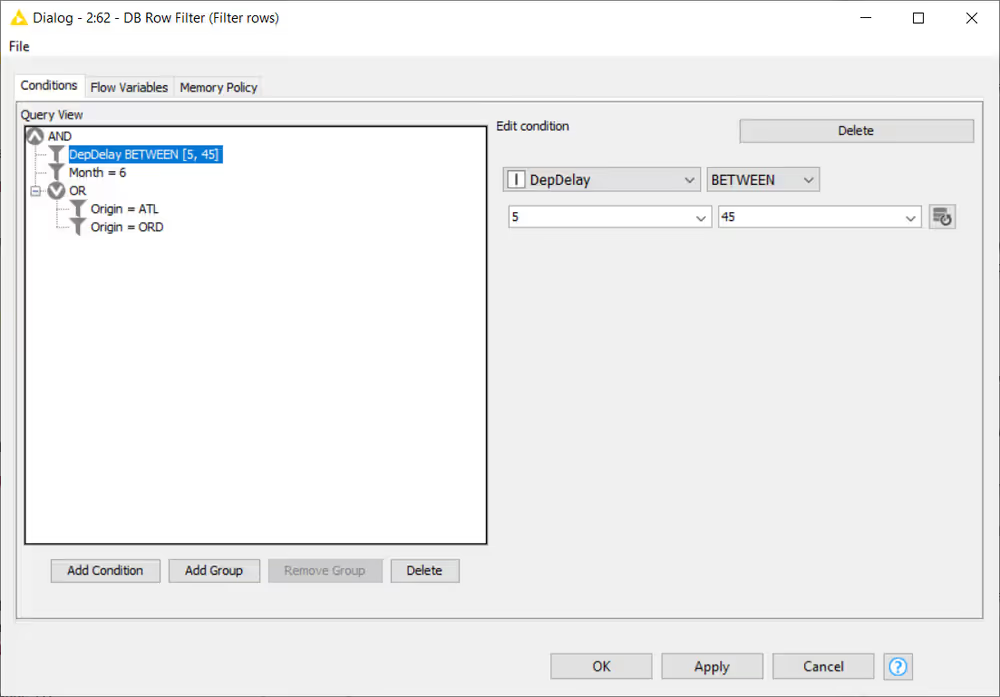
After selecting the table, you can start working with the data. First we use the DB Row Filter node to filter rows according to certain conditions. The figure above shows the configuration dialog of the DB Row Filter. On the left side there is a Preview area that lists all conditions of the filter to apply to the input data. Filters can be combined and grouped via logical operators such as AND or OR. Only rows that fulfil the specified filter conditions will be kept in the output data table. At the bottom there are options to:
Add Condition: add more condition to the list Group: Create a new logical operator (AND or OR) Ungroup: Delete the currently selected logical operator Delete: Delete the selected condition from the list
To create a new condition click on the Add_Condition button. To edit a condition select in the condition list which will show the selected condition in the condition editor on the right. The editor consists of at least two dropdown lists. The most left one contains the columns from the input data table, and the one next to it contains the operators that are compatible with the selected column type, such as =, !=, <, >. Depending on the selected operation a third and maybe fourth input field will be displayed to enter or select the filter values. The button next to the values fields fetches all possible values for the selected column which will then be available for selection in the value field.
Clicking on a logical operator in the Preview list would allow you to switch between AND or OR, and to delete this operator by clicking Ungroup.
As in our example, we want to return all rows that fulfil the following conditions:
Originate from the Chicago O'Hare airport (ORD) OR Hartsfield-Jackson Atlanta Airport (ATL) AND occur during the month of June 2017 AND have a mild arrival delay between 5 and 45 minutes
DB GroupBy
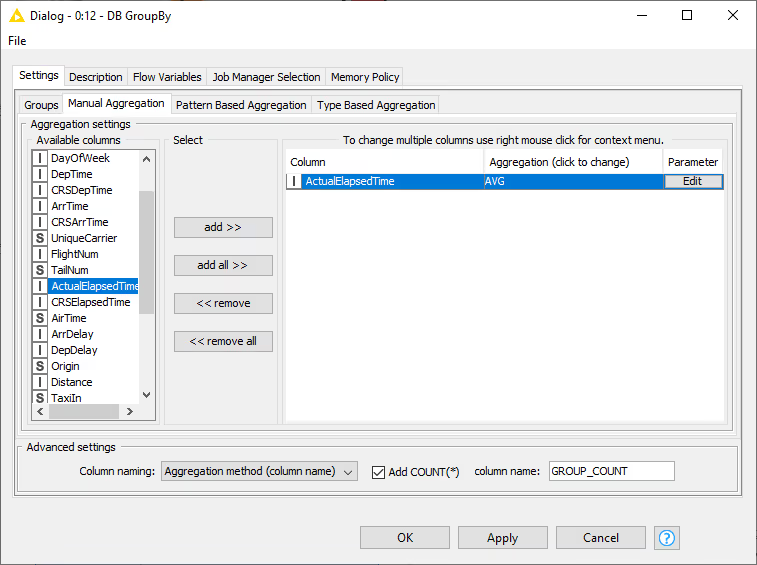
The next step is to calculate the average air time to each unique destination airport using the DB GroupBy node. To retrieve the number of rows per group tick the Add Count(*) checkbox in the Advanced Settings. The name of the group count column can be changed via the result column name field.
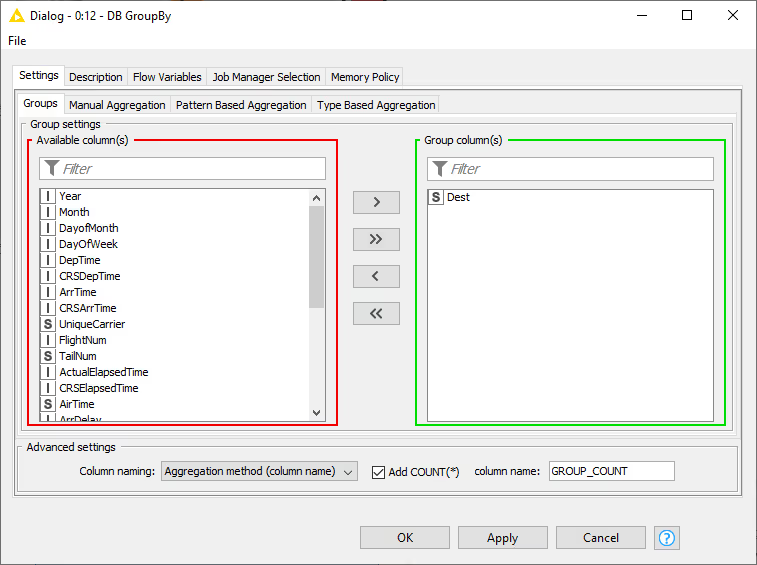
To calculate the average air time for each destination airport, we need to group by the Dest column in the Groups tab, and in Manual Aggregation tab we select the ActualElapsedTime column (air time) and AVG as the aggregation method.
DB Joiner
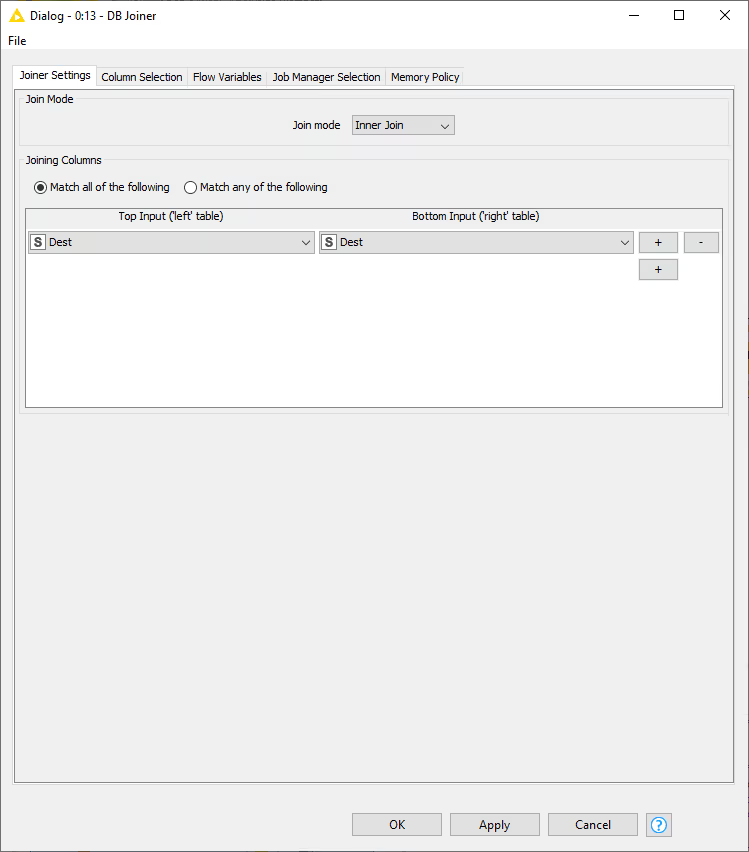
To join the result back to the original data, we use the DB Joiner node, which joins two database tables based on joining column(s) of both tables. In the Joiner settings tab, there are options to choose the join mode, whether Inner Join, Full Outer Join, etc, and the joining column(s).
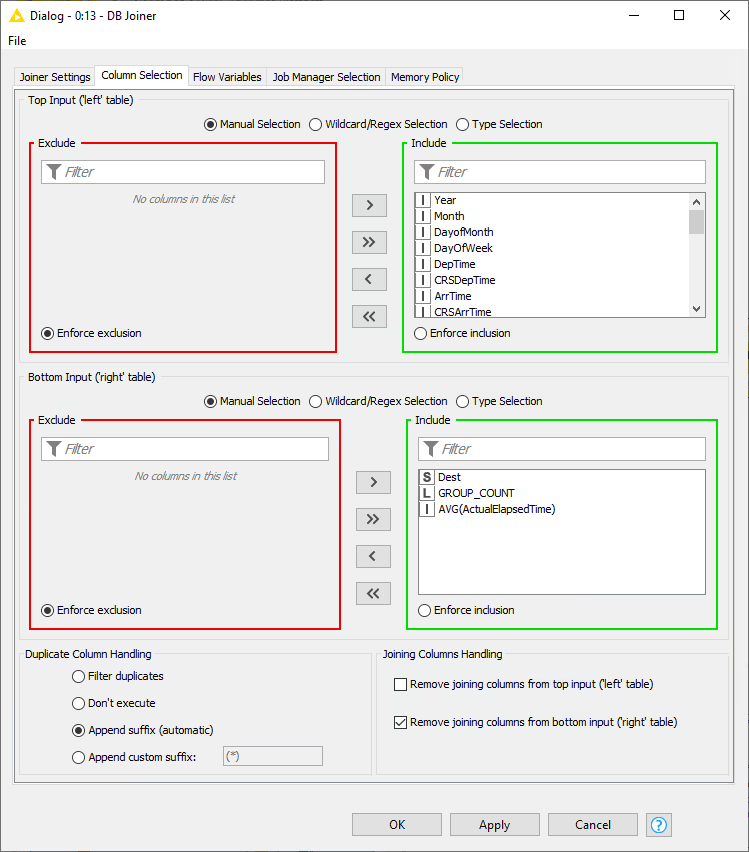
In the Column Selection tab you can select which columns from each of the table you want to include in the output table. By default the joining columns from bottom input will not show up in the output table.
Advanced Query Building
Sometimes, using the predefined DB nodes for manipulating data in database is not enough. This section will explain some of the DB nodes that allow users to write their own SQL queries, such as DB Query, DB Query Reader, and Parametrized DB Query Reader node.
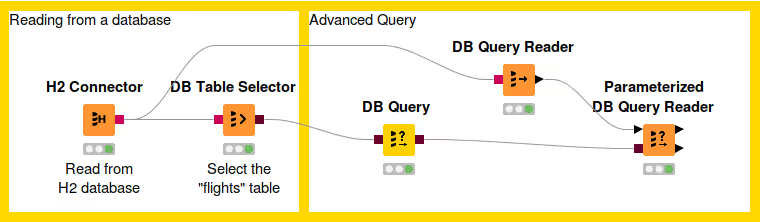
Each DB manipulation node, that gets a DB data object as input and returns a DB data object as output, wraps the incoming SQL query into a sub-query. However some databases don't support sub-queries, and if that is the case, please use the DB Query Reader node to read data from the database.
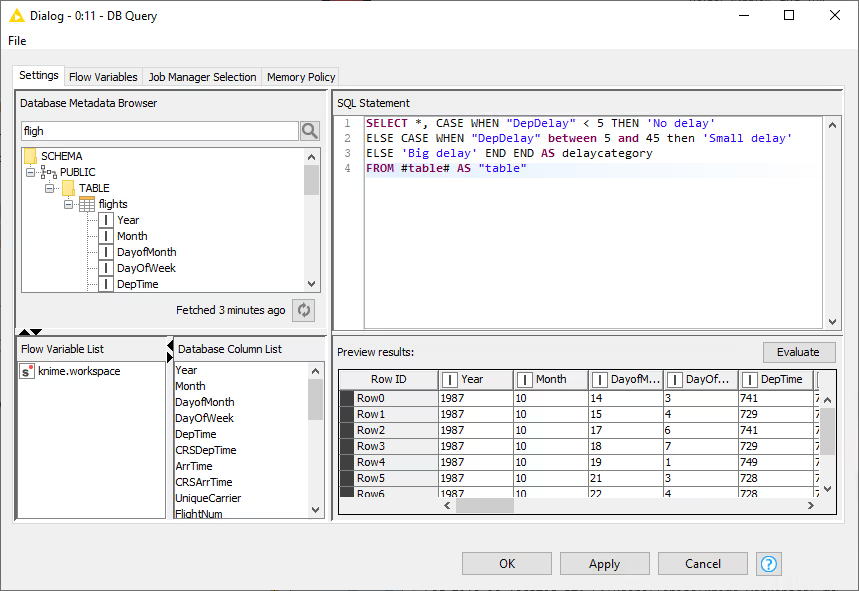
The figure below shows the configuration dialog of the DB Query node. The configuration dialog of other advanced query nodes that allow user to write SQL statements provide a similar user experience. There is a text area to write your own SQL statement, which provides syntax highlighting and code completion by hitting Ctrl+Space. On the lower side there is an Evaluate button where you can evaluate the SQL statement and return the first 10 rows of the result. If there is an error in the SQL statement then an error message will be shown in the Evaluate window. On the left side there is the Database Metadata Browser window that allows you to browse the database metadata such as the tables and views and their corresponding columns. The Database Column List contains the columns that are available in the connected database table. Double clicking any of the items will insert its name at the current cursor position in the SQL statement area.
DB Query
The DB Query node modifies the input SQL query from an incoming database data connection. The SQL query from the predecessor is represented by the place holder #table# and will be replaced during execution. The modified input query is then available at the outport.
DB Query Reader
Executes an entered SQL query and returns the result as KNIME data table. This node does not alter or wrap the query and thus supports all kinds of statements that return data.
This node supports other SQL statements beside SELECT, such as DESCRIBE TABLE.
Parameterized DB Query Reader
This node allows you to execute a SQL query with different parameters. It loops over the input KNIME table and takes the values from the input table to parameterise the input SQL query. Since the node has a KNIME data table input it provides a type mapping tab that allows you to change the mapping rules. For more information on the Type Mapping tab, please refer to the Type Mapping section.
DB Looping
This node runs SQL queries in the connected database restricted by the possible values given by the input table. It restricts each SQL query so that only rows that match the possible values from the input table are retrieved whereas the number of values per query can be defined. This node is usually used to execute IN queries e.g.
sql
SELECT * FROM table
WHERE Col1 IN ($)
During execution, the column placeholder $ will be replaced by a comma separated list of values from the input table.
Since the node has a KNIME data table input it provides a type mapping tab that allows you to change the mapping rules. For more information on the Type Mapping tab, please refer to the Type Mapping section.
An example of the usage of this node is available on KNIME Hub.
Database Structure Manipulation
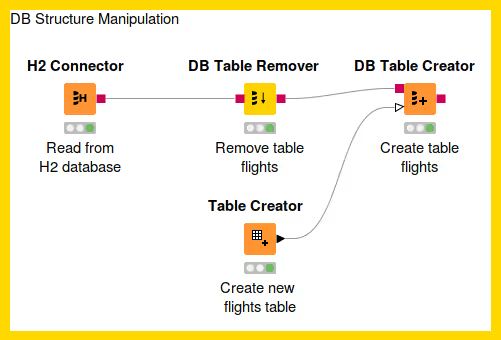
Database Structure Manipulation refers to any manipulation to the database tables. The following workflow demonstrates how to remove an existing table from a database using the DB Table Remover and create a new table with the DB Table Creator node.
DB Table Remover
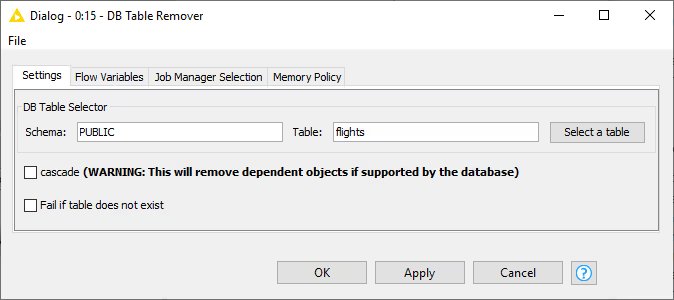
This node removes a table from the database defined by the incoming database connection. Executing this node is equivalent to executing the SQL command DROP. In the configuration dialog, there is an option to select the database table to be removed. The configuration is the same as in the DB Table Selector node, where you can input the corresponding Schema and the table name, or select it in the Database Metadata Browser.
The following options are available in the configuration window:
Cascade: Selecting this option means that removing a table that is referenced by other tables/views will remove not only the table itself but also all dependent tables and views. If this option is not supported by your database then it will be ignored.
Fail if table does not exist: Selecting this option means the node will fail if the selected table does not exist in the database. By default, this option is not enabled, so the node will still execute successfully even if the selected table does not exist in the database.
DB Table Creator
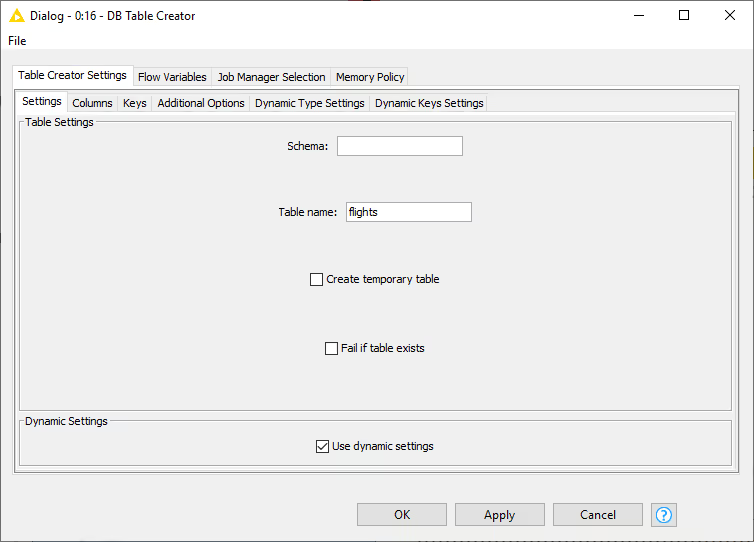
This node creates a new database table. The table can be created either manually, or dynamically based on the input data table spec. It supports advanced options such as specifying if a column can contain null values or specifying primary key or unique keys as well as the SQL type.
When the Use dynamic settings option is enabled the database table structure is defined by the structure of the input KNIME data table. The Columns and Keys tabs are read only and only help to verify the structure of the table that is created. The created database table structure can be influenced by changing the type mapping e.g. by defining that KNIME double columns should be written to the database as string columns the DB Table Creator will choose the string equivalent database type for all double columns. This mapping and also the key generation can be further influenced via the Dynamic Type Settings and Dynamic Key Settings tabs.
In the Settings tab you can input the corresponding schema and table name. The following options are available:
Create temporary table: Selecting this will create a temporary table. The handling of temporary tables, such as how long it exists, the scope of it, etc depends on the database you use. Refer to your database vendor for more details on this.
Fail if table exists: Selecting this will make the node fail with database-specific error message if the table already exists. By default, this option is disabled, so the node will execute successfully and not create any table if it already existed.
Use dynamic settings: Selecting this will allow the node to dynamically define the structure of the database table e.g. column names and types based on the input KNIME table and the dynamic settings tabs. Only if this option is enabled will the Dynamic Type Settings and Dynamic Column Settings tab be available. The mappings defined in the Name-Based SQL Type Mapping have a higher priority than the mappings defined in the KNIME-Based SQL Type Mapping. If no mapping is defined in both tabs, the default mapping based on the Type Mapping definitions of the database connector node are used. Note that while in dynamic settings mode the Columns and Keys tab become read-only to allow you a preview of the effect of the dynamic settings.
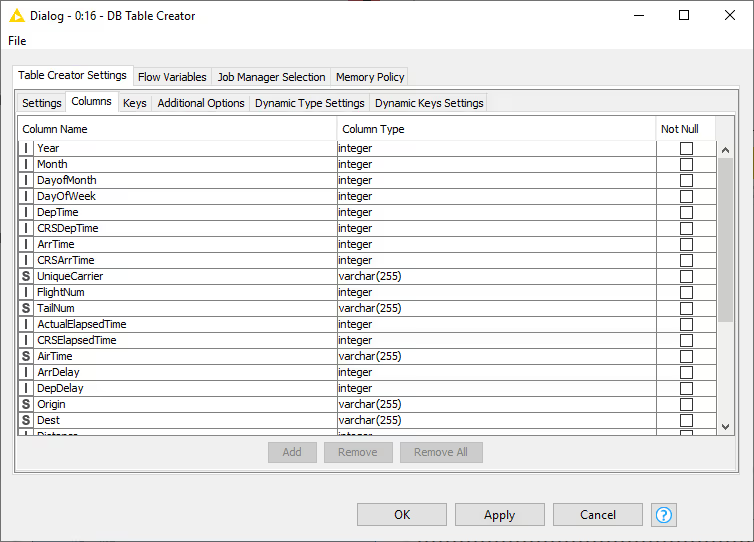
In the Columns tab you can modify the mapping between the column names from the input table and their corresponding SQL type manually. You can add or remove column and set the appropriate SQL type for a specific column. However, if the Use dynamic settings is selected, this tab become read-only and serves as a preview of the dynamic settings.
In the Key tab you can set certain columns as primary/unique keys manually. As in the Columns tab, if the Use dynamic settings is enabled, this tab become read-only and serves as a preview of the dynamic settings.
In the Additional Options tab you can write additional SQL statement which will be appended after the CREATE TABLE statement, e.g storage parameter. This statement will be appended to the end of the automatically generated CREATE TABLE statement and executed as a single statement.
In the Dynamic Columns Settings there are two types of SQL Type Mapping, the Name-Based and the KNIME-Based.
In the Name-Based SQL Type Mapping you define the default SQL type mapping for a set of columns based on the column names. You can add a new row containing the name pattern of the columns that should be mapped. The name pattern can either be a string with wildcard or a regular expression. The mappings defined in the Name-Based SQL Type Mapping have a higher priority than the mappings defined in the KNIME-Based SQL Type Mapping.
In the KNIME-Type-Based SQL Type Mapping you can define the default SQL type mapping based on a KNIME data type. You can add a new row containing the KNIME data type that should be mapped.
In the Dynamic Keys Settings you can dynamically define the key definitions based on the column names. You can add a new row containing the name pattern of the columns that should be used to define a new key. The name pattern can either be a string with wildcard or a regular expression.
Supported wildcards are * (matches any number of characters) and ? (matches one character) e.g. KNI* would match all strings that start with KNI such as KNIME whereas KNI? would match only strings that start with KNI followed by a fourth character.
DB Manipulation
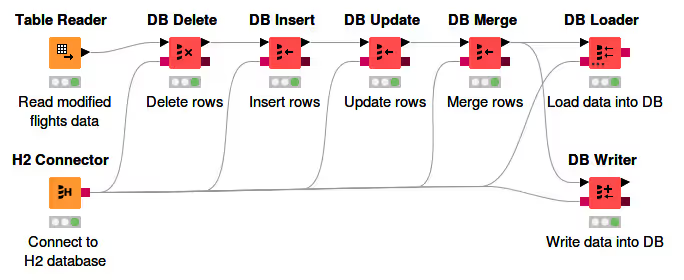
This section describes various DB nodes for in-database manipulation, such as DB Delete (Table), DB Writer, DB Insert, DB Update, DB Merge, and the DB Loader node, as well as the database transaction nodes.
DB Delete
The database extension provides two nodes to delete rows from a selected table in the database. The DB Delete (Table) node deletes all rows from the database table that match the values of an input KNIME data table, whereas the DB Delete (Filter) node deletes all rows from the database table that match the specified filter conditions.
DB Delete (Table)
This node deletes rows from a selected table in the database. The input is a DB Connection port that describes the database, and a KNIME data table containing the values that define which rows to delete from the database. It deletes data rows in the database based on the selected columns from the input table. Therefore, all selected column names need to exactly match the column names inside the database. Only the rows in the database table that match the value combinations of the selected columns from the KNIME input data table will be deleted.
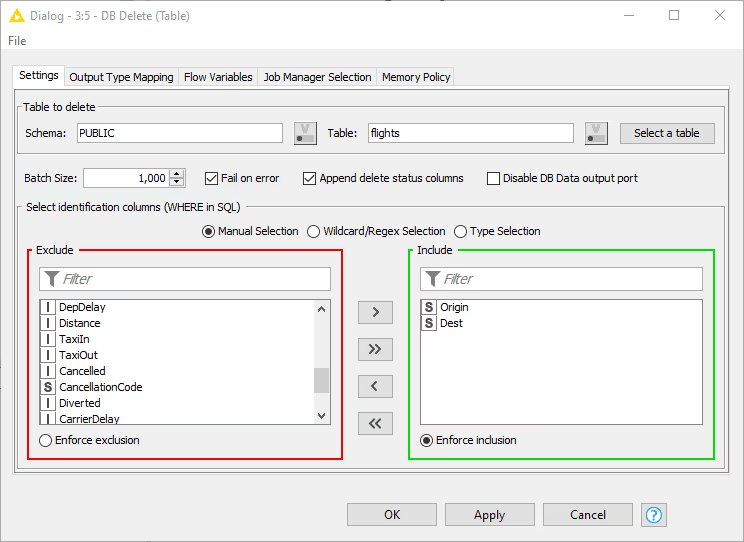
The figure below shows the configuration dialog of the DB Delete (Table) node. The configuration dialog of the other nodes for DB manipulation is very similar. You can enter the table name and its corresponding schema, or select the table name in the Database Metadata Browser by clicking Select a table.
In addition, the identification columns from the input table need to be selected. The names of the selected KNIME table columns have to match the names in the selected database table. All rows in the database table with matching values for the selected columns from the input KNIME data table will be deleted. In SQL this is equivalent to the WHERE columns. There are three options:
- Fail on error: If selected, the node fails when any errors occur during execution; otherwise it executes successfully even if one of the input rows caused an exception in the database.
- Append delete status columns: If selected, the node adds two extra columns to the output table. The first column contains the number of rows affected by the DELETE statement. A number greater than or equal to zero indicates that the operation was performed successfully. A value of -2 indicates that the operation was performed successfully but the number of rows affected is unknown. The second column contains a warning message, if any.
- Disable DB Data output port: If selected, the DB Data output port and the metadata query executed at the end of node execution are disabled. This is useful for databases that do not support subqueries.
The Output Type Mapping tab allows you to define mapping rules from KNIME types to database types. For more information, see Type Mapping.
DB Delete (Filter)
This node deletes rows from a selected table in the database that match the specified filter conditions. The input is a DB Connection port that can be exchanged for a DB Data port. In both cases the input port describes the database. The output port can also be changed from a DB Connection to a DB Data port.
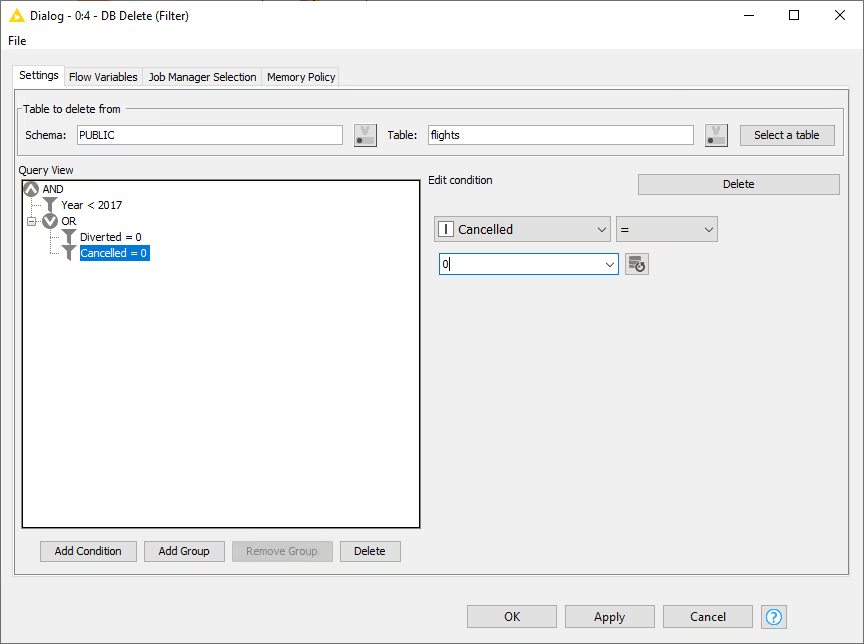
In the node dialog of the DB Delete (Filter) node you can enter the table name and its corresponding schema, or select the table name in the Database Metadata Browser by clicking Select a table. In addition, you can specify the filter conditions that are used to identify the rows in the database table that should be deleted. The conditions are used to generate the WHERE clause of the DELETE statement. All rows that match the filter conditions will be deleted.
For example, the settings specified in the figure shown below delete all rows from the flights table that took place prior to the year 2017 and that were neither Diverted nor Cancelled.
An example of the usage of this node is available on KNIME Hub.
DB Writer
This node inserts the selected values from the input KNIME data table into the specified database tables. It performs the same function as the DB Insert node, but in addition it also creates the database table automatically if it does not exist prior to inserting the values. The newly created table has a column for each selected input KNIME column. The database column names are the same as the names of the input KNIME columns. The database column types are derived from the given KNIME types and the Type Mapping configuration. All database columns allow missing values (for example NULL).
Use the DB Table Creator node if you want to control the properties of the created database table.
There is also an option to overwrite an existing table by enabling the Remove existing table option in the configuration window. Enabling the option removes any table with the given name from the database and then creates a new one. If this option is not selected, the new data rows are appended to an existing table. Once the database table exists, the node writes all KNIME input rows into the database table in the same way as the DB Insert node.
DB Insert
This node inserts the selected values from the input KNIME data table into the specified database tables. All selected column names need to exactly match the column names within the database table.
DB Update
This node updates rows in the specified database table with values from the selected columns of the input KNIME data table. The identification columns are used in the WHERE part of the SQL statement and identify the rows in the database table that are updated. The columns to update are used in the SET part of the SQL statement and contain the values that are written to the matching rows in the selected database table.
DB Merge
The DB Merge node is a combination of the DB Update and DB Insert node. If the database supports the functionality it executes a MERGE statement that inserts all new rows or updates all existing rows in the selected database table. If the database does not support the merge function the node first tries to update all rows in the database table and then inserts all rows where no match was found during the update. The names of the selected KNIME table columns need to match the names of the database table where the rows should be updated.
DB Loader
Note: Starting from 4.3, the DB Loader node employs the new file handling framework, which allows seamless migration between various file systems. For more details, see the KNIME File Handling Guide.
This node performs database-specific bulk loading functionality that only some databases (for example Hive, Impala, MySQL, PostgreSQL, and H2) support to load large amounts of data into an existing database table.
Caution: Most databases do not perform data checks when loading the data into the table, which might lead to a corrupt data table. The node performs preliminary checks such as verifying that the column order and column names of the input KNIME data table are compatible with the selected database table. However, it does not check the column type compatibility or the values themselves. Make sure that the column types and values of the KNIME table are compatible with the database table.
Depending on the database an intermediate file format (for example CSV, Parquet, ORC) is often used for efficiency, which might require uploading the file to a server. If a file needs to be uploaded, any of the protocols supported by the file handling nodes and the database can be used (for example SSH/SCP or FTP). After the data is loaded into a table, the uploaded file is deleted if it is no longer needed by the database. If there is no need to upload or store the file for any reason, a file connection prevents execution.
Some databases, such as MySQL and PostgreSQL, support file-based and memory-based uploading, which require different rights in the database. For example, if you do not have the rights to execute the file-based loading of the data, try the memory-based method instead.
Note: If the database supports various loading methods (file-based or memory-based), you can select the method in the Options tab, as shown in the example below. Otherwise the Loader mode option does not appear in the configuration dialog.
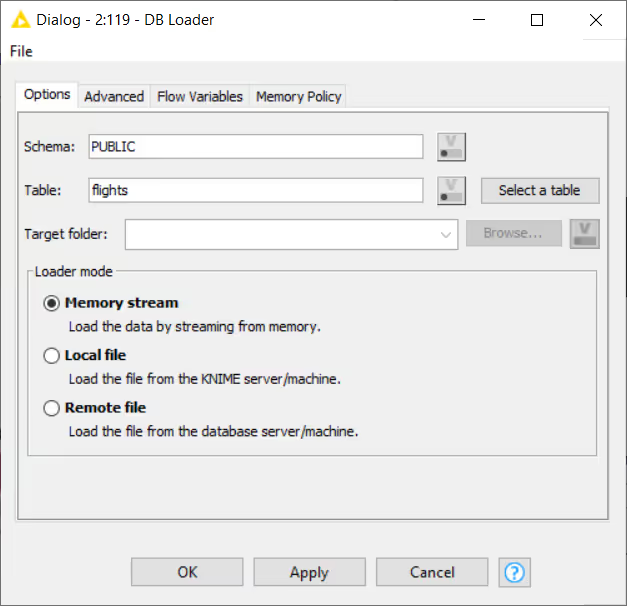
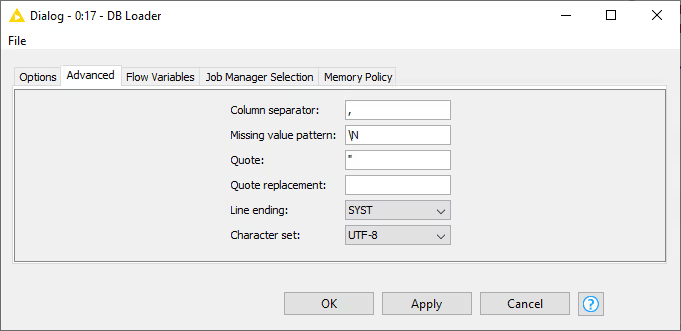
Depending on the connected database the dialog settings may change. For example, MySQL and PostgreSQL use a CSV file for the data transfer. To change how the CSV file is created, go to the Advanced tab.
DB Transaction Nodes
The database extension also provides nodes to simulate database transactions. A transaction allows you to group several database data manipulation operations into a single unit of work. This unit either executes entirely or not at all.
DB Transaction Start
The DB Transaction Start node starts a transaction using the input database connection. As long as the transaction is in process, the input database connection cannot be used outside of the transaction. Depending on the isolation level, other connections might not see any changes in the database while the transaction is in process. The transaction uses the default isolation level of the connected database.
DB Transaction End
The DB Transaction End node ends the transaction of the input database connection. The node ends the transaction with a commit that makes all changes visible to other users if executed successfully. Otherwise, the node ends the transaction with a rollback, returning the database to the state at the beginning of the transaction.
This node has two input ports. The first one is the transactional DB connection port, which should be connected from the end of the transaction chain. The second port should contain the transactional DB connection from the output of the DB Transaction Start node. If the transaction is successful and a commit is executed, the DB connection from the first input port is forwarded to the output port; otherwise, in case of a rollback, the DB connection from the second input port is forwarded.
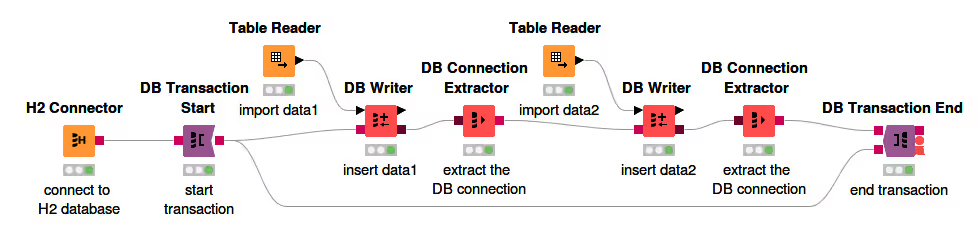
The figure below shows an example of the transaction nodes. In this example, the transaction consists of two DB Writer nodes that write data to the same table consecutively. If an error occurs during any step of the writing, the changes are not executed and the database is returned to the previous state at the beginning of the transaction. If no error occurs, the changes to the database are committed.
Type Mapping
The database framework allows you to define rules to map from database types to KNIME types and vice versa.
This is necessary because databases support different sets of types e.g. Oracle only has one numeric type with different precisions to represent integers but also floating-point numbers whereas KNIME uses different types (integer, long, double) to represent them.
Especially date and time formats are supported differently across different databases. For example the Date&time (Zoned) type that is used in KNIME to represent a time point within a defined time zone is only supported by few databases. But with the type mapping framework you can force KNIME to automatically convert the Date&time (Zoned) type to string before writing it into a database table and to convert the string back into a Date&time (Zoned) value when reading it.
The type mapping framework consists of a set of mapping rules for each direction specified from the KNIME Analytics Platform view point:
- Output Type Mapping: The mapping of KNIME types to database types
- Input Type Mapping: The mapping from database types to KNIME types
Each of the mapping direction has two sets of rules:
- Mapping by Name: Mapping rules based on a column name (or regular expression) and type. Only column that match both criteria are considered.
- Mapping by Type: Mapping rules based on a KNIME or database type. All columns of the specified data type are considered.
The type mapping can be defined and altered at various places in the analysis workflow. The basic configuration can be done in the different connect nodes. They come with a sensible database specific default mapping. The type mapping rules are part of the DB Connection and DB Data connections and inherited from preceding nodes. In addition to the connector nodes provide all database nodes with a KNIME data table a Output Type Mapping tab to map the data types of the nodes input KNIME columns to the types of the corresponding database columns.
The mapping of database types to KNIME types can be altered for any DB Data connection via the DB Type Mapper node.
DB Type Mapper
The DB Type Mapper node changes the database to KNIME type mapping configuration for subsequent nodes by selecting a KNIME type to the given database Type. The configuration dialog allows you to add new or change existing type mapping rules. All new or altered rules are marked as bold.
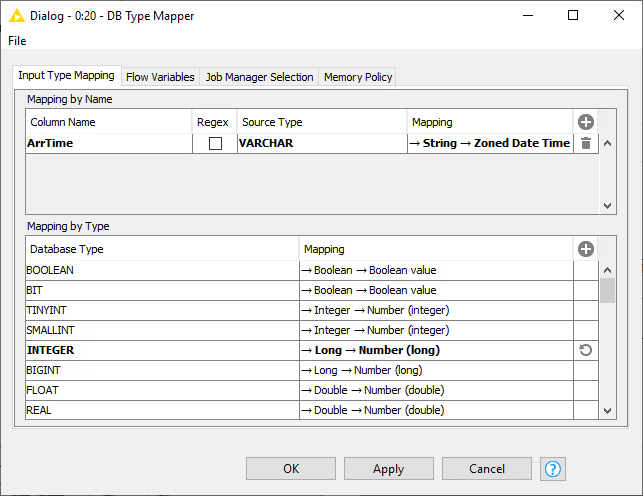
Rules from preceding nodes can not be deleted but only altered.
Migration
This section explains how to migrate workflows that contain deprecated database nodes to the new database framework. The Workflow Migration Tool can guide you through the process and convert deprecated nodes to their modern counterparts. For a full mapping between deprecated and new nodes, see Node Name Mapping.
Note: All previously registered JDBC drivers must be re-registered. For details on registering a driver in the new database framework, see Register your own JDBC drivers.
Workflow Migration Tool
Note: The workflow migration tool is still in preview. We will continue to add new and revise existing functionality.
The workflow migration tool helps migrate existing workflows that contain deprecated database nodes to the new database nodes. The tool does not modify your original workflow; instead, it creates a migrated copy.
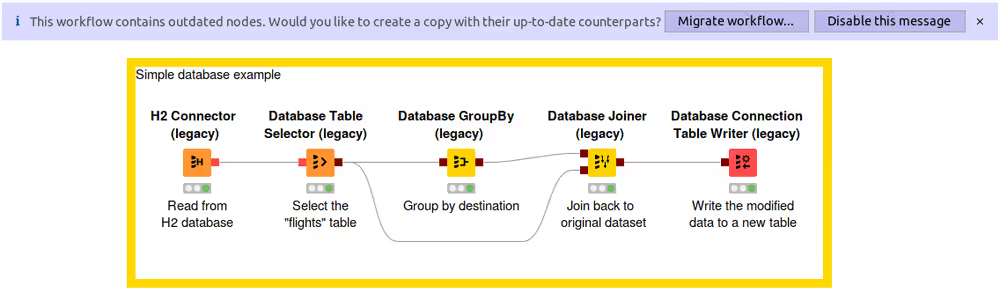
Open the workflow you want to migrate. A banner appears at the top offering to migrate the workflow. Click Migrate workflow… to launch the migration wizard.
In the wizard you can choose the workflow to migrate and specify the name of the new workflow. The new workflow is a copy of the original with deprecated nodes replaced by the corresponding new nodes (if available). By default the new workflow name appends (migrated) to the original name.
Note: The original workflow remains unchanged throughout the migration.
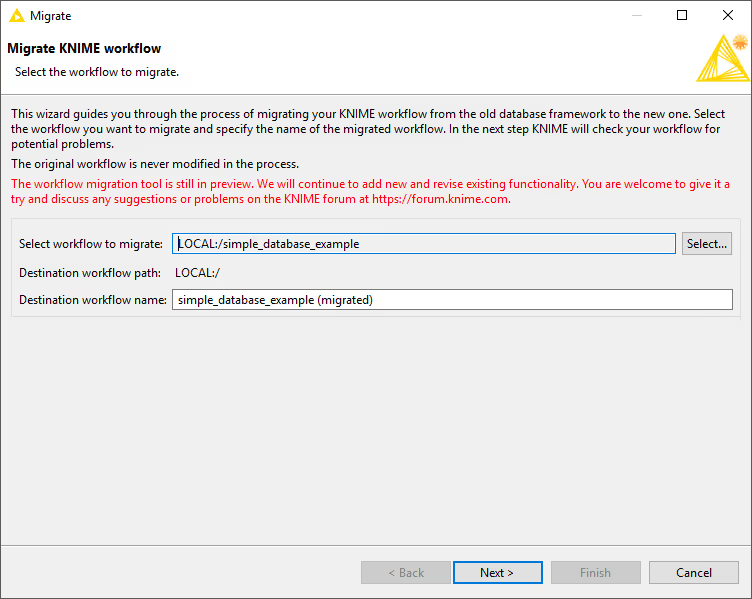
Click Next to analyse the workflow. The wizard lists all deprecated nodes with available migration rules together with their replacements, and highlights potential issues. Accept the mapping and click Next to perform the migration.
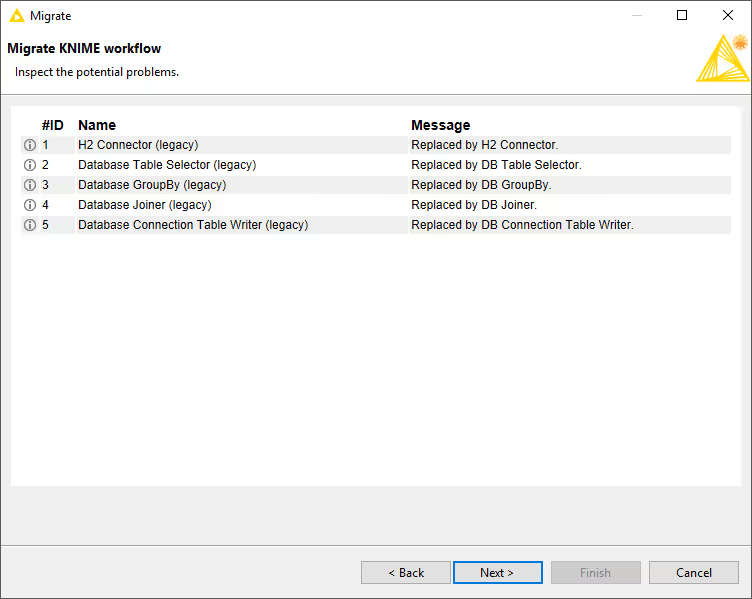
When the migration finishes you see a report summarising the outcome. Warnings or issues are highlighted, and you can save the report as HTML.
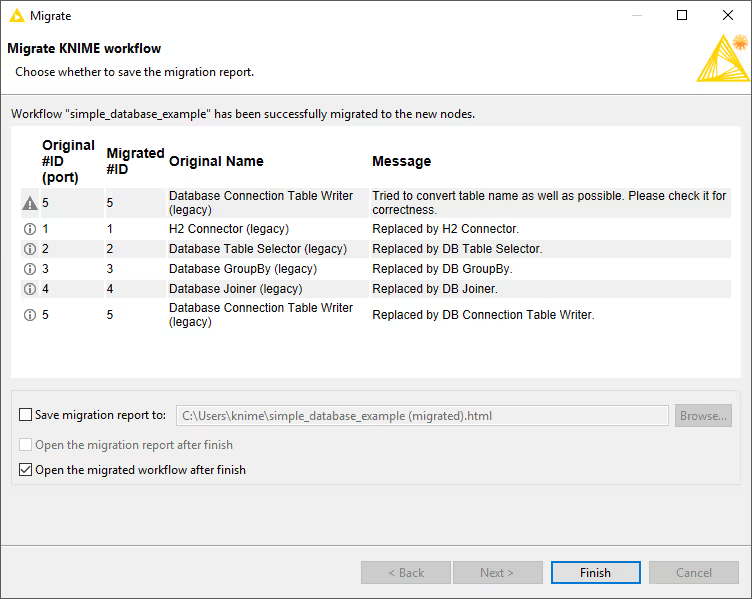
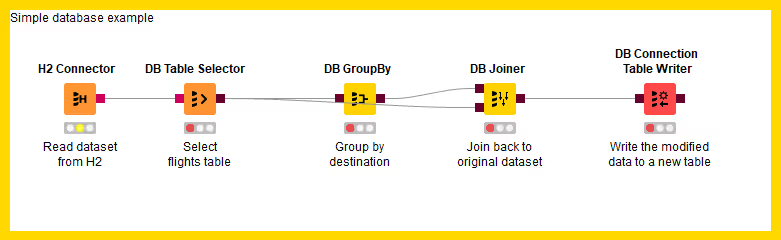
The migrated workflow replaces the deprecated database nodes while preserving their configuration.
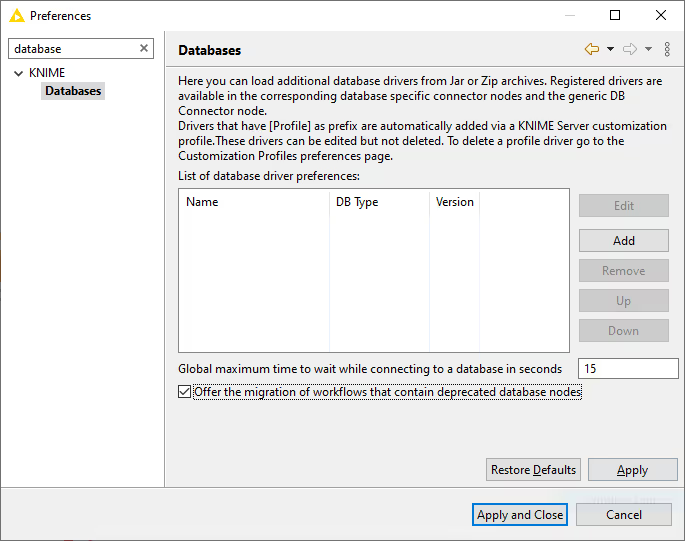
Disabling the Workflow Migration Message
If you prefer not to migrate, you can disable the reminder banner by clicking Disable this message. This opens Preferences ▸ Databases, where you can clear Offer the migration of workflows that contain deprecated database nodes. Click Apply and Close to persist the setting. Re-enable it any time by returning to Preferences ▸ Databases and selecting the checkbox.
Node Name Mapping
The table lists deprecated database nodes alongside their replacements.
| Deprecated database node | New database node |
|---|---|
| Amazon Athena Connector | Amazon Athena Connector |
| Amazon Redshift Connector | Amazon Redshift Connector |
| Database Apply-Binner | DB Apply-Binner |
| Database Auto-Binner | DB Auto-Binner |
| Database Column Filter | DB Column Filter |
| Database Column Rename | DB Column Rename |
| Database Connection Table Reader | DB Reader |
| Database Connection Table Writer | DB Connection Table Writer |
| Database Connector | DB Connector |
| Database Delete | DB Delete (Table) or DB Delete (Filter) |
| Database Drop Table | DB Table Remover |
| Database GroupBy | DB GroupBy |
| Database Joiner | DB Joiner |
| Database Looping | DB Looping |
| Database Numeric-Binner | DB Numeric-Binner |
| Database Pivot | DB Pivot |
| Database Query | DB Query |
| Database Reader | DB Query Reader |
| Database Row Filter | DB Row Filter |
| Database Sampling | DB Row Sampling |
| Database Sorter | DB Sorter |
| Database SQL Executor | DB SQL Executor |
| Database Table Connector | Use DB Connector plus DB Table Selector |
| Database Table Creator | DB Table Creator |
| Database Table Selector | DB Table Selector |
| Database Update | DB Update |
| Database Writer | DB Writer |
| H2 Connector | H2 Connector |
| Hive Connector | Hive Connector |
| Hive Loader | DB Loader |
| Impala Connector | Impala Connector |
| Impala Loader | DB Loader |
| Microsoft SQL Server Connector | Microsoft SQL Server Connector |
| MySQL Connector | MySQL Connector |
| Parameterized Database Query | Parameterized DB Query Reader |
| PostgreSQL Connector | PostgreSQL Connector |
| SQL Extract | DB Query Extractor |
| SQL Inject | DB Query Injector |
| SQLite Connector | SQLite Connector |
| Vertica Connector | Vertica Connector |
| — | Microsoft Access Connector |
| — | DB Insert |
| — | DB Merge |
| — | DB Column Rename (Regex) |
| — | DB Partitioning |
| — | DB Type Mapper |
Register Your Own JDBC Drivers for the Deprecated Database Framework
The JDBC driver registration page for the deprecated database framework is no longer shown in KNIME preferences, but you can still register drivers for the legacy framework.
Note: This section applies only when you use the Database Connector (deprecated) node. To register drivers for the new database framework (for example the DB Connector node), see Register your own JDBC drivers.
Create a text file named driver.epf with the following content:
text
\!/=
/instance/org.knime.workbench.core/database_drivers=<PATH_TO_THE_JDBC_DRIVER>
file_export_version=3.0
Replace <PATH_TO_THE_JDBC_DRIVER> with the path to the driver JAR file. To register multiple drivers, separate the paths with a semicolon (;). For example, registering DB2 and Neo4J drivers on Windows:
text
\!/=
/instance/org.knime.workbench.core/database_drivers=C\:\\KNIME\\JDBC\\db2\\db2jcc4.jar;C\:\\KNIME\\JDBC\\Neo4J\\neo4j-jdbc-driver-3.4.0.jar
file_export_version=3.0
Note: When using Windows paths, escape each backslash with a second backslash.
Import driver.epf via File ▸ Import Preferences, then restart KNIME Analytics Platform so the legacy database framework picks up the new drivers.
Business Hub / Server Setup
This section contains everything related to executing workflows that contain database nodes on KNIME Hub and KNIME Server.
JDBC drivers on KNIME Hub and KNIME Server
KNIME Hub allows you to upload customization profiles to set up DBC drivers on KNIME Hub executors and KNIME Analytics Platform clients.
KNIME Server also allows you to define customization profiles to automatically set up JDBC drivers on its own executors as well as KNIME Analytics Platform clients.
Instead of customization profiles, it is also possible to register JDBC drivers directly on the executor with a preferences file. In this case however, the preferences of the server executor and all KNIME Analytics Platform clients need to be kept in sync manually, so that the same drivers are available on both ends.
Server-side steps
- Create a profile folder inside
<server-repository>/config/client-profiles. The name of the folder corresponds to the name of the profile. The folder will hold preferences and other files to be distributed. - Copy the
.jarfile that contains the JDBC driver into the profile folder. - Inside the profile folder, create a preferences file (file name ends with
.epf) with the following contents:
/instance/org.knime.database/drivers/<DRIVER_ID>/database_type=<DATABASE>
/instance/org.knime.database/drivers/<DRIVER_ID>/driver_class=<DRIVER_CLASS_NAME>
/instance/org.knime.database/drivers/<DRIVER_ID>/paths/0=${profile:location}/<DRIVER_JAR>
/instance/org.knime.database/drivers/<DRIVER_ID>/url_template=<URL_TEMPLATE>
/instance/org.knime.database/drivers/<DRIVER_ID>/version=<DRIVER_VERSION>
Where:
<DRIVER_ID>: A unique ID for the JDBC driver, consisting only of alphanumeric characters and underscores.<DATABASE>: The database type. Please consult the preference page shown in the register jdbc section for the list of currently available types.<DRIVER_CLASS_NAME>: The JDBC driver class, for exampleoracle.jdbc.OracleDriverfor Oracle.<DRIVER_JAR>: The name of the.jarfile (including the file extension) that contains the JDBC driver class. Note that the variable${profile:location}stands for the location of the profile folder on each client that downloads the customization profile. It will be automatically replaced with the correct location by each client.<URL_TEMPLATE>: The JDBC URL template to use for the driver. Please refer to the url template section for more information. Note that colons (:) and backslashes (\) have to be escaped with a backslash. Example:jdbc\:oracle\:thin\:@<host>\:<port>/<database><DRIVER_VERSION>: The version of the JDBC driver e.g.12.2.0. The value can be chosen at will.
- KNIME Server executors need to be made aware of a customization profile, by adding this information to the
knime.inifile, so that they can request it from KNIME Server. Please consult the respective section of the KNIME Server Administration Guide on how to set this up.
Note: Please note that there are database-specific examples at the end of this section.
Client-side steps
KNIME Analytics Platform clients need to be made aware of a customization profile so that they can request it from KNIME Server. Please consult the respective section of the KNIME Server Administration Guide for a complete reference on how to set this up.
In KNIME Analytics Platform, you can go to File → Preferences → KNIME → Customization Profiles.
This opens the Customization Profiles page where you can choose which KNIME Server and profile to use.
The changes will take effect after restarting KNIME Analytics Platform.
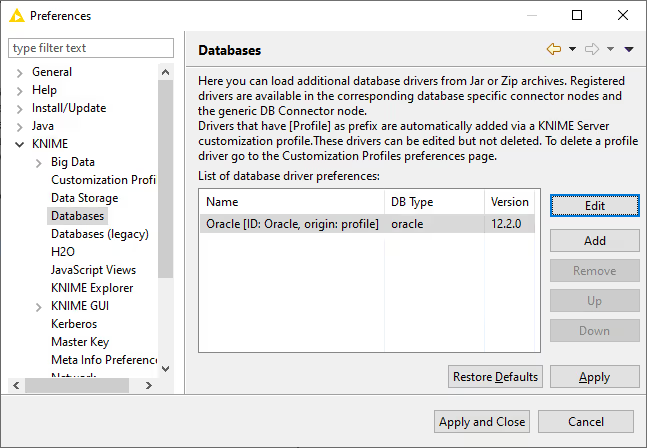
To see whether the driver has been added, go to File → Preferences → KNIME → Databases.
In this page, drivers that are added via a customization profile are marked as origin: profile after the driver ID
(see figure below). These drivers can be edited but not deleted. To delete a profile driver, please go to the Customization Profiles page and unselect the respective profile.
Default JDBC Parameters
Default JDBC Parameters provide a way for hub admins to inject JDBC parameters on JDBC connections made from workflows running on KNIME Hub. These parameters take precedence over values specified in the connector node. To specify an additional JDBC parameter, add the following lines to the .epf file of your customization profile:
/instance/org.knime.database/drivers/<DRIVER_ID>/attributes/additional/org.knime.database.util.DerivableProperties/knime.db.connection.jdbc.properties/<JDBC_PARAMETER>/type=<TYPE>
/instance/org.knime.database/drivers/<DRIVER_ID>/attributes/additional/org.knime.database.util.DerivableProperties/knime.db.connection.jdbc.properties/<JDBC_PARAMETER>/value=<VALUE>
Where:
<DRIVER_ID>: The unique ID for the JDBC driver.<JDBC_PARAMETER>: The name of the JDBC parameter to set.<TYPE>and<VALUE>: A type and value that specifies what to set the JDBC parameter to.<TYPE>and<VALUE>can be chosen as follows:Setting
<TYPE>toCONTEXT_PROPERTYallows specifying workflow context–related properties.<VALUE>can be set to:context.workflow.namecontext.workflow.pathcontext.workflow.absolute-pathcontext.workflow.usernamecontext.workflow.temp.locationcontext.workflow.author.namecontext.workflow.last.editor.namecontext.workflow.creation.datecontext.workflow.last.time.modifiedcontext.job.id
<TYPE>=CREDENTIALS_LOGIN: Value is the name of the credentials flow variable.<TYPE>=CREDENTIALS_PASSWORD: Value is the name of the credentials flow variable.<TYPE>=DELEGATED_GSS_CREDENTIAL: Passes a delegated GSS credential (Kerberos only, Hub execution only).<TYPE>=FLOW_VARIABLE:<VALUE>is the name of a flow variable.<TYPE>=GSS_PRINCIPAL_NAME: Passes the Kerberos principal name. No value required.<TYPE>=GSS_PRINCIPAL_NAME_WITHOUT_REALM: Passes the Kerberos principal name without the REALM. No value required.<TYPE>=LITERAL: Passes a literal value.<TYPE>=LOCAL_URL: Allows specifying a URL such as aknime:URL.
Note: There are database-specific examples at the end of this section.
Reserved JDBC Parameters
Certain JDBC parameters can cause security issues when a workflow is executed on KNIME Hub, e.g. DelegationUID for Impala/Hive connections using a Simba based driver. Such parameters can be marked as reserved to prevent workflows from using them on KNIME Hub. To set a parameter as reserved, add the following lines to the .epf file of your customization profile:
/instance/org.knime.database/drivers/<DRIVER_ID>/attributes/reserved/org.knime.database.util.DerivableProperties/knime.db.connection.jdbc.properties/<JDBC_PARAMETER>=trueOr the shorter version:
/instance/org.knime.database/drivers/<DRIVER_ID>/attributes/reserved/*/knime.db.connection.jdbc.properties/<JDBC_PARAMETER>=trueWhere:
<DRIVER_ID>: The unique ID for the JDBC driver.<JDBC_PARAMETER>: The name of the JDBC parameter.
Note: Please note that there are database-specific examples at the end of this section.
Connection Initialization Statement
The connection initialization statement provides a way for hub admins to inject a SQL statement that is executed when a JDBC connection is created from a workflow running on KNIME Hub. This statement takes precedence over all other statements executed within the workflow. To specify an initialization statement, add the following line to the .epf file of your customization profile:
/instance/org.knime.database/drivers/<DRIVER_ID>/attributes/additional/java.lang.String/knime.db.connection.init_statement/value=<VALUE>Where:
<DRIVER_ID>: The unique ID for the JDBC driver.<VALUE>: A value that specifies the statement to execute.
It is possible to useCONTEXT_PROPERTYvariables inside<VALUE>, using the format${variable-name}.
Available variables:context.workflow.namecontext.workflow.pathcontext.workflow.absolute-pathcontext.workflow.usernamecontext.workflow.temp.locationcontext.workflow.author.namecontext.workflow.last.editor.namecontext.workflow.creation.datecontext.workflow.last.time.modifiedcontext.job.id
Kerberos Constrained Delegation
This section describes how to configure KNIME Hub to perform Kerberos constrained delegation (or user impersonation) when connecting to a Kerberos-secured database such as Apache Hive, Apache Impala, Microsoft SQL Server or PostgreSQL. Constrained delegation allows the KNIME Hub to execute database operations on behalf of the user that executes a workflow on a KNIME Hub Executor rather than the KNIME Executor Kerberos ticket user.
To get started, you need to configure the KNIME Hub to authenticate itself against Kerberos. To do so you need to setup the KNIME Hub Executors as described in the Kerberos Admin Guide.
Once all KNIME Hub Executors are setup to obtain a Kerberos ticket you can enable Kerberos constrained delegation for individual JDBC drivers using one of the following methods.
Note: Please note that there are database-specific examples at the end of this section.
Default JDBC Parameters
Default JDBC Parameters provide a way for hub admins to inject JDBC parameters on JDBC connections made from workflows running on KNIME Hub. Depending on the database a different parameter and value is used to perform constrained delegation. Some drivers only require the name of the user that should be impersonated. This can be done using the name of the KNIME Hub user that executes the workflow (context.workflow.username) as the value of the driver specific property. See <<hive_user_impersonation,Hive>> or <<server_setup_impala_example,Impala>> for an example. Other drivers require the delegated GSS credential as parameter which can automatically be passed to the driver via the value type DELEGATED_GSS_CREDENTIAL. The GSS credential is obtained using the MS-SFU Kerberos 5 Extension. See <<mssql_constrained_delegation,Microsoft SQL Server>> for an example.
Service Ticket Delegation
If the driver does not provide a dedicated parameter to do constrained delegation the KNIME Executor can request a Kerberos service ticket on behalf of the user that executes the workflow using the MS-SFU Kerberos 5 Extension. The obtained service ticket is then used by the JDBC driver when establishing the connection to the database.
To request the service ticket the KNIME Executor requires the service name and the fully qualified hostname. To specify the service name add the following line to the .epf file of your KNIME Executors customization profile:
/instance/org.knime.database/drivers/<DRIVER_ID>/attributes/additional/java.lang.String/knime.db.connection.kerberos_delegation.service/value=<VALUE>Where <VALUE> is the name of the service to request the Kerberos ticket for. See <<server_setup_postgres_example,PostgreSQL>> for an example.
The fully qualified hostname is automatically extracted from the hostname setting for all dedicated connector nodes. For the generic <<connector_generic,DB Connector node>> the name is extracted from the JDBC connection string using a default regular expression (.*(?:@|/)([^:;,/\\]*).*) that should work out of the box for most JDBC strings. However if necessary it can be changed by adding the following line to the .epf file of your KNIME Executors customization profile:
/instance/org.knime.database/drivers/<DRIVER_ID>/attributes/additional/java.lang.String/knime.db.connection.kerberos_delegation.host_regex/value=<VALUE>The <VALUE> should contain a regular expression that extracts the fully qualified hostname from the JDBC URL with the first group matching the hostname.
Connection Initialization Statement
The connection initialization statement provides a way for Hub admins to inject a SQL statement that is executed when a JDBC connection is created from a workflow running on KNIME Hub. This function can be used for constrained delegation in some databases such as Exasol by executing a specific SQL statement with the context.workflow.username as variable e.g.
IMPERSONATE ${context.workflow.username};Example: Apache Hive™
Connections to Apache Hive require additional setup steps depending on the JDBC driver in use.
In this example, we will:
- Register the proprietary Hive JDBC driver provided by Cloudera on KNIME Hub.
- Configure user impersonation on KNIME Hub (for both embedded and proprietary Hive JDBC drivers).
Proprietary Simba-based JDBC driver registration
Note: If you prefer to use the embedded open-source Apache Hive JDBC Driver, skip to the next section.
- Download the proprietary Hive JDBC driver from the Cloudera website.
- Create a profile folder inside
<server-repository>/config/client-profilesand name itClouderaHive(for example). - Copy
HiveJDBC41.jarfrom the downloaded JDBC driver into the new profile folder. - In the profile folder, create a new preferences file (e.g.,
hive.epf) with the following content:
text
/instance/org.knime.database/drivers/cloudera_hive/database_type=hive
/instance/org.knime.database/drivers/cloudera_hive/driver_class=com.cloudera.hive.jdbc41.HS2Driver
/instance/org.knime.database/drivers/cloudera_hive/paths/0=${profile:location}/HiveJDBC41.jar
/instance/org.knime.database/drivers/cloudera_hive/url_template=jdbc:hive2://<host>:<port>/[database]
/instance/org.knime.database/drivers/cloudera_hive/version=2.6.0- If KNIME Hub should impersonate workflow users (recommended), continue with the next section.
User impersonation on Hive
This example configures the Hive JDBC driver (embedded or proprietary) so that KNIME Hub
will impersonate workflow users when creating JDBC connections.
Activation depends on the JDBC driver used:
Embedded Apache Hive JDBC driver
Add the following lines to the KNIME Hub preferences file:
/instance/org.knime.database/drivers/hive/attributes/additional/org.knime.database.util.DerivableProperties/knime.db.connection.jdbc.properties/hive.server2.proxy.user/type=CONTEXT_PROPERTY
/instance/org.knime.database/drivers/hive/attributes/additional/org.knime.database.util.DerivableProperties/knime.db.connection.jdbc.properties/hive.server2.proxy.user/value=context.workflow.username
/instance/org.knime.database/drivers/hive/attributes/reserved/*/knime.db.connection.jdbc.properties/hive.server2.proxy.user=true
Proprietary Simba-based JDBC driver
Add the following lines to the preferences file created in the previous step:
/instance/org.knime.database/drivers/cloudera_hive/attributes/additional/org.knime.database.util.DerivableProperties/knime.db.connection.jdbc.properties/DelegationUID/type=CONTEXT_PROPERTY
/instance/org.knime.database/drivers/cloudera_hive/attributes/additional/org.knime.database.util.DerivableProperties/knime.db.connection.jdbc.properties/DelegationUID/value=context.workflow.username
/instance/org.knime.database/drivers/cloudera_hive/attributes/reserved/*/knime.db.connection.jdbc.properties/DelegationUID=true
Example: Apache Impala™
In this example, we register the proprietary
Impala JDBC driver provided by Cloudera on KNIME Hub.
This setup configures the driver so that KNIME Hub will impersonate workflow users when creating JDBC connections.
Note: If you use the embedded open-source Apache Hive JDBC Driver (for Impala), you do not need this setup.
However, user impersonation is not supported with that driver due to its limitations.
- Download the proprietary Impala JDBC driver from the Cloudera website.
- Create a profile folder inside
<server-repository>/config/client-profilesand name itClouderaImpala(for example). - Copy
ImpalaJDBC41.jarfrom the downloaded JDBC package into the new profile folder. - In the profile folder, create a preferences file (e.g.,
impala.epf) with the following content:
/instance/org.knime.database/drivers/cloudera_impala/database_type=impala
/instance/org.knime.database/drivers/cloudera_impala/driver_class=com.cloudera.impala.jdbc.Driver
/instance/org.knime.database/drivers/cloudera_impala/paths/0=${profile:location}/ImpalaJDBC41.jar
/instance/org.knime.database/drivers/cloudera_impala/url_template=jdbc:impala://<host>:<port>/[database]
/instance/org.knime.database/drivers/cloudera_impala/version=2.6.0
/instance/org.knime.database/drivers/cloudera_impala/attributes/additional/org.knime.database.util.DerivableProperties/knime.db.connection.jdbc.properties/DelegationUID/type=CONTEXT_PROPERTY
/instance/org.knime.database/drivers/cloudera_impala/attributes/additional/org.knime.database.util.DerivableProperties/knime.db.connection.jdbc.properties/DelegationUID/value=context.workflow.username
/instance/org.knime.database/drivers/cloudera_impala/attributes/reserved/*/knime.db.connection.jdbc.properties/DelegationUID=true
The last three lines configure the JDBC DelegationUID parameter to enable
user impersonation (recommended).
If you do not want KNIME Hub to impersonate workflow users, you may remove these lines.
Example: Microsoft SQL Server
Connections to Microsoft SQL Server require additional setup steps.
In this example, we will show how to:
- Register the SQL Server JDBC driver provided by Microsoft on KNIME Hub.
- Configure user impersonation, which is recommended when using Kerberos authentication.
Microsoft driver installation
The SQL Server JDBC driver from Microsoft requires a special license agreement.
Therefore, KNIME provides an additional plug-in to install the driver.
To install this plug-in, follow the steps described in the Third-party Database Driver Plug-in section.
Constrained delegation on Microsoft SQL Server
If you use Kerberos-based authentication for Microsoft SQL Server, we recommend enabling user impersonation. This configuration ensures that KNIME Hub will impersonate workflow users when creating JDBC connections.
For more details on Kerberos integrated authentication, refer to the Microsoft SQL Server documentation.
Activate user impersonation for the embedded Microsoft SQL Server driver by adding the following line to the KNIME Hub
preferences file:
/instance/org.knime.database/drivers/built-in-mssqlserver-9.4.0/attributes/additional/org.knime.database.util.DerivableProperties/knime.db.connection.jdbc.properties/gsscredential/type=DELEGATED_GSS_CREDENTIALIn the Microsoft SQL Server Connector, ensure that:
- Authentication is set to Kerberos
- The following two parameters are added in the JDBC Parameters tab:
authenticationScheme=JavaKerberos
integratedSecurity=true
These parameters can also be set automatically as Default JDBC Parameters via the KNIME Hub
preferences file.
Add the following lines:
/instance/org.knime.database/drivers/built-in-mssqlserver-9.4.0/attributes/additional/org.knime.database.util.DerivableProperties/knime.db.connection.jdbc.properties/authenticationScheme/type=literal
/instance/org.knime.database/drivers/built-in-mssqlserver-9.4.0/attributes/additional/org.knime.database.util.DerivableProperties/knime.db.connection.jdbc.properties/authenticationScheme/value=JavaKerberos

/instance/org.knime.database/drivers/built-in-mssqlserver-9.4.0/attributes/additional/org.knime.database.util.DerivableProperties/knime.db.connection.jdbc.properties/integratedSecurity/type=literal
/instance/org.knime.database/drivers/built-in-mssqlserver-9.4.0/attributes/additional/org.knime.database.util.DerivableProperties/knime.db.connection.jdbc.properties/integratedSecurity/value=true
Note: If you use your own SQL Server driver, replace the built-in driver ID
(built-in-mssqlserver-9.4.0) with your driver’s ID. For more information about setting up a custom driver, see the JDBC drivers on KNIME Hub and KNIME Server section.
For further details about constrained delegation parameters, refer to the Microsoft SQL Server documentation.
Example: Oracle Database
Connections to Oracle Database require additional setup steps.
In this example, we will show how to:
- Register the Oracle Database JDBC driver provided by Oracle on KNIME Hub.
- Configure user impersonation, which is recommended for Kerberos authentication.
Oracle Database driver installation
The Oracle JDBC driver requires acceptance of a special license agreement.
For this reason, KNIME provides an additional plug-in to install the driver.
To install this plug-in, follow the steps described in the Third-party Database Driver Plug-in section.
Constrained delegation on Oracle Database
If you use Kerberos authentication for Oracle Database, we recommend enabling constrained delegation.
Activate Kerberos constrained delegation for the installed Oracle driver by adding the following line to the KNIME Hub
preferences file (e.g., oracle.epf):
/instance/org.knime.database/drivers/built-in-oracle-19.14.0/attributes/additional/java.lang.String/knime.db.connection.kerberos_delegation.service/value=oracleNote:
If you use your own Oracle JDBC driver, replace the built-in driver ID
(built-in-oracle-19.14.0) with your driver’s ID.
For more information on setting up a custom driver, see thecustomization_profilesection.
The service name itself is not used — any non-empty string will enable constrained delegation.
Example: PostgreSQL
If you use Kerberos-based authentication for PostgreSQL, we recommend setting up constrained delegation.
Activate Kerberos constrained delegation for the embedded PostgreSQL driver by adding the following line to the KNIME Hub
preferences file:
/instance/org.knime.database/drivers/built-in-postgres-42.3.5/attributes/additional/java.lang.String/knime.db.connection.kerberos_delegation.service/value=postgresThe default service name for PostgreSQL is postgres, but depending on your database configuration it may differ.
If so, replace postgres in the line above with the appropriate service name.
By default, the PostgreSQL JDBC driver uses the operating system user during login when Kerberos authentication is enabled.
This causes issues when workflows are executed on KNIME Hub.
Depending on your database configuration, you may need to set the username to:
- the Kerberos principal name including the REALM,
- the Kerberos principal name without the REALM, or
context.workflow.username.
To set the user to the Kerberos principal name including the REALM (e.g., User@REALM.COM), add:
/instance/org.knime.database/drivers/built-in-postgres-42.3.5/attributes/additional/org.knime.database.util.DerivableProperties/knime.db.connection.jdbc.properties/user/type=GSS_PRINCIPAL_NAMETo use the principal name without the REALM, use:
/instance/org.knime.database/drivers/built-in-postgres-42.3.5/attributes/additional/org.knime.database.util.DerivableProperties/knime.db.connection.jdbc.properties/user/type=GSS_PRINCIPAL_NAME_WITHOUT_REALMNote:
If you use your own PostgreSQL driver, replace the built-in driver ID
(built-in-postgres-42.3.5) with your driver’s ID.
For more details on setting up a custom driver, see the JDBC drivers on KNIME Hub and KNIME Server section.