
Authenticate to Microsoft Fabric
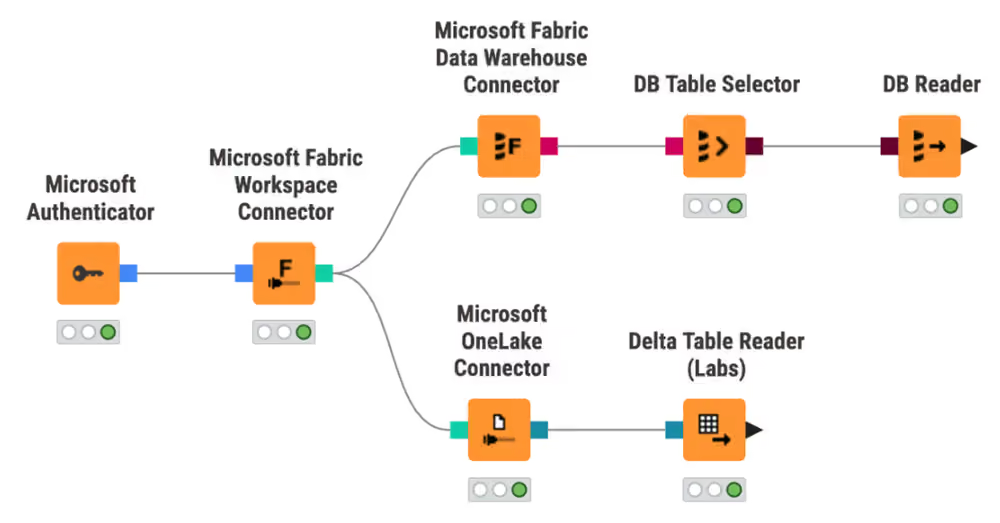
There are two ways to authenticate: with the Microsoft Authenticator node, or with a KNIME Hub secret via the Secrets Retriever node. Both options produce a credential that connects to a Fabric workspace.
Option 1: Microsoft Authenticator node
The Microsoft Authenticator node authenticates to Microsoft Azure services, including Microsoft Fabric. It supports two authentication types: interactive and Application/Service principal.
Interactive authentication
Use interactive authentication for manual workflow runs where a human is present and browser login is available.
- Configure the Microsoft Authenticator node: set Authentication type to Interactive.
- Leave the scope empty.
- In the node configuration, click Login.
WARNING
Interactive authentication does not work for scheduled workflows on KNIME Hub because no human is present to complete the browser login. Use Application/Service principal authentication or a KNIME Hub secret instead.
Application/Service principal authentication
Use this option for scheduled or automated workflows where no user is present.
- Configure the Microsoft Authenticator node: set Authentication type to Application/Service principal.
- Enter the Azure tenant ID or domain.
- Enter the Azure application ID and secret value.
- Leave the scope empty.
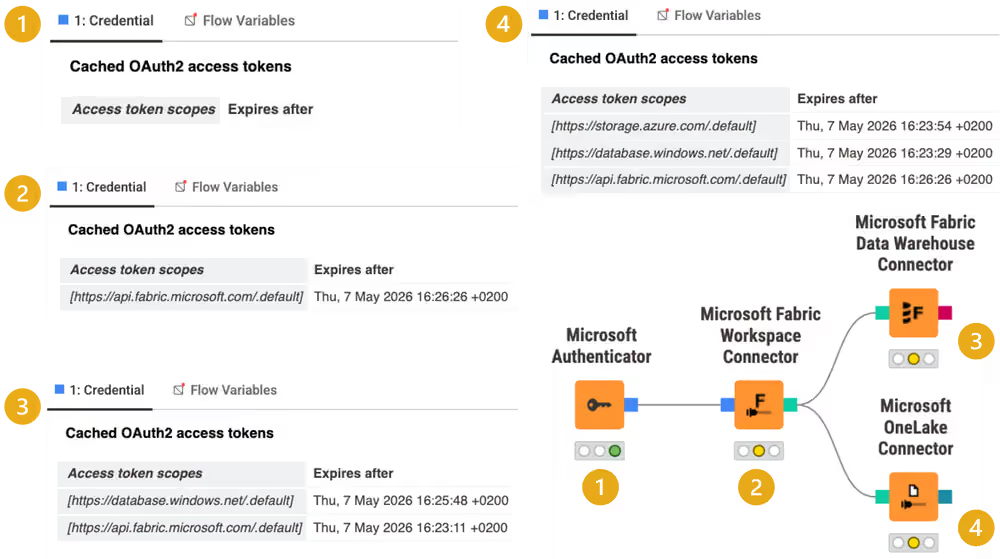
As you connect and execute downstream nodes, the Microsoft Authenticator node automatically fetches the required scopes — https://api.fabric.microsoft.com/.default for the Fabric Workspace Connector, https://database.windows.net/.default for the Data Warehouse Connector, and https://storage.azure.com/.default for the OneLake Connector.
Option 2: KNIME Hub secret
Use the Secrets Retriever node to retrieve a Microsoft secret from the KNIME Hub secret store. This option is well-suited for scheduled workflows — no user interaction is required at runtime. To set up the secret, see Create a secret on KNIME Hub.
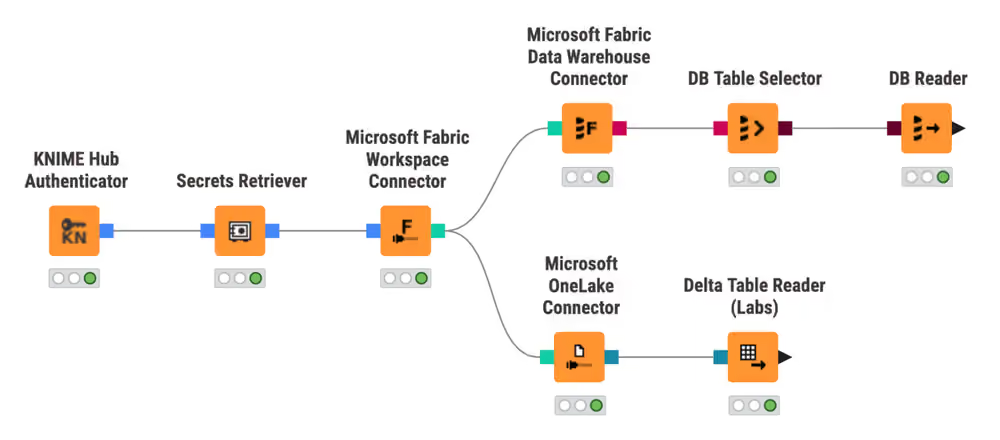
The Secrets Retriever node outputs a credential port you connect directly to the Microsoft Fabric Workspace Connector node. For details on retrieving and using secrets, see Use secrets in a workflow.
Connect to a workspace
Regardless of which authentication option you chose, the next step is connecting to a Fabric workspace. The Microsoft Fabric Workspace Connector node takes the credential output and establishes the connection.
- Connect the output of the Microsoft Authenticator node or the Secrets Retriever node to the Microsoft Fabric Workspace Connector node.
- If your account has access to multiple workspaces, select one in the node configuration.
- Execute the node.
The output is a Microsoft Fabric Workspace Connection, required by:
- Microsoft Fabric Data Warehouse Connector — for structured SQL operations
- Microsoft OneLake Connector — for file-based data lake access
Next steps
- Work with Microsoft OneLake
- Work with Microsoft Fabric Data Warehouse
- See this example workflow on the KNIME Hub for an overview of interacting with different Fabric services and Power BI.