
Enabling Sovereign Execution (On-Premise)
For on-prem KNIME Hub installations, an administrator must enable the feature in the KOTS admin page by checking the Enable Remote Execution checkbox in the Remote Execution section. For instructions on locating and logging into this page, see Access the KOTS Admin Console.
Setting up Sovereign Executors
Preparing a machine to serve as sovereign executor for a KNIME Hub requires the installation of an Executor Agent and an Executor. For more detail on each component, see the Architecture Overview.
The commands in the following sections install a full executor. Check LTS executor images to see which extensions it includes.
Setting up a Sovereign Executor on Linux
Info
Install both the KNIME Sovereign Execution Agent and the KNIME Executor as the same user, using the recommended username knime. This user does not need administrator (root) privileges, and installing without them is safer. No other user requires write permissions to any files created during the installation.
Installing required OS libraries (Linux)
The executor needs extra system libraries for its embedded Chromium browser and the GTK launcher. Many server and cloud images don't include them. If a library is missing, the executor fails to start or exits shortly after it starts.
To find out which libraries your distribution needs, see the CEF required libraries in the Equo documentation.
Install the libraries before you start the agent. This step needs administrator (root) privileges, so run it with sudo as a user with administrator rights. The executor and agent installation steps in the next section run as the non-root knime user. Configuring the optional systemd service also requires administrator privileges.
Installing the Executor and Executor Agent (Linux)
Download and Install KNIME Analytics Platform (v5.8.1 or later):
KNIME Analytics Platform Already Installed?
If you already have an existing KNIME Analytics Platform installation on the machine, you can reuse it and skip the steps below. The executor requires KNIME Analytics Platform 5.8.1 or later, with the KNIME Executor Connector and the KNIME Remote Workflow Editor for Executor extensions installed. The full KNIME Analytics Platform distributions referenced in the steps below already include these extensions by default.
- Download the latest KNIME Analytics Platform version
shellcurl -L -o knime-full-latest-linux.gtk.x86_64.tar.gz https://download.knime.com/analytics-platform/linux/knime-full-latest-linux.gtk.x86_64.tar.gz- Extract the archive into a directory named "knime"
shellmkdir knime && tar xzf knime-full-latest-linux.gtk.x86_64.tar.gz -C knime --strip-components=1- (Optionally) Remove the downloaded archive
shellrm knime-full-latest-linux.gtk.x86_64.tar.gzDownload and Install KNIME Hub Executor Agent:
- Download KNIME Hub Executor Agent version
shellcurl -L -o knime-hub-executor-agent_latest_Linux_amd64.tar.gz https://download.knime.com/knime-hub-executor-agent/knime-hub-executor-agent_latest_Linux_amd64.tar.gz- Extract the archive
shelltar xzf knime-hub-executor-agent_latest_Linux_amd64.tar.gz- (Optionally) Remove the downloaded archive
shellrm knime-hub-executor-agent_latest_Linux_amd64.tar.gz- Make the agent executable
shellchmod +x knime-agentConfigure the Agent:
- Execute the command
shell./knime-agent configure --executor $PWD/knime/You will be prompted for the Hub URL and a connect token provided in the Hub UI.
Important
The value passed to
--executormust be the path to the KNIME Analytics Platform installation directory (the directory containing the knime.ini file). Adjust the path if you bring your own installation or move the installation. An absolute path is recommended in case you want to run the agent as a service.Start the Agent:
- Execute the command
shell./knime-agent startThe status in the Hub UI will change from Offline to Running.
Configuring the Agent as a System Service (Linux)
To ensure the Agent automatically starts upon host restart, create a systemd unit file at /etc/systemd/system/knime-agent.service:
shell
[Unit]
Description=KNIME Hub Executor Agent
After=network.target

[Service]
Type=simple
User=<non-root user>
Group=<non-root group>
WorkingDirectory=<path to the agent>
ExecStart=<path to the agent>/knime-agent start
Restart=always

[Install]
WantedBy=multi-user.target
Setting up a Sovereign Executor on Windows
Installing the Executor and Executor Agent (Windows)
Download and Install KNIME Analytics Platform (v5.8.1 or later):
KNIME Analytics Platform Already Installed?
If you already have an existing KNIME Analytics Platform installation on the machine, you can reuse it and skip the steps below. The executor requires KNIME Analytics Platform 5.8.1 or later, with the KNIME Executor Connector and the KNIME Remote Workflow Editor for Executor extensions installed. The full KNIME Analytics Platform distributions referenced in the steps below already include these extensions by default.
- (Optionally) If the following download is slow, disabling the progress bar might speed it up
powershell$ProgressPreference = 'SilentlyContinue'- Download the latest KNIME Analytics Platform version
powershellInvoke-WebRequest -Uri https://download.knime.com/analytics-platform/win/knime-full-latest-win32.win32.x86_64.zip -OutFile knime-full-latest-win32.win32.x86_64.zip- Extract the archive to folder "knime"
powershellAdd-Type -AssemblyName System.IO.Compression.FileSystem ; [System.IO.Compression.ZipFile]::ExtractToDirectory("$PWD/knime-full-latest-win32.win32.x86_64.zip", "$PWD")- Rename the extracted folder to "knime"
powershellGet-ChildItem -Directory -Filter 'knime-full_*' | Sort-Object LastWriteTime -Descending | Select-Object -First 1 | Rename-Item -NewName 'knime'- (Optionally) Remove the downloaded archive
powershellRemove-Item knime-full-latest-win32.win32.x86_64.zipInstall KNIME Hub Executor Agent:
- Download KNIME Hub Executor Agent version
powershellInvoke-WebRequest -Uri http://download.knime.com/knime-hub-executor-agent/knime-hub-executor-agent_latest_Windows_amd64.zip -OutFile knime-hub-executor-agent_latest_Windows_amd64.zip- Extract the archive
powershellAdd-Type -AssemblyName System.IO.Compression.FileSystem ; [System.IO.Compression.ZipFile]::ExtractToDirectory("$PWD/knime-hub-executor-agent_latest_Windows_amd64.zip", "$PWD")- (Optionally) Remove the downloaded archive
powershellRemove-Item knime-hub-executor-agent_latest_Windows_amd64.zipConfigure the Agent:
- Execute the command
powershell.\knime-agent.exe configure --executor $PWD\knime\You will be prompted for the Hub URL and a connect token provided in the Hub UI.
Important
The value passed to
--executormust be the path to the KNIME Analytics Platform installation directory (the directory containing the knime.ini file). Adjust the path if you bring your own installation or move the installation. An absolute path is recommended in case you want to run the agent as a service.Start the Agent:
- Execute the command
powershell.\knime-agent.exe startThe status in the Hub UI will change from Offline to Running.
Configuring the Agent as a System Service (Windows)
To create a service on Windows, we need to use the Non-Sucking Service Manager (NSSM) package.
TIP
The Non-Sucking Service Manager (NSSM) package is already included in the extensions required for Sovereign Execution. The steps below assume that you use all of the default directory naming and structuring as suggested in our public docs.
Create the service using NSSM
- Execute the command to create a service called KNIMEAgent
powershell.\knime\nssm install KNIMEAgent $PWD\knime-agent.exe startExplicitly set the working directory of the agent
- Execute the command
powershell.\knime\nssm set KNIMEAgent AppDirectory $PWDConfigure the agent to start automatically
- Execute the command
powershell.\knime\nssm set KNIMEAgent Start SERVICE_AUTO_STARTManually start the agent for the first time
- Execute the command
powershell.\knime\nssm start KNIMEAgent
Creating Sovereign Environments
Administrators can create and manage shared sovereign environments on the Global Administration page of KNIME Business Hub.
Additional Option
This is available only for shared execution contexts created by Global Hub admins. It is possible to enable this feature for specific teams via the Hub API.
Create a new execution context from the Global Administration page of KNIME Business Hub (see instructions in the admin guide).
When creating an environment, switch Execution to Remote.
Important
This option can only be set during creation; you cannot change the executor provisioning mode for an existing context.
Configure the options for Data Security. These configurations can be changed after the environment has been created.
Important
To utilize the newly introduced Data Security Settings, updating the Executor to 5.12+ is mandatory in addition to updating the Agent.
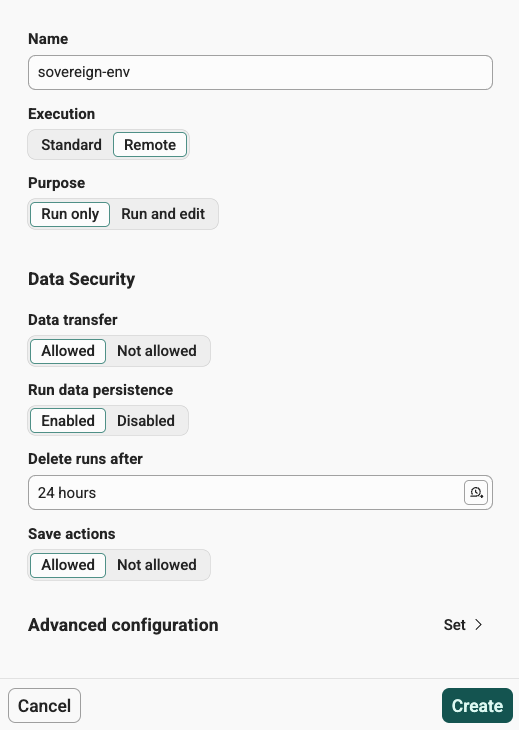
For more information about the different Data Security options, see Data governance & security.
Click Create. After creation, the environment will remain in a Not configured state until the first executor is added.