
Concepts & Architecture
Architecture Overview
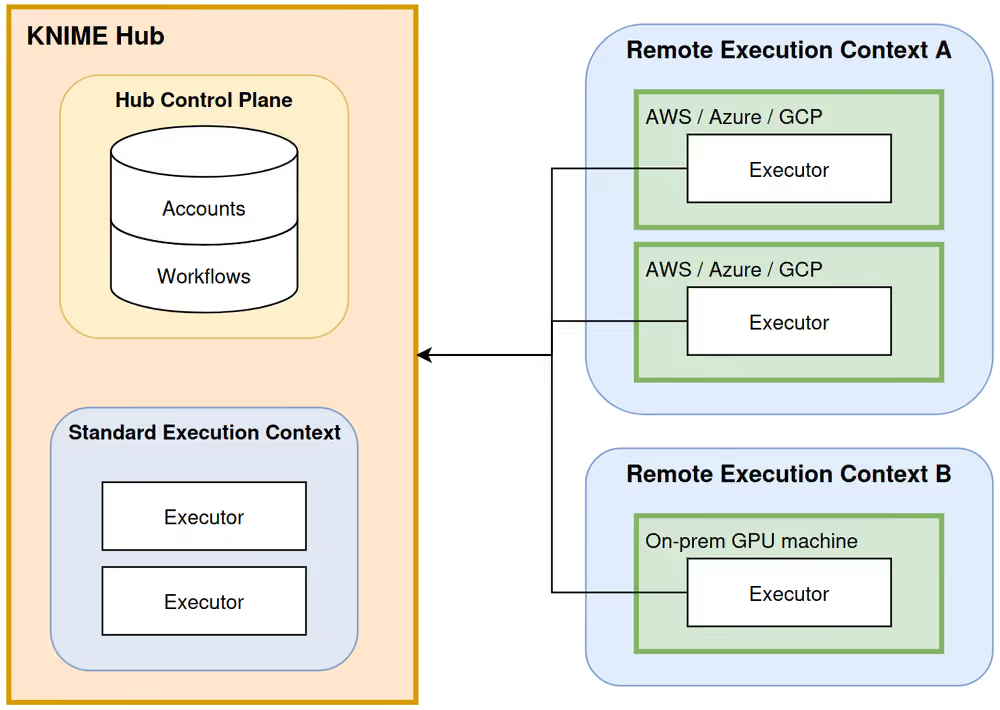
Sovereign execution splits the KNIME environment into two planes:
Control Plane (KNIME Hub): Manages the "Who, What, and When." It stores the workflows, schedules the jobs, and provides the user interface.
Compute Plane (Sovereign Executor): Manages the "How." It consists of the Agent (the communicator) and the Executor (the engine). Executors run in customer-managed infrastructure (physical, virtual, on-prem, or cloud).
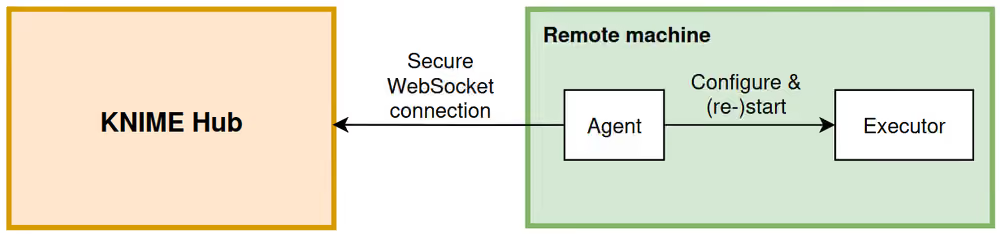
The connection is always outbound from the Agent to the Hub, using Secure WebSockets (WSS). This means you do not need to open any inbound holes in your corporate firewall.
A sovereign executor consists of two cooperating services that run on the same machine:
KNIME Executor: A headless instance of KNIME Analytics Platform that performs the actual workflow execution. It requires the KNIME Executor Connector and KNIME Remote Workflow Editor for Executor extensions.
KNIME Hub Executor Agent: A lightweight agent process that establishes and maintains the connection to KNIME Hub. It is responsible for configuring the executor and starting or restarting the KNIME Executor as needed.
Data governance & security
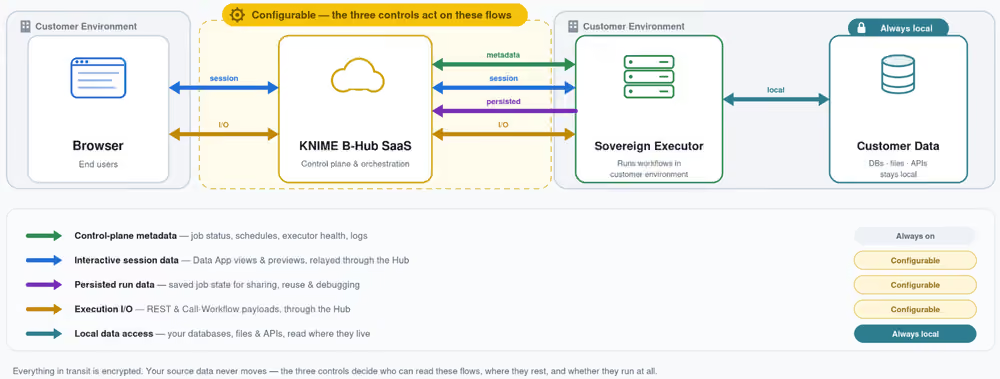
Sovereign execution allows workflows to run in customer-controlled environments. Depending on user actions and configuration, execution data is either persisted in KNIME Hub or routed through it temporarily.
Key architecture guarantee
Source data never moves unnecessarily. Everything in transit is encrypted. The configuration controls decide who can read configurable data flows, where data rests, and whether executions run at all.
Data Categories at a Glance
| Category | Examples | Sensitive | Hub storage behavior | Configurable |
|---|---|---|---|---|
| Control-plane metadata | Job status, schedules, executor health, logs, and metrics | Usually not | Held by KNIME to orchestrate the Hub | No, always on |
| Interactive session data | Data App charts and views, node output previews while you build workflows in the browser | Maybe | Relayed through Hub | Yes |
| Run data | Saved runs, swapped runs for sharing, reuse and debugging. This includes node outputs and embedded data. | Yes | Stored on Hub if enabled | Yes |
| Run I/O | REST request/response, workflow invocation nodes input and output | Yes | Transient for job lifetime | Yes |
Configuration & Data Security Controls
You have the following options to configure the data security:
| Option | Behavior when "Allowed" | Behavior when "Not allowed" |
|---|---|---|
| Data transfer | Any data can flow through Hub. | Not even interactive session data can be streamed through Hub. This disables data apps, REST service deployments, transient run storage, and Hub save actions. |
| Run data persistence | Run data are stored on Hub for a configurable period, so you can inspect or share them later. | Run data and workflow copies are stored only in the executor's memory for a configurable period and are lost on restart. This disables inspecting previous runs after executor restarts, and sharing previous execution results for data apps. |
| Save actions | Users can permanently save data to Hub: saving runs as workflows, embedding run data in edited workflows, and writing files to Hub spaces during a run. | Saving completed runs as new workflows and writing files to Hub spaces using a writer node's relative to space/workflow option are both disabled. |
TIP
You can update these data security settings for sovereign environments at any time, also after environment creation.

Data Storage & Routing Behaviors
1. Persisted Data (Stored on KNIME Hub)
Execution data—such as node outputs and execution state—is saved to Hub under the following conditions:
- Automatic Job Swapping: A job is automatically saved to Hub if it is paused or finished, has not been explicitly discarded, and exceeds the configured Max job time in memory.
- Prevention: Set Run data persistence to Disabled. This way no runs will be swapped from the executor to KNIME Hub.
- Saving a Job as a Workflow: Selecting Save as workflow persists node execution states and post-execution data to Hub.
- Prevention: Set Save actions to Not allowed.
- Browser-Based Workflow Editing: Executing nodes during an active Hub browser editing session persists the state when the session ends.
- Prevention: Disable workflow editing for the sovereign environments by setting Purpose to Run only.
- Implicit Writes: Workflows containing Writer nodes that are configured to write relative to space/workflow will output files to a Hub space intentionally and hence store data on Hub.
- Prevention: Set Save actions to Not allowed. Explicit writing by using a Hub Authenticator and Space Connector node still works.
- REST Service Deployments (Special Case): Workflows deployed as REST services always store input and output data in the Hub database due to the asynchronous request-reply pattern. The Hub holds this data until subsequent status requests fetch the final output.
- Retention: Output data is deleted automatically after the retention window configured in either Delete runs after or Keep runs in executor memory for (depending on your Run data persistence configuration).
- Prevention: Blacklist workflow invocation nodes to disable service deployments entirely.
2. Transient Data (Routed Without Persistence)
Some interactions temporarily relay data through Hub to display results in your browser (e.g., inspecting jobs, editing workflows, or interacting with Data Apps). This transfer is transient and non-persistent.
- Prevention: Set Data transfer to Not allowed. Note that this will disable features like, workflow editing, data apps, REST services, run persistence (job swapping) and any save action.
Any preview or interactive data exceeding 5 MB is temporarily offloaded and buffered in the Hub's object store for the live duration of the job, and it is automatically deleted immediately after the job finishes.
Certificate Authority (CA) Handling
The Agent and Executor manage SSL/TLS certificate trust differently depending on the operating system:
- Linux: Both the Agent and the Executor automatically merge host system CA certificates into their truststore, so workflows, connectors, and HTTPS calls trust system and corporate CAs without manual import steps. See Automatic Truststore Management for the certificate locations and environment variable overrides.
- Windows: No equivalent file-based trust store exists, so CA certificates must be explicitly configured in the Executor's keychain/trust configuration.