Skip to content

Integrate AI in Your Workflows

Prompting a Model

This section of the guide explains how to send a prompt to a Large Language Model (LLM) in KNIME Analytics Platform.

The process follows three steps:

  1. Authenticate
  2. Select
  3. Prompt

This workflow follows the three steps to connect to OpenAI’s GPT-4.1 model and summarize product reviews stored in a .csv file using KNIME:

llm prompter workflow

Install the KNIME AI Extension

To use AI in KNIME workflows, install the KNIME AI Extension. You can do this in two ways:

  • From KNIME Hub: Drag the KNIME AI Extension from the KNIME Hub into your KNIME workspace.
  • From within KNIME Analytics Platform:
    1. Go to Menu from the toolbar.
    2. Select Install extensions.
    3. Search for "AI Extension" and follow the instructions to complete the installation.

Authenticate

Before sending prompts to models, you must authenticate with your chosen model provider. Most providers require an API key or token obtained from your user account.

Authentication typically involves two nodes:

Credentials Configuration node

This node stores credentials as a flow variable for downstream nodes.

In KNIME, a flow variable is a named value that passes data, like credentials or configuration settings, between nodes. Using flow variables makes workflow more flexible and avoids hardcoding sensitive information.

To configure the node:

  • Enter the API key or token in the Password field.
  • Leave the Username field blank
  • If you uncheck Save password in configuration (weakly encrypted), the key is not saved between sessions and must be re-entered when reopening the workflow.

authenticate openai node

The Credentials Configuration node stores the OpenAI API key in the Password field and creates a credentials flow variable for use in downstream authentication nodes.

Authenticator node

Assign the credentials flow variable to the API key field in the authenticator node’s configuration. Provider-specific parameters (such as region or endpoint) may also be required.

authenticate openai

If the credentials are invalid or incomplete, the authenticator node will fail during execution.

Select

After authenticating, use the appropriate connector node to select the model you want to prompt.

The Selector nodes allow you to:

  • Select models from commercial APIs (OpenAI, Gemini, Anthropic, etc.)
  • Connect to models hosted on KNIME Hub, or running locally via GPT4All.

Model selection parameters

  • Max New Tokens / Max Response Length: maximum response size.
  • Temperature: controls output randomness (0 = deterministic, higher = more creative).
  • Advanced Settings: additional parameters such as Top-p Sampling, Seed, or Parallel Requests.

select openai

For a full overview of supported providers, available authenticator and selector nodes, required credentials, and example workflows, see the Provider Reference Table.

Prompt

Prompting means sending text instructions to a language model to perform specific tasks. Depending on the node you use, the model can generate text, answer questions, extract information, or return vector representations of the input.

In KNIME, a prompt is simply a string of text. You can create these strings using nodes such as Expression, String Manipulation, or Table Creator.

The KNIME AI extension features three prompting nodes:

LLM Prompter

The LLM Prompter node sends simple text prompts to a language model and returns the model’s response as text. It is used for one-shot prompting that does not require conversation history.

Common use cases:

  • Classification
  • Summarization
  • Rewriting
  • Extraction
Example: Summarize Product Reviews

You receive product reviews that are too lengthy so you decide to summarize them. The input data looks like this:

IDComment
1The product arrived on time…​ user-friendly.
2The product arrived on time…​ every day.
3I bought this as a gift…​ other family members.

1. Read the data

Use the CSV Reader node to load this table into your KNIME workflow. Each review is stored as a string in the comment column.

view_review

2. Create the prompts

Use the Expression node to build this prompt:

string("You are a product quality expert.\\n" +
       "Summarize these reviews with 10 to 15 characters:\\n" +
       $\["Review"\])

This creates a new column called prompt that contains the instruction for each row.

show prompt

3. Authenticate to OpenAI

Use the Credentials Configuration and the OpenAI Authenticator node to provide your API key.

authenticate openai

4. Selecting a model

Use the OpenAI LLM Selector node to choose the model you want to use.

select openai

5. Prompt

The LLM Prompter node reads the Prompt column, sends it to the model, and stores the model’s reply in a new column called Response.

llm promtper dialogue

To receive structured JSON responses, make sure the selected model supports JSON mode. Also, select JSON as the Output format in the node configuration and explicitly request the JSON format in the prompt itself. In many cases, it helps to include a few examples of the expected structure directly in the prompt to ensure output quality.

llm prompter results

At the end of the workflow, the LLM Prompter node outputs a new column called Response. Each row contains a summary generated by the model based on the corresponding customer review.

LLM Chat Prompter

The LLM Chat Prompter node allows chat-style prompts to a language model. Unlike LLM Prompter, it accepts conversation history as input to provide context for generating responses.

The LLM Chat Prompter node does not automatically manage multi-turn conversations. The full conversation history must be provided as input for every execution if previous context is required.

Configuration
  • System Message (optional): defines assistant behavior, e.g., "You are a helpful customer support agent."
  • New User Message (optional): appends a new user message.
  • Output Format: Plain text or JSON.
  • Message Column: column containing KNIME Message type (role, message).

llm_chat_promtper_dialogue

Inputs

The node accepts two additional input ports:

  • Conversation History (optional):

    A table containing previous conversation messages in KNIME’s Message format. These messages will be used as context for the current prompt. The node does not automatically manage multi-turn sessions. The full history must be maintained externally and provided again on each node execution if previous context is required.

  • Tool Definitions (optional, advanced):

    A table containing tool definitions in JSON format. These definitions enable tool calling functionality. Tool definitions are explained in detail in the Agents workflow section of this guide.

Example: Customer Care Quality Checker

You want to evaluate a conversation between a user and an AI. The input data looks like this:

RoleMessage
userMy internet keeps disconnecting randomly.
aiI’m sorry for the inconvenience. Have you tried restarting your router?
userYes, I have restarted it multiple times.
aiUnderstood. Are all the indicator lights on your router functioning normally?
userYes, everything looks fine.
aiThank you for confirming. It could be a line issue. I recommend checking with your internet provider.
userI contacted them already, but they said everything seems fine on their side. The problem still persists.

1. Create conversation history

The Table Creator node builds a conversation table with two columns: Role and Text. This simulates previous turns between the user and the AI assistant.

llm_chat_prompter_table

2. Convert to Message type

The Message Creator node transforms the conversation table into KNIME’s Message data type.

The input table already contains a column named Role. In the configuration dialog, select this column under Role Column.

The message text is already in a column containing the conversation content. Select this column under Text.

message type dialogue

After configuring the node, this creates a new column named Message, which contains the KNIME Message data type.

This column combines both role and message content in a format required by downstream nodes such as the LLM Chat Prompter.

3. Filter Message column

The Column Filter node keeps only the Message column for input into the LLM Chat Prompter.

filter conversation

4. Authenticate to OpenAI

The Credentials Widget and OpenAI Authenticator nodes manage authentication.

5. Select a model

The OpenAI LLM Selector node selects gpt-4o-nano as LLM.

6. Prompt

The LLM Chat Prompter node appends the new user instruction to the provided conversation history and requests a response from the model.

  • System Message:

    You are a customer care quality checker.
  • New User Message:

     Was the interaction useful for the user? Only output 'useful' or 'not useful'.

chat_model_promtper_result

Text Embedder

The Text Embedder node converts text into embeddings, which are numerical vectors that capture the meaning of the text.

What is a vector

A vector is a list of numbers representing a text in mathematical space. Texts with similar meaning are placed close together in this space, even if they use different words. For example, dog and puppy would be represented by nearby vectors. Embeddings allow models to compare meaning, group similar texts, and search based on semantics rather than simple keyword matching.

Node Output

The node processes each row of the input table and creates a new vector column containing the embedding. Each embedding typically contains hundreds or thousands of numeric values. Unlike the LLM Prompter node (which generate natural language text), the Text Embedder produces purely numeric embeddings, fully compatible with distance calculations, clustering, and dimensionality reduction operations in KNIME.

Common use cases:

  • Semantic search: finding texts with similar meaning
  • Clustering: grouping texts into categories
  • Similarity scoring: measuring how close two texts are in meaning
Example: Job Candidate Similarity Plot

You want to find the best matching candidate for a machine learning specialist position that requires a deep knowledge of NLP, reinforcement learning, and experience with large language models.

The input data looks like this:

CandidateCV Text
Candidate 1Senior data scientist with 5 years in NLP and deep learning. Experienced in Python, TensorFlow, and cloud computing.
Candidate 2Business analyst with expertise in market research, Excel, and customer insights. Limited programming experience.
Candidate 3Data engineer skilled in ETL pipelines, big data processing, Spark, and distributed systems.
Candidate 4Machine learning researcher specialized in natural language understanding, reinforcement learning, and generative models.
Candidate 5Software developer with strong background in Java, web development, and full-stack applications.
Ideal ProfileLooking for a machine learning specialist with deep knowledge of NLP, reinforcement learning, and experience with large language models.
1. Read the data

The CSV Reader node loads the table of CVs and the ideal profile into KNIME.

2. Authenticate

The Credentials Configuration node stores the OpenAI API key. The OpenAI Authenticator node uses these credentials to authenticate with the OpenAI service.

3. Select

The OpenAI Embedding Model Selector node selects the embedding model text-embedding-3-small that will be used to generate embeddings.

4. Prompt (Generate embeddings)

The Text Embedder node converts each CV text into an embedding vector using the selected embedding model.

5. Reduce dimensions

Embeddings are high-dimensional vectors that cannot be directly plotted. The Split Collection Column node separates the vector into individual numeric columns. Then, the PCA node reduces the many dimensions down to two, making the embeddings suitable for 2D visualization.

6. Plot Results

The Scatter Plot node displays how closely each candidate matches the ideal profile based on semantic similarity.

text_embedder_workflow

The KNIME workflow that compares candidate profiles using embeddings and plots the results

ProfileSummary
Ideal ProfileLooking for a machine learning specialist with deep knowledge of NLP, reinforcement learning, and experience with large language models.
Candidate 4Machine learning researcher specialized in natural language understanding, reinforcement learning, and generative models.

The plot shows that Candidate 4 is closest to the ideal profile, confirming semantic similarity between their experience and the target profile.

similarity_plot

Image Generator

The KNIME AI Extension provides two nodes for image generation and editing:

Supported models:

  • OpenAI: DALL-E 3 (generation), GPT Image 1 (generation & editing)
  • Gemini: Gemini (generation & editing), Imagen (generation only)

Typical use cases:

  • Creating visuals from text
  • Editing images with instructions
  • Generating concept art or marketing assets

The OpenAI Image Generator node requires PNG files as input. Always convert images to PNG format before using this node.

Image generation is more expensive than text generation. See OpenAI and Gemini for pricing.

Example: Product Catalog & Color Variant Generator

This example shows how to create a synthetic product catalog with realistic listings and automatically generated color variants.

The input data is stored in a SQLite database, with images as binary objects:

Sample Product Catalog Table (SQLite)

The product catalog is stored in a SQLite database. Each row contains product details and a binary object representing the image (hex preview shown):

Product Name...Binary Object (hex preview)
Green Water Bottle...00000010 00 48 00 00 FF E2 0C 58 49 43 43 5F 50 52 4F 46 ...
Ceramic Vase...00000010 00 48 00 00 FF E2 0C 58 49 43 43 5F 50 52 4F 46 ...
Lipstick...00000010 00 48 00 00 FF E2 0C 58 49 43 43 5F 50 52 4F 46 ...
Bath Towel...00000010 00 48 00 00 FF E2 0C 58 49 43 43 5F 50 52 4F 46 ...

Each binary object contains the image data for the product, which can be used for generating color variants or editing with the image generator nodes.

1. Access catalog images

Load images from the SQLite database. Convert binary objects to PNG using the Binary Object to PNGs node. This step is essential for compatibility with the OpenAI Image Generator node.

image_generator_bottle_before

2. Authenticate

Use the Credentials Widget and OpenAI Authenticator nodes to provide your API key.

3. Create prompts for new colors

Store new color values in a Table Creator node. Use the String Manipulation node to build prompts such as:

Recolor the product in the picture to {color}. Keep the same style and lighting.
4. Generate new images

The OpenAI Image Generator node processes the prompts and PNG images to create new color variants of the same product.

5. View results

The Image View node displays the generated product images.

KNIME workflow for generating synthetic product catalog images with color variants:

image_generator_bottle_after

Provider Reference Table

AuthenticatorSelector(s)Required CredentialsProvider LinkExample Workflow
OpenAI AuthenticatorOpenAI LLM Selector
OpenAI Embeddings Model Selector
OpenAI API key
OpenAI base URL (optional)
OpenAIworkflow
Google AI Studio AuthenticatorGemini LLM Selector
Gemini Embedding Model Selector
Google AI Studio API keyGoogleworkflow
Anthropic AuthenticatorAnthropic LLM SelectorAnthropic AI keyAnthropicworkflow
IBM watsonx.ai™ AuthenticatorIBM watsonx.ai LLM Selector
IBM watsonx.ai Embedding Model Connector
IBM watsonx.ai API key
Project or space connection
IBMworkflow
DeepSeek AuthenticatorDeepSeek LLM SelectorDeepSeek API key
Base URL (optional)
DeepSeekworkflow
Google AI Studio AuthenticatorVertex AI connectorGoogle Cloud’s Project ID
Google Cloud’s Location
Vertex aiworkflow
Databricks Workspace ConnectorDatabricks LLM Selector
Databricks Embeddings Model Selector
Databricks workspace URL
Personal access token
Databricksworkflow
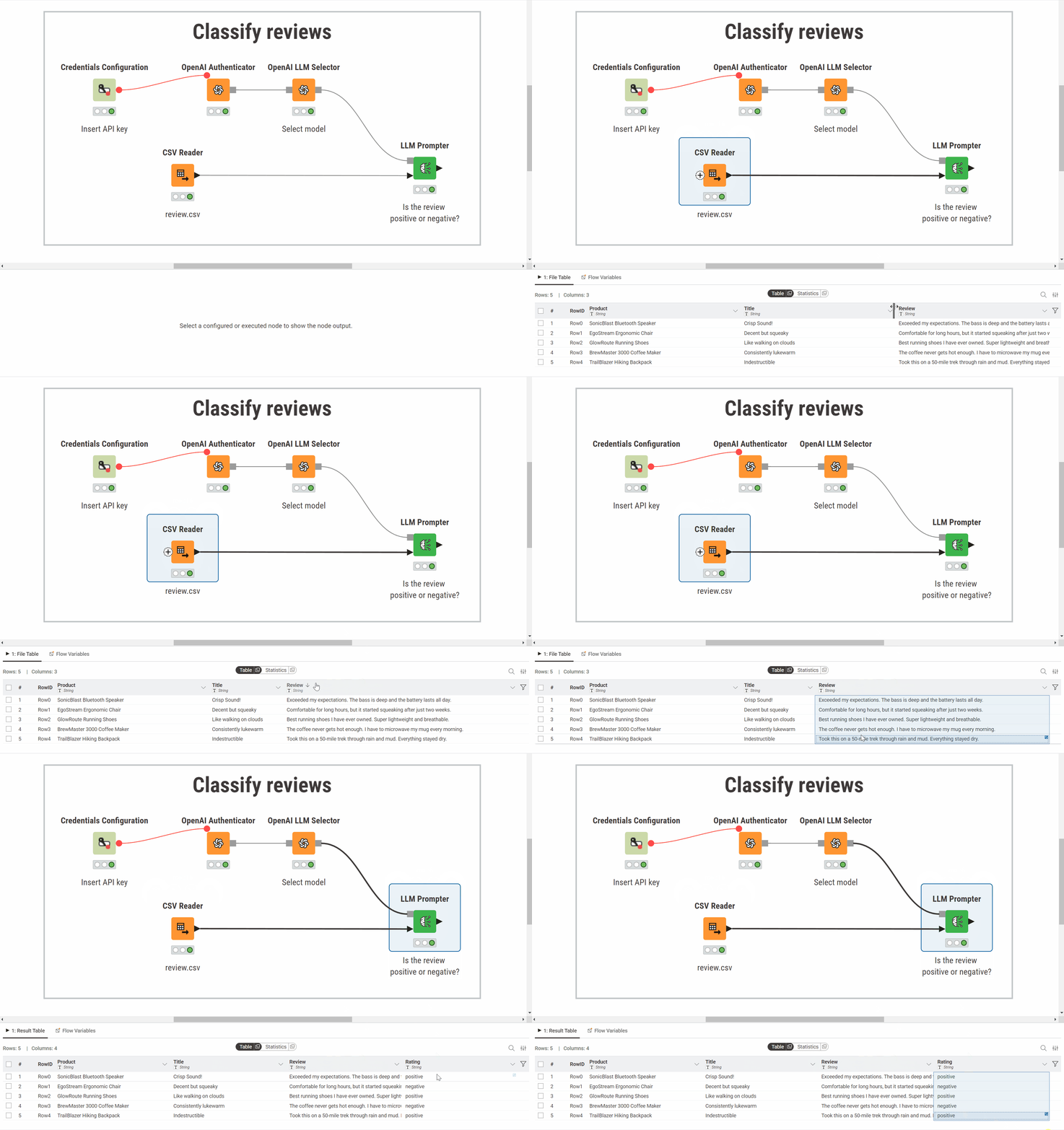
HF Hub AuthenticatorHF Hub LLM Selector
HF Hub Embeddings Model Selector
HF TGI LLM Selector
HF TEI Embeddings Model Selector
Hugging Face API keyHugging Faceworkflow

Retrieval-Augmented Generation (RAG) in KNIME

Large language models (LLMs) are powerful but limited. They do not have access to private documents or real-time information, and cannot easily be updated with new knowledge. Retrieval-Augmented Generation (RAG) solves this by injecting external information into the prompt at query time.

To build a RAG pipeline in KNIME:

  1. Connect to model provider

  2. Create a vector store

  3. Retrieve context

  4. Generate response

rag_pipeline_knime

Four phases of a RAG pipeline in KNIME: connect to a model, create a vector store, retrieve relevant content, and generate a grounded response.

Connect to Model Provider

Before retrieving documents or generating responses, connect to a language model provider and select an embedding model.

Use the following nodes:

For a full list of supported models, see the Provider Reference Table.

Create Vector Store

A vector store is an index of embeddings that enables semantic search by mapping documents to numerical vectors. KNIME supports two backends:

  • FAISS: Flat file–based index optimized for fast, local retrieval.

  • Chroma: JSON + SQLite format with support for metadata and document collections.

To build the vector store, use one of the following nodes:

  • FAISS Vector Store Creator

    Generates a FAISS index using the selected embedding model. You can also use a column with precomputed embeddings instead of generating them in-node.

  • Chroma Vector Store Creator

    Creates a Chroma store with optional metadata for advanced filtering or grouping. Supports both inline and precomputed embeddings.

To reuse a vector store across workflows:

Chroma has updated its data layout. Older vector stores may require temporary copies at load time. Use the Vector Store Data Extractor node to migrate existing data into a new store.

Retrieve Context

Once your documents are indexed in a vector store, you can retrieve the most relevant entries for a user query.

In the example workflow above, the vector store is created in-memory using the FAISS Vector Store Creator node and passed directly to the retriever.

If instead you want to reuse a saved vector store (e.g., from disk or another workflow), use one of these nodes to load it:

Then, follow these steps:

  1. Input the user query

    Use the Table Creator node to simulate the user’s question. This creates a string column representing the input query. Any node that outputs a string is valid here.

  2. Retrieve relevant context

    Connect the query to the Vector Store Retriever node. It embeds the query using the same model as the vector store and returns the most semantically similar results.

The output provides the contextual documents that will ground the LLM’s final response.

Generate Response

After retrieving the context, prepare the final prompt by merging the results into a single string.

 joinSep("\n\n",
"You are an helpful assistant for a cutting-edge company",
"Use the following pieces of context from a list of FAQ questions about the company",
"If you don't know the answer, just say that you don't know, don't try to make up an answer.",
"Context from the FAQ list:",
join("{",joinSep("\n\n",$Retrieved documents$),"}"),
join("Question: {",$Question$,"}"),
"Helpful Answer:")

rag_prompt

  • Send the full prompt (question + retrieved context) to the LLM using: LLM Prompter

The final answer is stored in a column named Response:

final_rag

Example: Product FAQ Assistant with RAG

You want to build an assistant that can answer questions about your company’s products and services. To do this, you decide to use a Retrieval-Augmented Generation (RAG) architecture, with a file containing Frequently Asked Questions (FAQs) as your knowledge base.

rag_architecture

Sample FAQ data (CSV)

This is what the file containing FAQs looks like:

IDFAQ
1What is the return policy? You have the right to return a product within 30 days
2How can I reset my password? You can reset your password by clicking 'Forgot Password' on the login page and following the instructions.
3Do you offer international shipping? Yes, we ship to over 50 countries. Shipping times and fees vary depending on the destination.

Workflow: FAQ Product Assistant

This workflow implements Retrieval-Augmented Generation (RAG) on a product FAQ file. It includes three main steps: authentication, vector store creation, and retrieval-augmented generation.

rag_workflow

The workflow that uses a RAG architecture to answer FAQs

1. Authenticate

2. Create Vector Store

vector_store_dialog

3. Retrieval Augmented Generation (RAG)

Retrieval

  • Load Vector Store

    The Model Reader node loads the saved Vector Store from disk. The FAISS Vector Store Reader node brings the store into memory.

  • Provide user query

    The Table Creator node simulates a user query.

  • Generate query embedding

    The OpenAI Embeddings Connector node generates an embedding for the user query using the same embedding model.

  • Retrieve similar entries

    The Vector Store Retriever node compares the query embedding against the stored embeddings to retrieve the most similar FAQ entries. In this example, the number of retrieved results is set to 1 due to the small dataset. In real use cases, retrieving multiple results can improve grounding by providing the model with more context.

vector_store_retriever

Augmentation

  • Prepare context

    The String Manipulation node merges multiple retrieved FAQ answers into a single string using:

 joinSep("\n\n",
"You are an helpful assistant for a cutting-edge company",
"Use the following pieces of context from a list of FAQ questions about the company",
"If you don't know the answer, just say that you don't know, don't try to make up an answer.",
"Context from the FAQ list:",
join("{",joinSep("\n\n",$Retrieved documents$),"}"),
join("Question: {",$Question$,"}"),
"Helpful Answer:")

This creates a combined context block for the language model.

rag_prompt

Generation

  • Send Prompt to model

    The LLM Prompter node sends both the user question and the retrieved FAQ context to the language model.

  • Output Response

    The model’s reply is written into a new column called Response.

final_rag

Agentic AI in KNIME

An agent in KNIME is a workflow that uses a large language model (LLM) to solve tasks. It can read a user’s request, think step by step, and run other workflows, called tools, to complete the task.

To build an agentic workflow in KNIME Analytics Platform, follow these steps:

  1. Connect to LLM provider

  2. Access tools

  3. Prompt agent

  4. Provide data input (optional)

The architecture of an agentic workflow in KNIME:

agentic_workflow

Connect to LLM Provider

To give your agent reasoning capabilities, connect it to an LLM.

KNIME provides dedicated nodes for this:

  • Authenticator nodes (e.g., OpenAI Authenticator)

    Stores your API key or token to access the chosen language model provider.

  • LLM Selector nodes (e.g., OpenAI LLM Selector):

    Lets you select the language model (e.g., GPT-4.1-nano) that powers the agent’s reasoning process.

For supported models and configuration tips, see the LLM reference table.

Access Tools

Tools are callable workflows that perform individual subtasks, like answering a question, checking a condition, or transforming a dataset.

To make tools available to the agent, use:

  • List Files/Folders node

    Scans the folder where your tool workflows are saved (.knwf files).

  • Workflow to Tool node

    Converts each workflow into a tool the agent can reason about.

This step ensures the agent knows:

  • What each tool does (via its description).
  • What inputs it needs (parameters or datasets).
  • What output it returns (messages or tables).

For guidance on how to structure a tool workflow, see the section Turn a Workflow Into a Tool.

Prompt Agent

After connecting a language model and registering tools, you can prompt the agent to begin reasoning. KNIME provides two nodes for this:

Each supports different use cases, as described below.

Agent Prompter node

Use the Agent Prompter node to start the agent’s reasoning loop from within a workflow.

This node is best for automated execution or debugging single prompts in workflows, without user interaction.

agent_inputs

The node takes the following inputs:

  • System Message: defines the agent’s role, behavior, or rules. Example: "You are a support agent answering product questions."
  • User Message: the actual task or question to solve. Example: "What is the warranty for product X?"
  • Tool List: the set of available tools, generated using the Workflow to Tool node.

Agent Chat View node

To make your agent interactive, use the Agent Chat View node. This opens a live chat interface where users can talk to the agent, ask questions, and receive responses in real time.

Use this node when you want to build an assistant-style interface for end users.

agent_chat_view

This node takes:

  • System Message: defines the agent’s role, purpose, and behavior for the conversation.
  • Tool Column: a column with the list of available tools (from the Workflow to Tool node)
  • Initial AI message (optional): a greeting or opening message to show before the user sends anything Example: “Hey, how can I help you today?”

During execution, users can type questions or requests. The agent reasons through the request, uses tools if needed, and responds in real time.

You can also choose what users see:

  • If you tick Show tool calls and results, the interface displays the full conversation. This includes the internal reasoning, tool usage and responses.
  • If you leave it unticked, the user sees only the agent’s final replies, making the interaction feel more like a typical assistant chat.

You can embed the Agent Chat View inside a component, then deploy it to KNIME Hub to make your agent available as an interactive service for end users.

If a tool workflow includes nodes that generate views (e.g., Scatter Plot), the agent can call the tool, and the resulting view will be displayed in the chat interface. This functionality is currently not compatible with KNIME Business Hub versions 1.15 and earlier.

Input Data

Some tools operate on data tables. For example, filtering records, analyzing reviews, or generating summaries. In these cases, the agent must pass data to the tool and optionally retrieve the result after processing.

By default, the Agent Prompter and Agent Chat View nodes do not include data ports.

To enable data exchange:

  1. Click the node in the workflow editor.
  2. Select the plus icon that appears.
  3. Choose Add Input Port or Add Output Port, and select a data table type.

The Agent Prompter node allows both input and output ports. The Agent Chat View supports input only.

Note that the agent itself never inspects the table directly. Instead, it calls a tool that processes the data and returns a result. The agent then uses that result to continue reasoning.

For details on how data flows through tools, see the dedicated section on the data layer.

How to create Tools

For an agent to use a workflow as a tool, the workflow must be structured in a way that the agent can understand and execute. This section shows how to prepare a KNIME workflow so the agent can reason about it, pass in inputs, and retrieve results.

Each Tool interacts with the agent through two layers:

  1. Communication layer

    Handles the exchange of messages between the agent and the tool. It enables the agent to decide which tool to use, why, and how, based on user intent and the task at hand.

  2. Data layer

    Manages the actual flow of data. Although the agent cannot directly view data tables, it can activate tools that operate on data in the background and return results.

tool structure

Communication layer: Guide the Agent’s reasoning

Describe Tool behavior for the Agent

Each tool must include a clear description in the workflow’s Info section. The agent reads this description to determine when and how the tool should be used.

The description should include:

  • What the tool does
  • What inputs it expects
  • What it returns
  • The kinds of requests it can handle

A precise description improves the agent’s ability to reason about which tool to use in response to a user’s request.

tool description

Return Results to the Agent

To send back reasoning-relevant feedback to the agent, use the Tool Message Output node.

  • Add this node when the tool needs to return a message the agent can read and reason with.
  • Leave it out if the tool returns only structured data.

The node reads the first cell (row 1, column 1) of its input table and sends it as the result message to the agent.

Use it to return:

  • Summaries of processed data.
  • Key findings or confirmations.
  • Intermediate reasoning steps.

message_creator_table

Let the Agent Set Parameters

Use KNIME Configuration nodes (such as String Configuration, Integer Configuration) to define adjustable parameters.

Each parameter should have:

  • A clear name (used as a variable)
  • A short description explaining what it controls

The agent uses this metadata to assign values to parameters dynamically.

tool_parameter

Data layer: automate data flow

Define what data the Tool uses and returns

Use the Workflow Input node to specify the structure of data input in a tool.

In the node configuration dialog, add a clear description of the input table that the tool expects. Be sure to include column names and data types.

Use the Workflow Output node to describe the data produced by the tool.

Providing a description of the output table helps the agent understand how to use the result.

workflow io combined

The agent does not access raw data. Instead, it can call tools that handle data processing and return summaries or structured results.

Make Tools discoverable for the Agent

Once your Tool workflows are ready, you need to register them so the agent can find and use them.

To do this:

  1. Place all Tool workflows in a single folder.
  2. In the same directory, create a new workflow to act as the tool registry.
  3. Use the List Files/Folders node to read all workflows in the folder.
  4. Pass the list to the Workflow to Tool node to convert each one into a callable Tool.

The output of the Workflow to Tool node includes metadata for each Tool, helping you verify they are correctly set up:

  • description icon shows whether a description is present.
  • parameter icon shows how many parameters are defined.
  • ports icon shows how many data inputs and outputs are available.

This makes it easy to check at a glance whether tools are complete and ready to use.

tool_list

Checklist: What You Need to Build an Agent

StepTaskAction
1. Design ToolsDescribeAdd a clear workflow description (task, inputs, outputs, parameters) in the Info panel.
Parameters (optional)Use Configuration nodes with clear names and descriptions for each parameter.
Communication LayerAdd Tool Message Output for agent-readable results.
Data Layer (optional)Add Workflow Input and Workflow Output nodes if the tool processes data tables.
2. Build Tool ListPrepare WorkflowCreate a separate workflow to collect and register tools.
List ToolsUse List Files/Folders to scan the folder with tool workflows.
ConvertUse Workflow to Tool to generate the tool list.
VerifyCheck metadata icons for description, parameters, and data ports.
RefreshAfter modifying any tool, save the workflow and re-run Workflow to Tool.
3. Configure AgentAgent PrompterUse Agent Prompter to provide system/user message and tool list.
Data PortsManually add input/output ports if tools require external data.
4. Deployment (Optional)Interactive ViewUse Agent Chat View for live conversations.
DeploymentWrap as a KNIME Component and deploy via KNIME Business Hub.

Example: Build a Restaurant Assistant Agent

This example walks you through the process of building a restaurant assistant agent using the KNIME AI Extensions. The assistant is designed to support restaurant staff by handling common tasks through simple, conversational language.

Each step adds a new concept, starting with a simple tool and gradually introducing parameters, conditional logic, and data handling.

By the end, the agent will be able to:

  • Answer questions about allergens with Tool 1
  • Handle reservation requests with Tool 2
  • Suggest alternative booking options with Tool 3
  • Analyze customer reviews with Tool 4

Tool 1: Answer Allergen Questions (Communication layer)

This first tool introduces the simplest type of agent interaction: a tool that uses only the communication layer. It requires no parameters and no data input.

When a user asks a question about allergens, the agent can call this tool to retrieve a predefined string containing allergen information. The agent then uses this information to formulate its response.

1. Design the Tool

The tool workflow contains only two nodes:

  • Table Creator node

    Use this node to create a one-row, one-column table containing allergen details for each menu item.

    Enter the following string as the table content:

    Grilled Chicken: Gluten: No, Dairy: No, Nuts: No, Shellfish: No, Fish: No, Sesame: No
    Salmon Teriyaki: Gluten: No, Dairy: No, Nuts: No, Shellfish: No, Fish: Yes, Sesame: Yes
    Shrimp Tacos: Gluten: No, Dairy: Yes, Nuts: No, Shellfish: Yes, Fish: No, Sesame: No
    Vegan Burger: Gluten: Yes, Dairy: No, Nuts: No, Shellfish: No, Fish: No, Sesame: No
    Chocolate Cake: Gluten: Yes, Dairy: Yes, Nuts: Yes, Shellfish: No, Fish: No, Sesame: No
    Pad Thai: Gluten: No, Dairy: No, Nuts: Yes, Shellfish: No, Fish: No, Sesame: Yes

    The agent will use this information to answer questions like: “Does the grilled chicken contain sesame?” or “Which dishes are gluten free?”

  • Tool Message Output node

    This node converts the table content into a message that the agent can read.

In the configuration dialogue, rename the parameter name to allergens. This makes it clearer for the agent to understand what kind of information is being returned, especially when multiple tools are available.

rename tool message

2. Describe the Tool

Once the workflow logic is complete, the last step is to describe the tool so the agent knows when to use it. This description is added in the Workflow Description field, found under the Workflow Info panel in KNIME Analytics Platform.

The agent will rely on this description to decide whether the tool matches a user’s question. The more precise and informative the text, the more likely the agent will use the tool effectively.

Use the following:

Tool name: allergens\_information
Description: This tool returns a string containing information about the restaurant's dishes and their allergens. It can answer questions such as:
"Does the grilled chicken contain sesame?"

Once added, this description becomes part of the tool’s metadata and will be picked up during registration via the Workflow to Tool node.

description entered tool

Tool 2: Handle Booking Requests (Parameters)

This tool introduces parameterized tool calls. The agent reads the user request (e.g. the number of people and the desired date), extracts this information, and sends it as parameters to the tool workflow.

1. Add Parameters to the Tool

This tool uses two parameters:

  • number_people: the number of seats the user wants to book
  • booking_date: the requested date for the reservation

By giving each parameter a clear name and a short description, you help the agent understand what values to extract from the user’s request.

Example:

User input: I need a table for two people for 6/25/2025.

Extracted parameters:

  • number_people: 2
  • booking_date: 2025-06-25
2. Check the Dataset

The tool works with a table of current availability, stored in a file called restautant_reservations.csv.

The table includes:

Table IDSeatsDateTimeAvailable
T122025-06-2419:00Yes
T242025-06-2419:00Yes
T362025-06-2419:00No
T442025-06-2420:00Yes
T522025-06-2421:00Yes
3. Design the Tool

Configure parameters

Use:

Make sure both parameter nodes include descriptive labels and short explanations. This helps the agent understand what information to pass.

Merge the two parameters with a Merge Variable node to use them in the filtering logic.

integer parameter

Filter results

Use an Empty Table Switch node to handle two paths:

  • If matching tables are found:

    • Top K Row Filter node selects one available table.
    • Update .csv Metanode updates the restaurant_reservations.csv file by overwriting it, changing the table’s availability from "Yes" to "No" to register the booking.
    • Expression creates a confirmation message:
      string("The booking for table " + $\["Table ID"\] +
      " with " + $\["Seats"\] + " people, on " + $\["Date"\] +
      " was confirmed!")
    • Column Filter keeps only the message column
  • If no table is available:

    • Table Creator creates the fallback message: "No tables are available for the desired date."
    • Column Filter keeps only the message column.

Join the two branches with an END IF node to return a single result. Configure the Communication Layer

To provide a clear response to the agent, use the Tool Message Output node at the end of both workflow branches. Set the parameter name to table_availability so the agent can easily interpret the result.

This setup ensures the tool always returns a single message—either a booking confirmation or a notification that no tables are available—regardless of which path is taken. The workflow merges both outcomes into one output, making the agent's reasoning and response process straightforward.

The Table Availability tool workflow includes two branches (available or unavailable), both ending with a unified message output:

tool two branches

4. Describe the Tool

Once the tool workflow is complete, add a description in the Workflow Info panel. This helps the agent understand when to use it.

Use the following:

This tool handles reservation requests by checking table availability.

It accepts two parameters:

- number_people: number of seats requested.
- booking_date: reservation date.

If a table is available, the tool confirms the booking and returns a message. If not, it sends a fallback message.

Tool 3: Propose Alternative Booking Dates (Concatenate tools)

This tool builds on the previous one by offering a fallback. If no tables are available on the requested date, the agent can use this tool to check availability for the next day and suggest an alternative.

1. Add parameters

The tool uses the same parameters as Tool 2:

  • number_people
  • booking_date

Use configuration nodes to collect these values. Then, apply a Date&Time Shift to move the booking_date one day forward.

Here is the parameter configuration of Propose Alternative tool:

add one parameter

A Date&Time Shift adds one day to the requested reservation date to search for availability on the following day.

2. Workflow Design

The workflow is similar to Tool 2, with a key difference: it checks table availability for the day after the original request. If an alternative table is found, the tool returns a suggestion like: “There is an alternative for the day after where table T2 with 4 people, on 2025-06-25 is free.” If nothing is available, the tool returns a fallback message. This tool does not confirm bookings. It only proposes alternatives.

Here is the complete workflow of the Propose Alternative tool:

tool three workflow

3. Communication layer

Use the Tool Message Output node to return the message. Set the parameter name to alternative_booking.

4. Describe the Tool

Go to the Workflow Info panel and add:

Tool name: alternative_booking

Description: This tool suggests alternative booking options if the requested date is fully booked. It checks for availability on the following day and returns a suggestion if an open table is found.

Tool 4: Analyze Customer Review Sentiment (Data Layer)

This tool introduces the data layer. It processes a table of customer reviews, analyzes the sentiment of each review using an LLM, and returns:

  • A short message with the number of positive and negative reviews.
  • A data table where each review is labeled as positive or negative.
1. Define the Data Input

This tool receives a table with one column named Review, containing user-written feedback like:

Review

Review
The food was amazing, great service!
Terrible experience. Long wait and cold food.

To allow the agent to pass this table into the tool, you need a Workflow Input node. This node defines what the tool expects in the data layer. The agent itself cannot see or inspect the data: it only triggers the tool and reads the resulting message.

workflow_input_tool_4

It’s useful to connect a small mock dataset (e.g., using a Table Creator) during development so you can test the tool’s logic. This mock data is only used when the tool is run on its own. When called by the agent, the input is replaced with the actual data table provided in the agentic workflow.

2. Workflow Design

The tool workflow has a data layer and a communication layer.

Data Layer

The data layer handles the ingestion and transformation of external data:

  • Workflow Input

    Receives the input table from the agent. The input must contain a single column named Review.

  • Expression

    Builds a prompt for each review using:

“string("Is this review positive or negative? only return one label in lowercase: " + $\["Review"\])"
  • LLM Prompter

    Sends the prompt to a selected model (e.g. GPT-4.1-nano) to classify the sentiment and outputs the model’s predictions as a new column called Sentiment.

  • Workflow Output

    The model’s predictions are appended to the input table as a new Sentiment column. This enriched dataset is sent back to the agent if needed.

Communication Layer

the communication layer builds a natural language message the agent can reason with:

  • Value Counter

    Counts how many reviews fall into each sentiment category (e.g., positive, negative).

  • Table Transposer

    Converts counts to a row format so a single message can be built from it.

  • Expression

    creates a message string such as:

    “There are 15 positive review(s) and 5 negative review(s).”
  • Column Filter

    Keeps only the message column (first row, first cell required by Tool Message Output).

  • Tool Message Output

    Sends the final summary message to the agent. The parameter is named review_summary.

workflow_output_tool_4

The Classify Reviews tool workflow that classifies reviews using an LLM:

tool_4

The agent only reads the message from Tool Message Output. If needed, the enriched table is available as a data output for other tools.

3. Describe the Tool

Open the Workflow Info panel and add:

This tool analyzes customer reviews to classify their sentiment. It accepts a dataset with one column called Review, containing text.Each review is labeled as either positive or negative.

The tool returns:

  • A summary message indicating how many reviews were classified as positive or negative.
  • A transformed table including a new Sentiment column.

Final Steps: Connect and Run Your Agent

With all four tools complete, your agent is ready to reason, trigger tools, and return helpful responses based on user requests.

1. Register All Tools

Place these tool workflows in a single folder named tools:

  • tools/allergens_information
  • tools/table_availability
  • tools/alternative_booking
  • tools/classify_reviews
2. Create Tool List Workflow

In a new workflow, create the tool list:

  • List Files/Folders
    • Configure it to point to the tools folder
    • This retrieves all .knwf tool workflows

agent_tools_list

  • Workflow to Tool
    • This converts each workflow into a Tool object with associated metadata
    • Icons indicate whether the tool includes parameters, data ports, or is missing a description

agent workflow to tool

3. Set up the Agentic Workflow
  • Add the Agent Prompter node and set this as System Message:

    You are a restaurant assistant agent. Always continue reasoning until the user's request is fully handled. Use your available tools to verify data and make decisions. Do not guess. When a reservation request is received:

    • Try booking a table directly.
    • If unavailable, search for alternative dates.
    • If no alternatives exist, respond accordingly. When allergen questions are asked, use the allergen tool to retrieve the necessary information. When customer reviews are provided, analyze their sentiment and report how many reviews were processed.”
  • Optionally prefill the User message field (e.g., Can you book a table for two people for June 26th?)

  • In the Tool column add the output of the Workflow to Tool node

agent prompter configuration

  • Enable Data Ports (for Tool 4)

    To allow the agent to work with external data (such as customer reviews for sentiment analysis), you need to add data input and output ports to the Agent Prompter node:

    1. Import your dataset using a CSV Reader node.

      This should contain a column named Review, with one review per row.

    2. Right-click the Agent Prompter node.

      Select Add Input Port and Add Output Port from the context menu. This enables the agent to receive and process data through the tools.

    3. Connect the CSV Reader to the input port of the Agent Prompter.

agent_prompter_result

This is the result of the Agent Prompter node with data ports enabled:

agent_prompter_result_table

4. Run and Inspect

Run the workflow. This is an interactive process and may not work perfectly on the first try. To troubleshoot, use the Debug mode in the Agent Prompter view. This mode helps you see the agent’s reasoning process step by step.

After completing this process, the Agent Prompter outputs a conversation between User, AI and Tools:

agent prompter results

If a tool fails, for example because a language model is missing credentials, the debug trace will clearly show where the failure happened. This makes it easier to identify and fix the problem.

5. Add Chat Interface

To make the assistant interactive for end users, use the Agent Chat View node.

To do this:

  1. Add the Agent Chat View node to your workflow.
  2. Connect the tool list output from the Workflow to Tool node.
  3. If your agent uses external data, connect the appropriate input tables as well.

agent_chat_view_convo

Once configured, you can wrap the workflow into a component and deploy it via KNIME Business Hub. This makes your assistant accessible as a service, ready to receive user queries and return tool-based responses.

AI governance

GPT4All (Local Models)

KNIME supports local execution of open-source models through GPT4All, allowing you to run large language models (LLMs) and embedding models directly on your machine. This enables full offline operation, removes dependency on external APIs, protects privacy-sensitive data, and eliminates usage-based costs associated with paid providers.

System Prerequisite: GPT4All nodes may not be compatible with Red Hat 8. Please verify your operating system before using these nodes.

Key characteristics

  • No external APIs

    GPT4All runs fully on your local hardware. No internet connection or external services (such as OpenAI or Hugging Face) are required.

  • No authentication needed

    Since models are executed locally, no Authenticator nodes or API keys are necessary.

  • Open-source models

    You can choose from a variety of community-maintained models.

Model setup

Before using GPT4All models in KNIME, you need to obtain the model files:

  1. Download models from Hugging Face Hub that are available in .gguf format.

    (e.g. NousResearch/Nous-Hermes-llama2-GGUF).

  2. Save the model file locally on your machine.

  3. In the Connector node configuration, specify the full file path to the downloaded .gguf model file.

Hardware configuration

You can choose which processing unit should be used to run the model:

  • cpu uses the system’s central processor (default setting).
  • gpu uses the best available GPU, regardless of vendor.
  • amd, nvidia, or intel choose a specific vendor.
  • Specific GPU name runs on a particular GPU if multiple are available and properly configured.

Selecting a GPU can significantly improve inference speed for larger models.

GPT4All Connector nodes

The KNIME AI Extension includes dedicated connector nodes for GPT4All models:

Example workflow

For enterprise users interested in centralized model governance and access control, KNIME Business Hub also supports GenAI Gateway. This feature allows admins to configure and manage chat and embedding models centrally across an organization. For more details, refer to the Business Hub Admin Guide.