
Nodes and workflows
Knime represents each task — reading data, transforming it, training a model — as a node, and a complete pipeline as a workflow of connected nodes. You build, configure, and run workflows in the workflow editor.
What is a node
A node is a building block in Knime. A node performs a single task, such as reading the data, applying a transformation, training a model, sending an email and so on.

- Each node is displayed as a colored box with input and output ports, as well as a status
- The input port(s) hold the data that the node processes, and the output port(s) hold the resulting datasets of the operation
- The data is transferred over a connection from the output port of one to the input port of another node.
For simplicity we refer to data when we refer to node input and output ports, but nodes can also have input and output ports that hold a model, a database query, or another type explained in Node port types.
What is a workflow
A series of interconnected nodes defines a workflow. Nodes can be connected via their input and output ports to form a workflow. Once a workflow is executed, the data inside the workflow flows then from left to right through nodes and connections.
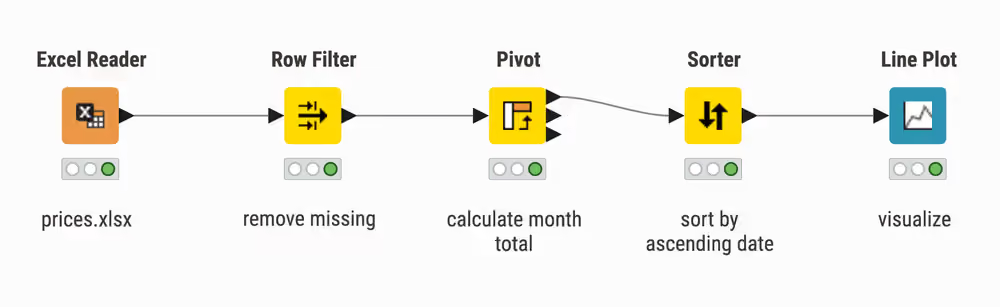
How it works
Node status
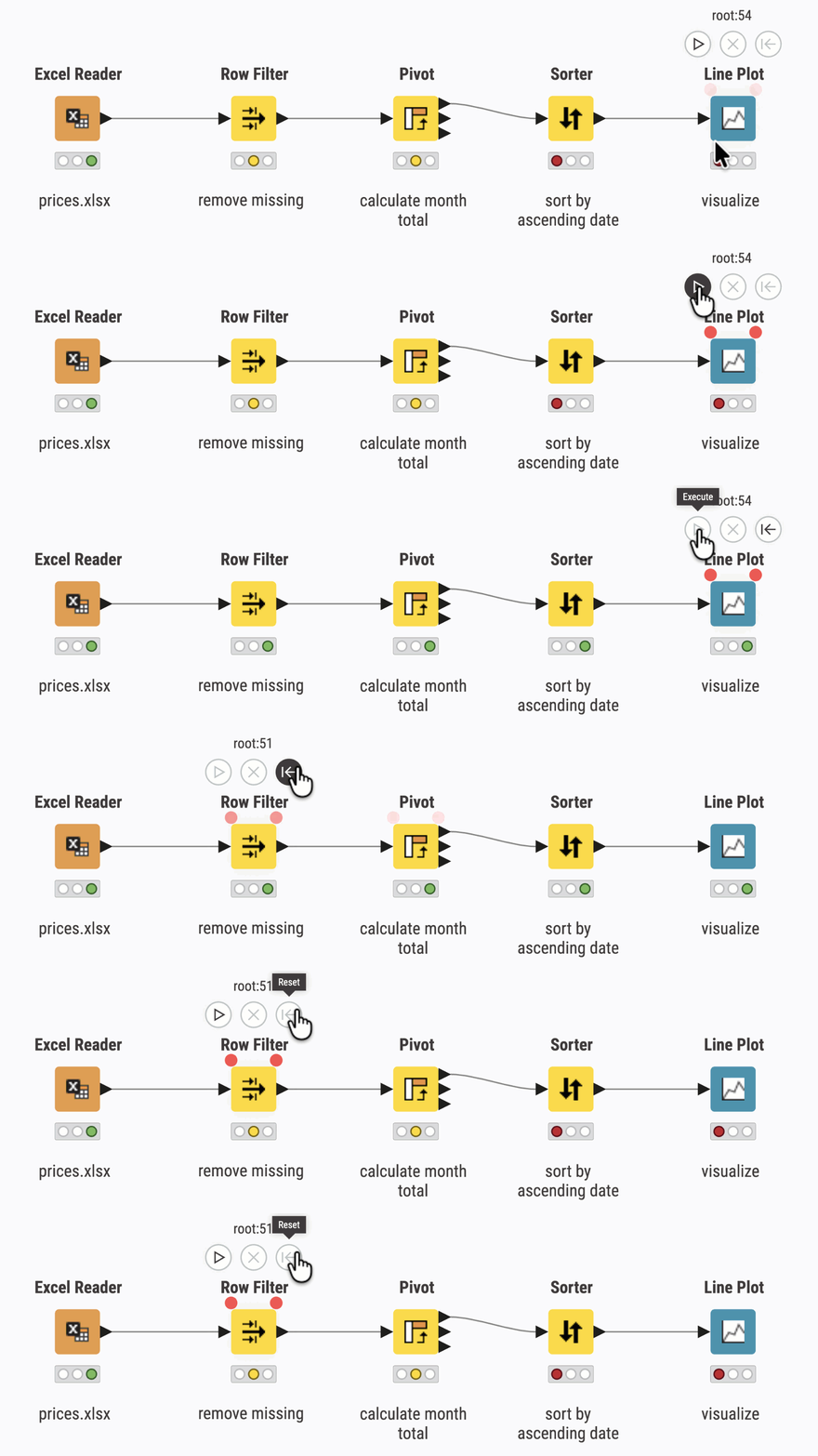
A node can be in different status, identified by its traffic light.
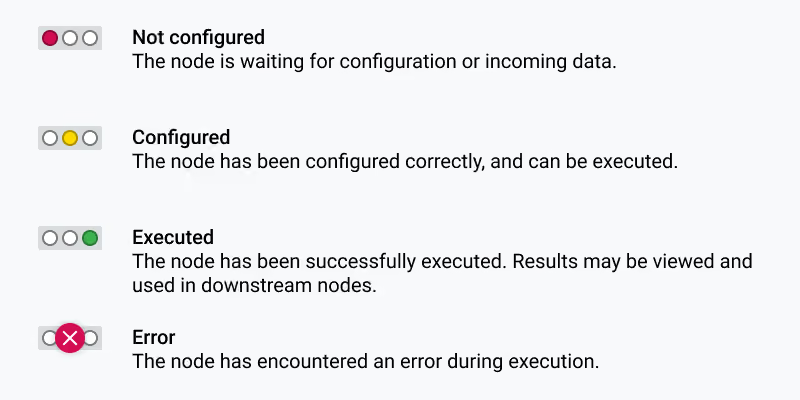
The status of a node can be changed, either configuring, executing, or resetting it in the workflow editor.
| Action | What it does | Resulting status |
|---|---|---|
| Configure | Change node's behavior by editing the options in the node dialog. | Not configured/Executed → Configured |
| Execute | Run the task the node is configured for. Also executes all upstream nodes | Configured → Executed (or Error on failure) |
| Cancel execution | Stop a running execution. | Executing → Configured |
| Reset | Clear the node's output; also resets all downstream nodes. | Executed → Configured (this node and downstream) |
Node ports and connections
A node may have multiple input ports and multiple output ports. The input ports consume the data from the output ports of the predecessor nodes, and the output ports provide data to the successor nodes in the workflow.
Besides data tables input and output ports can provide other types of inputs and outputs. For each port type, the pair of input and output port looks different. See Node port types for a complete list.
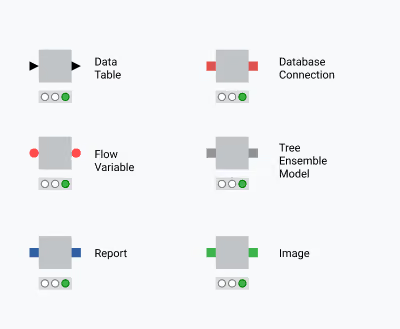
An output port can only be connected to an input port of the same type - data to data, model to model, and so on.
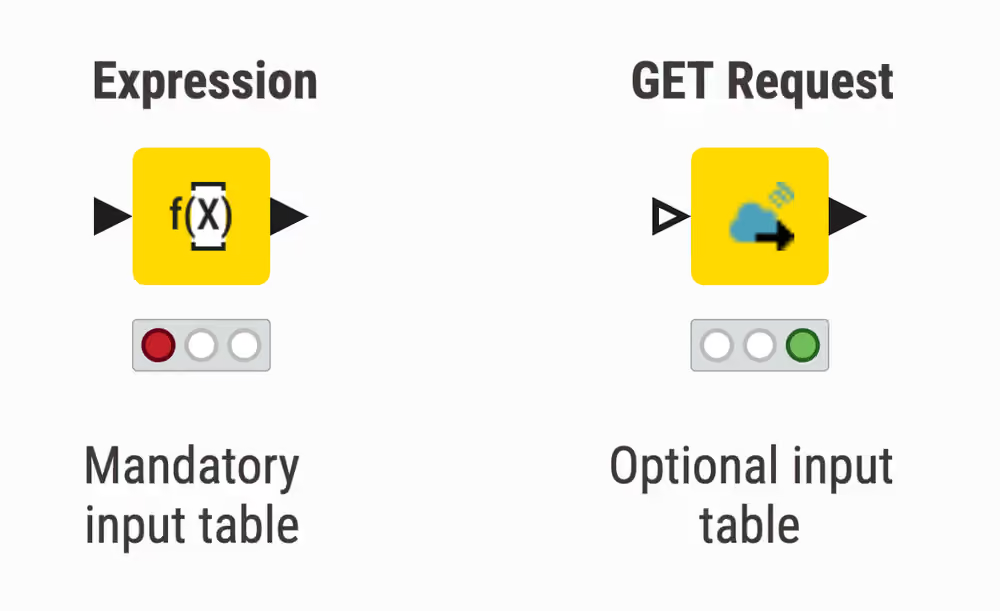
Some input ports can be empty, like the data input port of the Decision Tree View node. This means that the input is optional, and the node can be executed without the input. The mandatory inputs, shown by filled input ports, have to be provided to execute the node.
A tooltip gives a short explanation of the input and output ports. If the node is executed, the dimensions of the outcoming data are shown in its data output port. A more detailed explanation of the input and output ports is in the node description.
Data flowing through a workflow
A Knime workflow is a chain of nodes, with data flowing from left to right. Each node depends on the data provided by the upstream nodes, which is cached when the node is executed. This has two implications:
- When a node is executed, Knime automatically executes all the upstream nodes it depends on first.
- When a node is reset, Knime automatically resets all the downstream nodes connected to it.
Node comments and annotations
Node comments and annotations help you keep the workflow documented and self-explaining. A node comment is a short text tied to the node itself. You can use it to describe what the node does, specific configurations, the data it produces etc..
Annotations are text boxes that can be moved and resized inside the workflow. You can, for example, capture a group of nodes and describe what data transformation is performed in that workflow section.
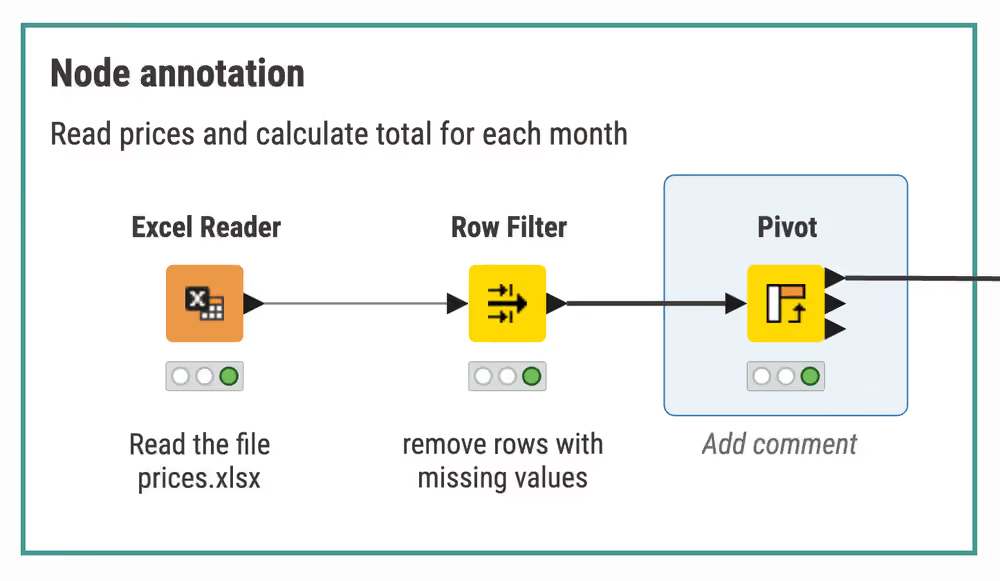
You can use K-AI to generate an annotation for a group of nodes.
Metanodes and components
As workflow grow in complexity and in number of nodes, it might be hard to understand their logic.
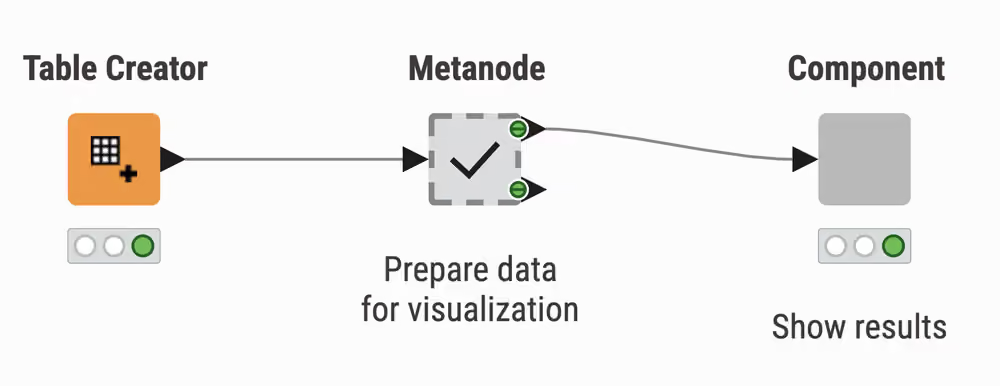
Metanodes allow you to organize your workflows better: you can take part of a larger workflow and collapse it into a gray box that hides that part of the workflow’s functionality. It also makes it easier for others to understand what your workflow does as you can structure it more hierarchically.
Components offer the same advantages as metanodes to organize your workflow, but in addition thye act as real nodes: the can have their own dialog and interactive views, and can be shared to be reused in other workflows. Learn more in the Component guide.
Key concepts
- Node status — The state of a node, shown by its traffic light: not configured, configured, executing, executed, or error.
- Configure — Edit a node's options to define what the node does.
- Execute — Run a node's task. Executing a node also executes the upstream nodes it depends on.
- Reset — Clear a node's output. Resetting a node also resets all downstream nodes.
- Node comment — A short text attached to a node that describes what it does.
- Annotation — A movable text box that documents a group of nodes in the workflow.
- Metanode — A gray box that collapses part of a workflow to keep it tidy.
- Component — A node that groups part of a workflow and can have its own dialog and views, and can be shared and reused.
Next steps
- Build and run a workflow end to end with Your first workflow
- Turn a workflow into a scheduled deployment with Your first deployment