
Build Your First Local Agent
In this tutorial, you will build a Local Agent that can answer questions about company policies and assist with multilingual communication.
The Use Case
Imagine a customer support team that needs to answer questions about shipping in a multilingual context. You will build a local agent that reads a vector store containing shipping information and interacts with users through a chat interface, keeping all data private on your machine.
Before you start
Make sure that you have the following installed and running on your computer:
- KNIME Analytics Platform: Download it from knime.com/downloads.
- Ollama: Download and install Ollama. It must be running in your system tray before you start.
- The Local LLMs: Open your terminal and run these commands to download the two LLMs used in this lesson:
batch
ollama run llama3.2:3b
ollama run translategemma
1. Download the Local Agent Folder
Before starting KNIME, you need the workflow files and example data on your computer. To download the Local Agent folder:
- Visit the Local Agent on the KNIME Hub.
- Click the Download icon
 to save the entire space to your machine.
 - Open KNIME Analytics Platform and import this folder into your Local Workspace.
- Verify: Ensure you see the
example datafolder containingfaq.sqlitein your explorer.
2. Prepare your Environment
Ensure your KNIME workspace has the necessary nodes installed to handle AI tasks.
- Open workflow 0. Install extensions.
- Follow the prompt in the Install Extensions box.
- This installs all necessary extensions for this tutorial.
- Result: After KNIME restarts, your workspace is ready to create your local agent.
3. Create the FAQ Vector Store
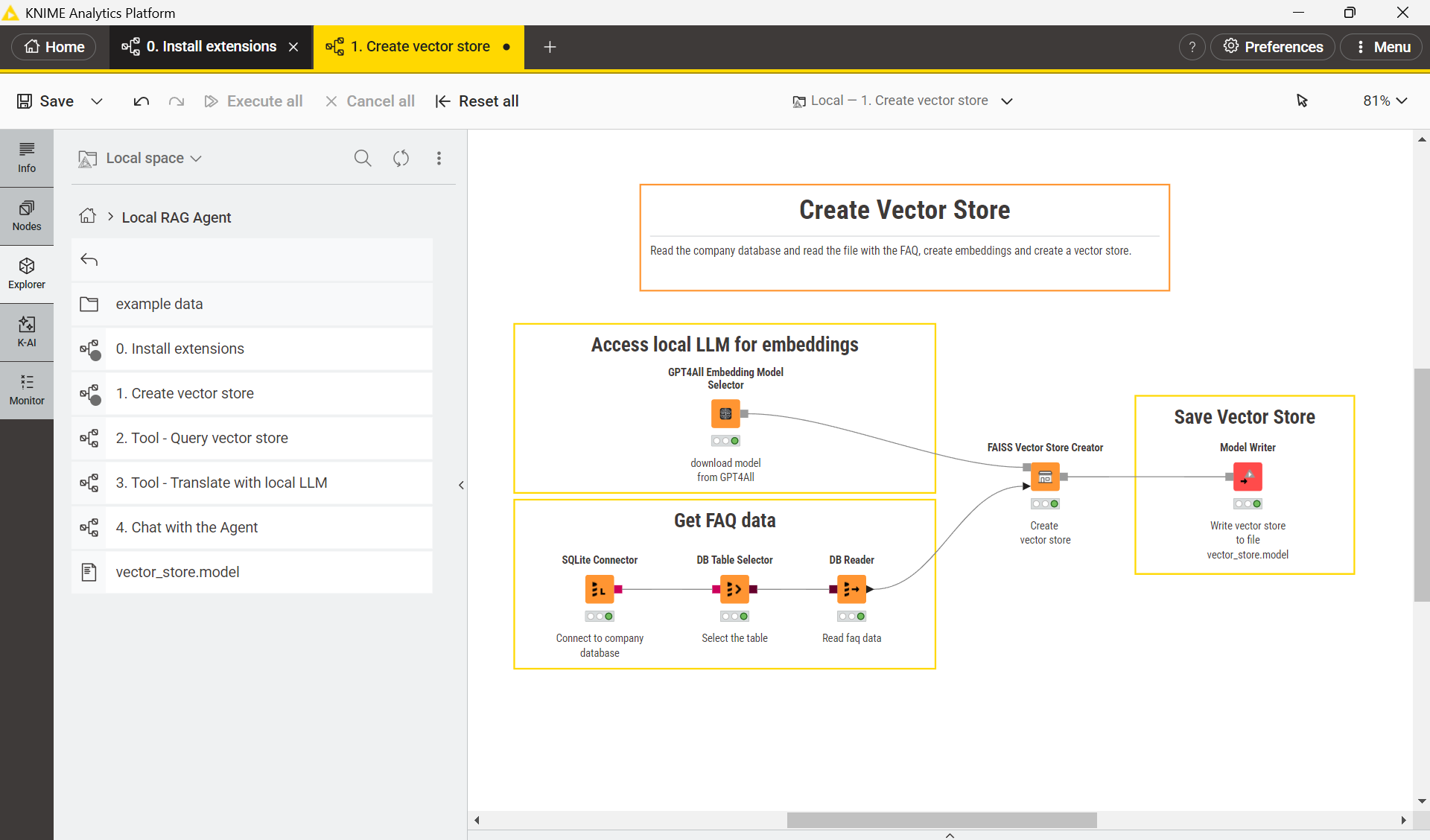
To enable the local LLM to find information in your faq.sqlite, we must convert the text into numerical embeddings and save them in a Vector Store.
- Open workflow 1. Create vector store.
- Execute the DB Reader node to load the FAQ data.
- Execute the Model Writer node.
- Observe: A file named
vector_store.modelwill appear in your directory. This is the "searchable map" the local LLM will navigate.
4. Understand and Verify the Tools (Skills)
Now that the data is ready, the Local Agent needs specialized Tools to perform tasks.
The Semantic Search Tool
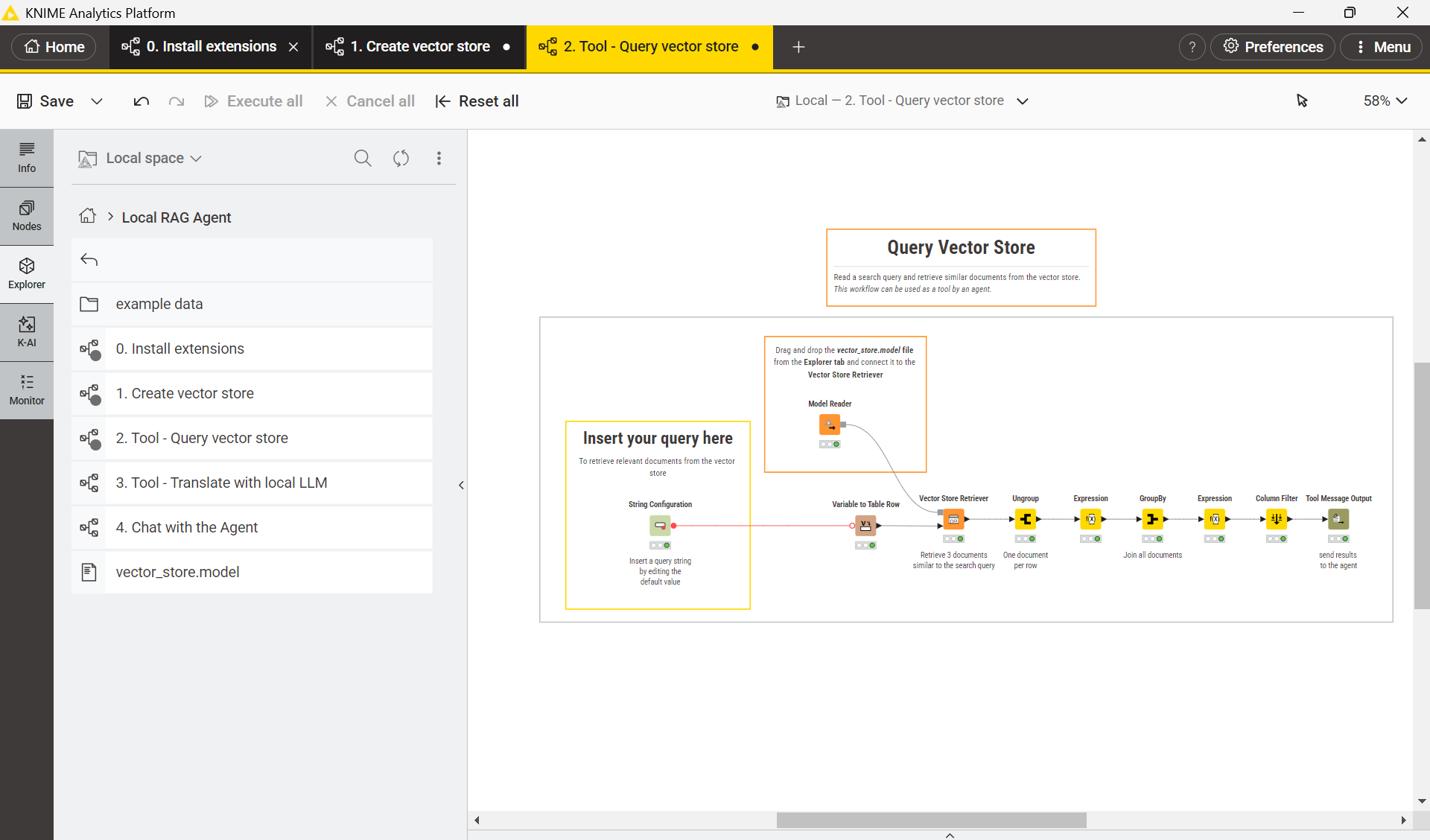
- Open workflow 2. Tool - Query vector store.
- Go to explorer, drag and drop the
vector_store.modelfile into the workflow and connect it to Vector Store Retriever node. - Save the workflow
- The Specialization: The local agent will call this tool whenever it needs to search for information in the vector store. To do so, the local agent will fill the String configuration node with your query, search the
vector_store.modelyou just created, and output relevant text. - Information Relay: The Tool Message Output node at the end packages this data for the agent.
The Translation Tool
- Open workflow 3. Tool - Translate with LLM.
- The Specialization: This workflow takes two inputs:
Text to translateand aTarget languageto generate a translation. - Verification: Enter test values (e.g., "Hello" and "German") in the String Configuration nodes and execute the LLM Prompter.
5. Connect the Local "Brain" (Ollama)
Now, tell KNIME where to find the Ollama server running on your machine.
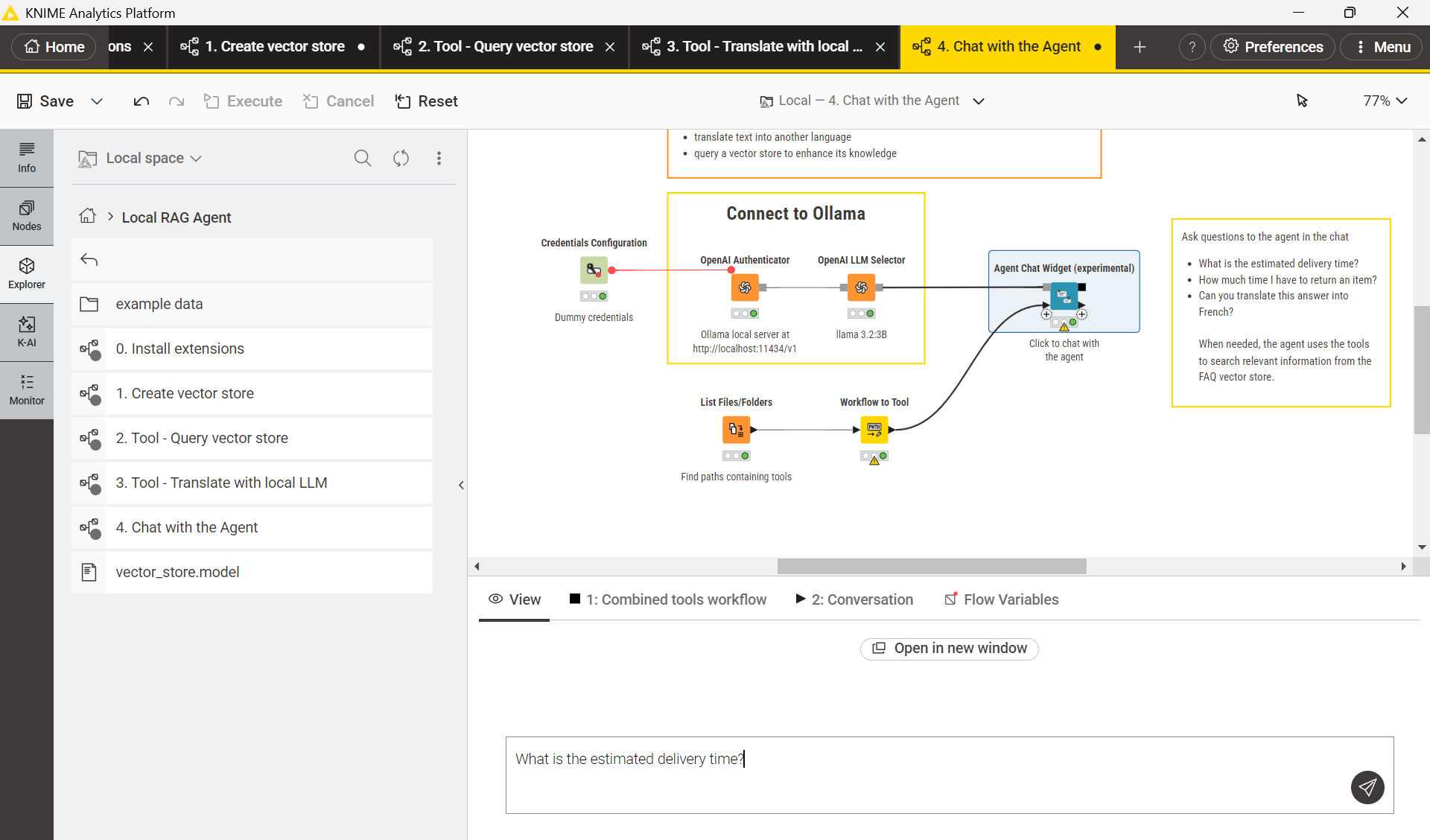
- Open workflow 4. Chat with the Local Agent.
- Locate the Connect to Ollama box.
- In the OpenAI Authenticator node, confirm the URL is set to
http://localhost:11434/v1. - In the OpenAI LLM Selector, choose the
llama3.2:3bmodel.
6. Launch the Local agent
Link the memory, skills, and brain into a functional interface.
- In the same workflow, execute the Agent Chat Widget node and click the Open View icon.
- Test 1: Ask: "What is the estimated delivery time?".
- Test 2: Ask: "Can you translate this answer into French?".
Conclusion
Congratulations! You've built a Local agent that can answer questions based on your private data and translate the responses, all without sending information to the cloud.
Next Steps
If you want to keep learning about AI and data workflows in KNIME, take one of our free courses and earn a microcredential badge to showcase your skills: