
Summarize Product Reviews
In this tutorial, you will learn how to summarize long product reviews using a large language model in KNIME.
You will build a complete workflow from start to finish, beginning with raw review data and ending with concise summaries that can be reused in downstream analysis or reporting.
What you will build
You will create a workflow that:
- Reads product reviews from a file
- Builds one prompt per review
- Sends the prompts to a language model
- Stores the generated summaries in a new table column
By the end, you will have a working workflow that can be reused and adapted for new review data.
Before you begin
Make sure you have:
- KNIME Analytics Platform installed (see Download and install KNIME Analytics Platform)
- KNIME AI Extensions installed (see Install the KNIME AI Extensions)
- An API key or credentials for your LLM provider
Step 1: Read the review data
Use the CSV Reader node to load the product reviews into your workflow.
Download
product_reviews.csvAdd a CSV Reader node to your workflow.
Configure the node to point to the downloaded file.
Each row in the table represents one customer review.
Step 2: Create one prompt per review
Use the Expression node to build a prompt dynamically for each review.
Configure the node to create a new column called Prompt with the following expression:
text
string(
  "You are a product quality expert.\n" +
  "Summarize the following review in 10 to 15 words:\n\n" +
  $["Review"]$
)
This creates one prompt per row by combining:
- a fixed instruction
- the review text from the table
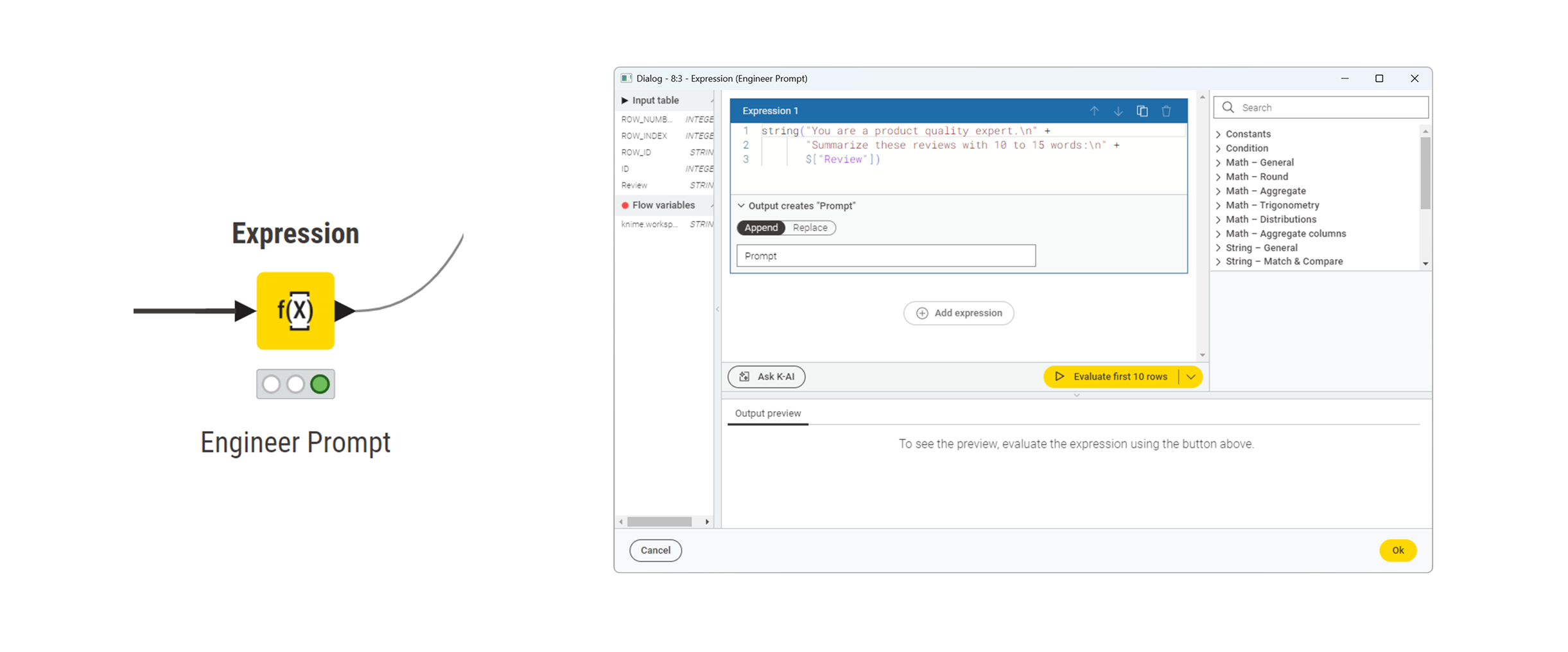
Expressions in KNIME
The Expression node uses the KNIME Expression Language to construct strings and transform data. If you are not familiar with the syntax, you can ask KAI, the KNIME AI assistant, to help you build or adapt the expression.
Step 3: Authenticate with the LLM provider
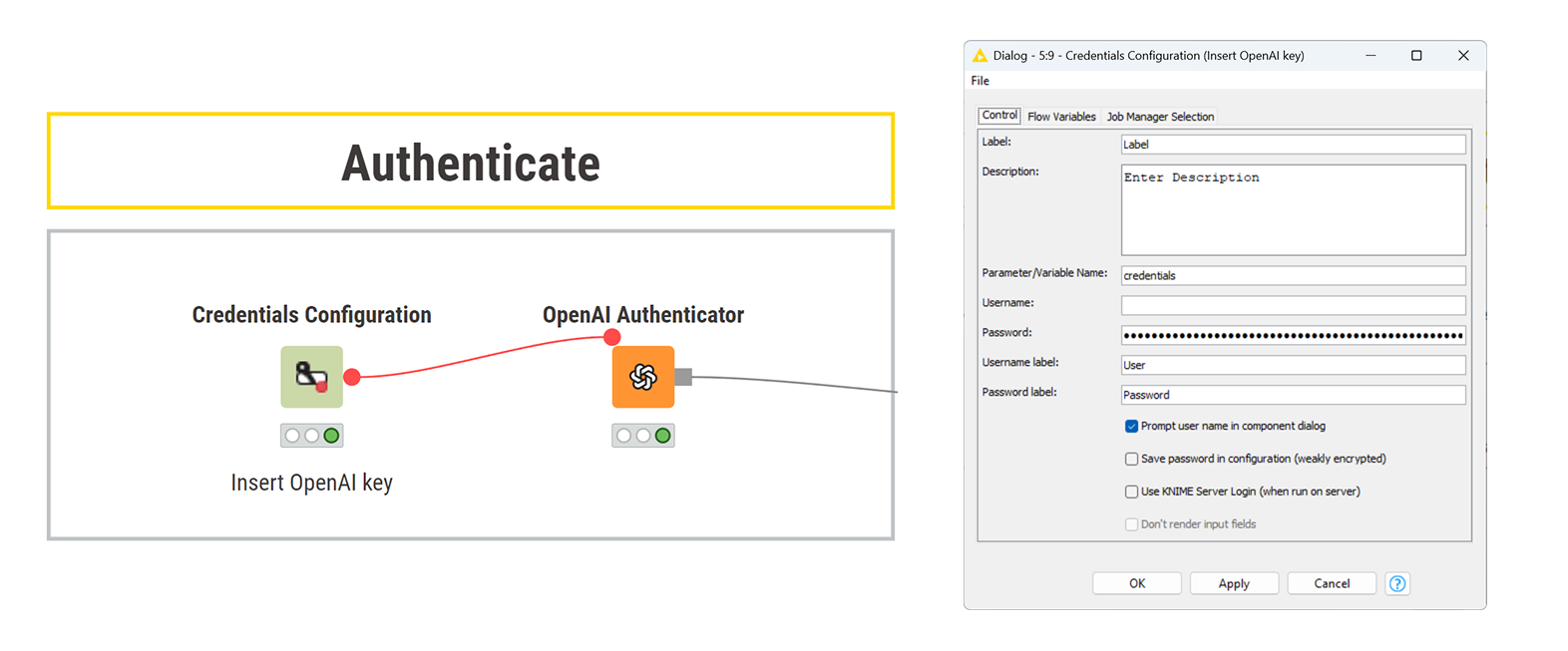
Authenticate with your chosen provider using:
- Credentials Configuration node to store your API key or credentials
- the corresponding Authenticator node (for example, OpenAI Authenticator)
Connect the credentials node to the authenticator using a flow variable. If authentication is successful, the authenticator node turns green.
Step 4: Select a language model
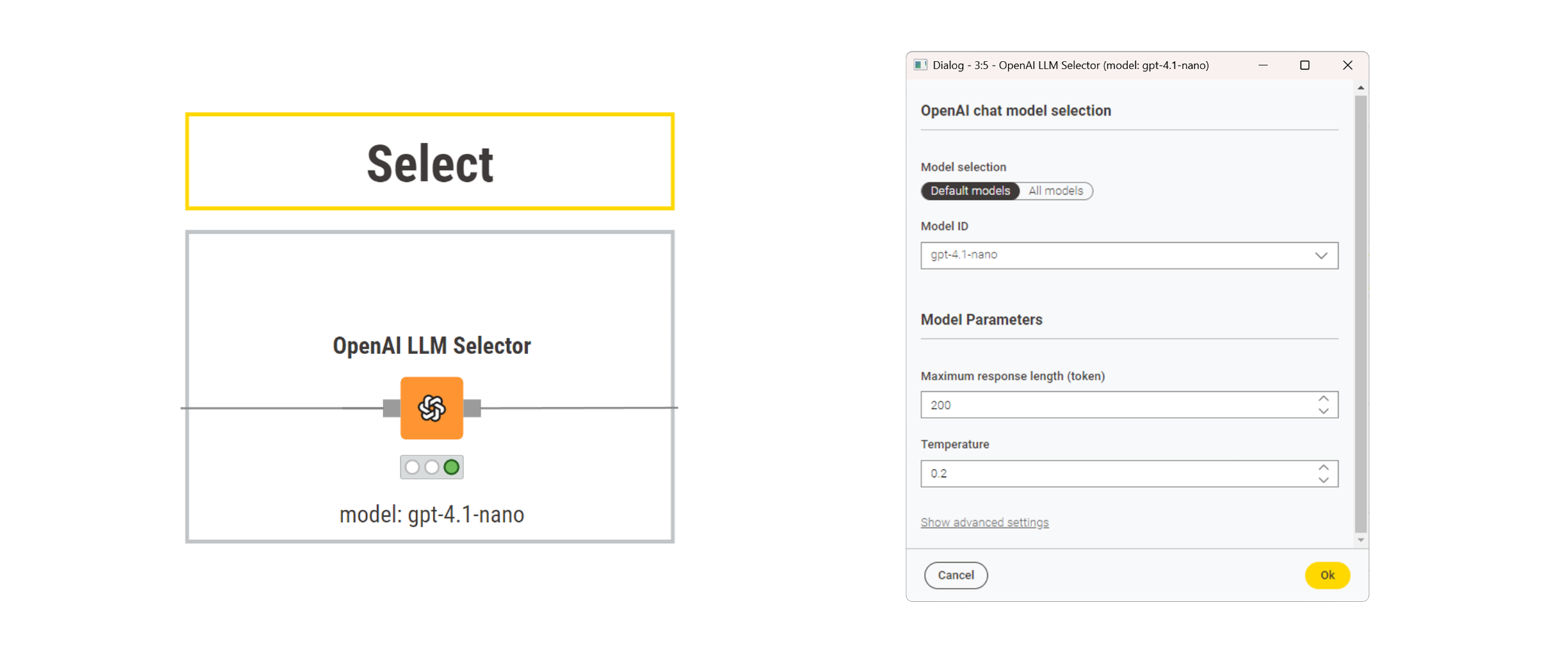
Use the LLM Selector node to choose the model that will generate the summaries.
Typical settings include:
- model name
- maximum response length
- temperature
For consistent summaries, consider setting the temperature to a low value.
Step 5: Prompt the model
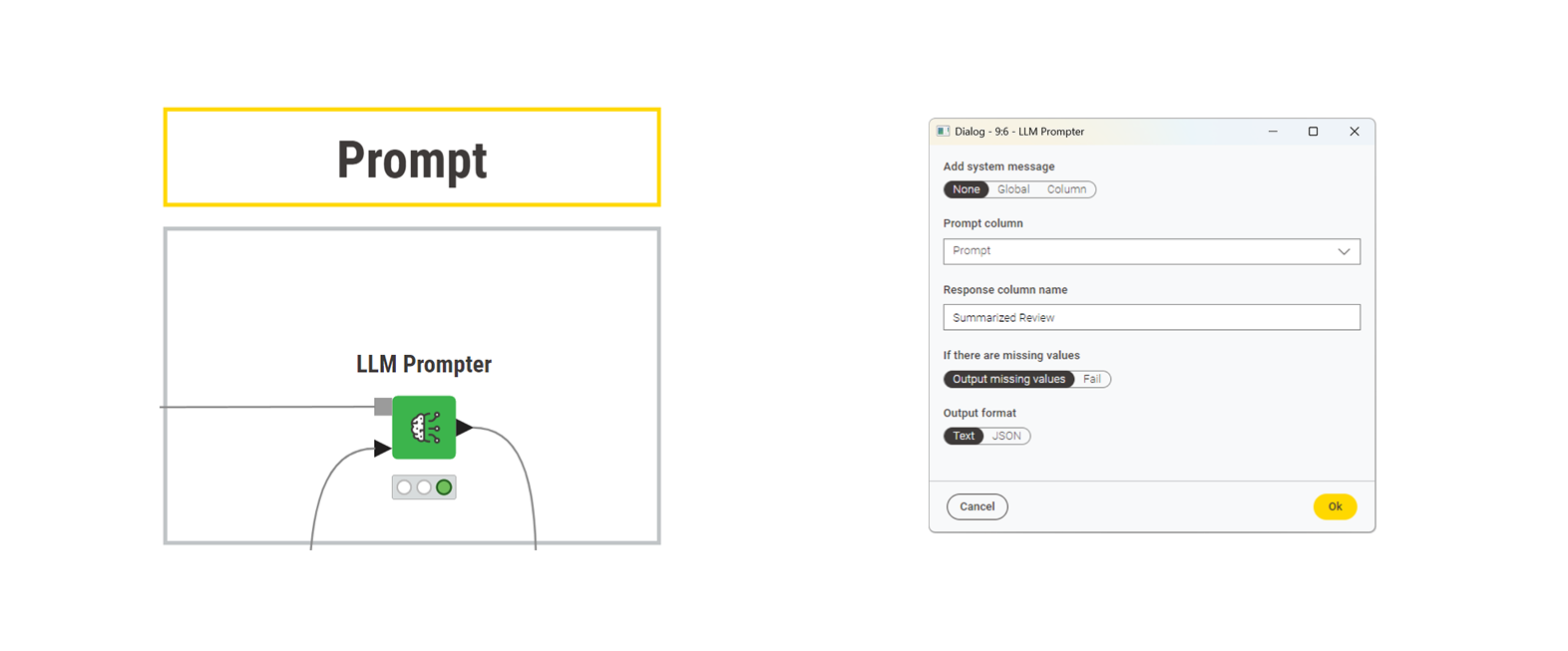
Use the LLM Prompter node to send the prompts to the model.
Configure the node to receive as input:
- connect the model input port to the LLM Selector
- connect the data input port to the table containing the Prompt column
- select Prompt as the input column
Each input row is prompted independently, and the model response is stored in a new column (for example, Response).
Result
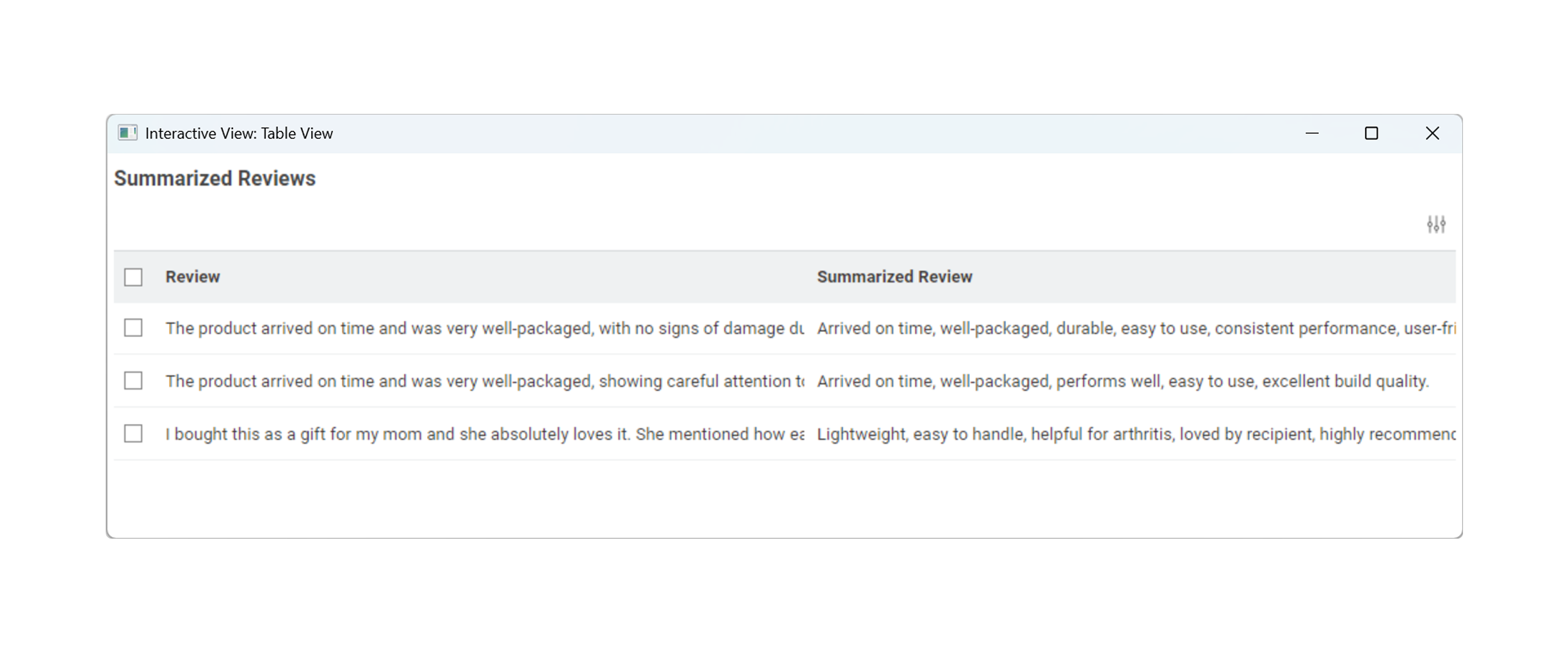
After execution, the output table contains a new column with the generated summaries.
Each row now includes:
- the original review
- a short summary generated by the model
If you want to review or compare your result, you can open the completed workflow:
➡️ Open the completed workflow on KNIME Hub
Next Steps
If you want to keep learning about AI and data workflows in KNIME, take one of our free courses and earn a microcredential badge to showcase your skills: