
Install and Configure KNIME
To use KNIME Analytics Platform on your local machine, you need to:
Download KNIME Analytics Platform from the KNIME Download page.
Install KNIME Analytics Platform on your local machine.
Download KNIME Analytics Platform
To download KNIME Analytics Platform:
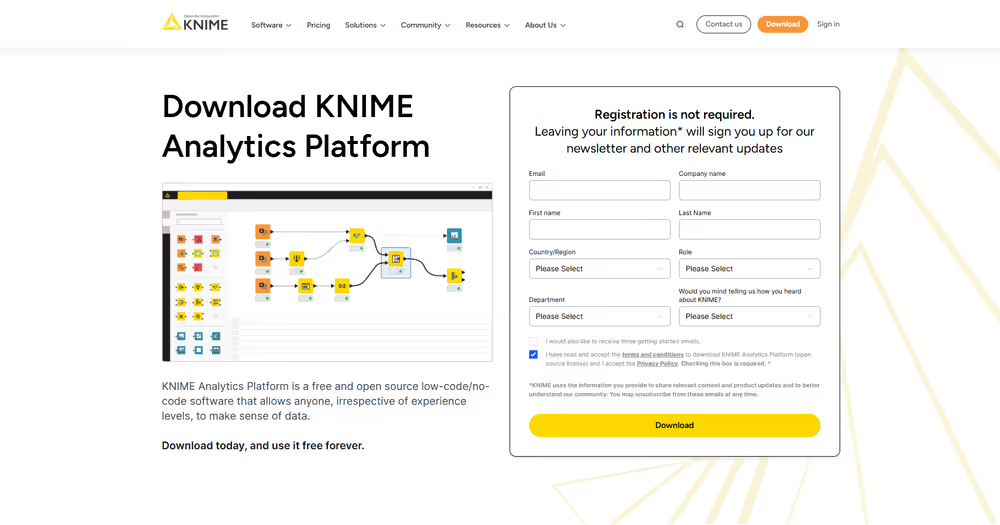
Go to the KNIME download page. Optionally provide your information such as name, email, and organization. Read the terms and conditions and the privacy policy. Tick the checkbox to agree.
Choose the release line you want to download.
KNIME offers two release lines:
Standard Release (STS): Updated every 6 weeks with the latest features. Recommended for most users.
Long-Term Support (LTS): Updated less frequently, recommended for users who need maximum stability.
Learn more about the differences in the release notes FAQ.
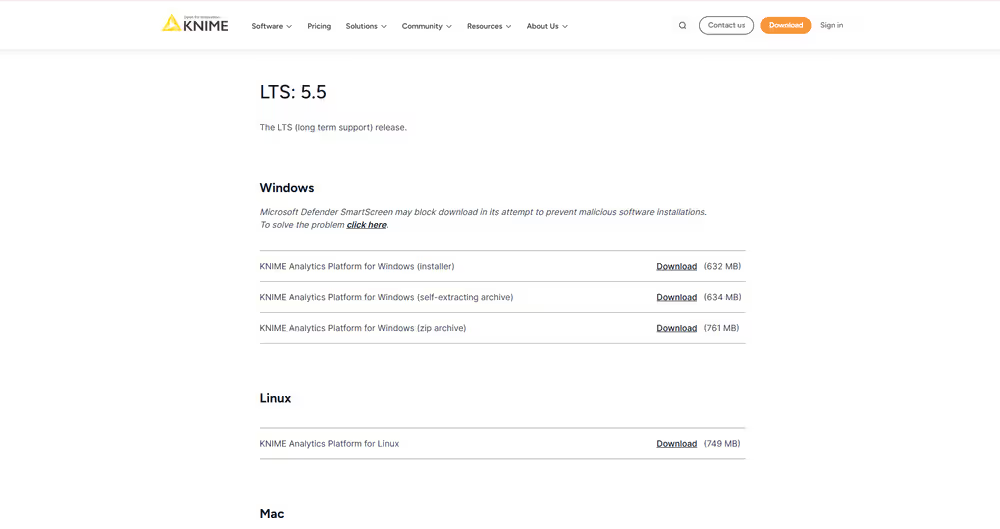
Scroll down to the section for your operating system (Windows, Linux, macOS).
Click the installer type that best fits your needs to start the download:
- Windows options:
- Installer (.exe): Extracts files, adds a desktop icon, and suggests memory settings.
- Self-extracting archive (.exe): Creates a folder with the installation files, no extra software required.
- Zip archive (.zip): Can be downloaded and extracted anywhere you have full access rights.
Install KNIME Analytics Platform
Once the file has been downloaded, install KNIME Analytics Platform according to your operating system.
Windows
Run the installer or self-extracting archive.
If you downloaded the zip archive, unpack it and run knime.exe.
With KNIME Analytics Platform 5.3 and higher, you can also start in high-resolution mode by running knime-hidpi.bat. The HiDPI feature is experimental and designed exclusively for the Modern UI. It aims to enhance visual fidelity but may have limitations when switching between Modern UI and Classic UI.
Linux
Extract the downloaded tarball to a location of your choice.
Run the knime executable to start KNIME Analytics Platform.
macOS
Double-click the downloaded .dmg file and wait for verification to finish.
Move the KNIME icon to Applications.
Double-click the KNIME icon in Applications to launch KNIME Analytics Platform.
If you need an older version of KNIME Analytics Platform, you can request it using the contact form for previous releases.
Supported operating systems
Windows
Windows 10, 11
Windows Server 2016, 2019, 2022
Linux
- Ubuntu 20.04 LTS and 22.04 LTS and derivatives
- RHEL/CentOS/Rocky Linux 8, 9
macOS (x86_64 Intel and arm64 Apple Silicon)
macOS 14: Sonoma
macOS 15: Sequoia
Some extensions may have limited support on Apple Silicon.
Configuration settings and knime.ini file
When installing KNIME Analytics Platform, configuration settings are set to their defaults, and they can later be changed in the knime.ini file. The configuration settings, i.e. options used by the Java Virtual Machine when KNIME Analytics Platform is launched, range from memory settings to system properties required by some extensions.
You can find knime.ini in the installation folder of KNIME Analytics Platform.
On macOS: To locate
knime.inion macOS, open Finder and navigate to your installed Applications. Next, right click the KNIME application, select Show Package Contents in the menu, and navigate toContents→Eclipse.
The knime.ini file can be edited with any plaintext editor, such as Notepad (Windows), TextEdit (macOS) or gedit (Linux).
Allocating memory in knime.ini file
The entry -Xmx1024m in the knime.ini file specifies how much memory KNIME Analytics Platform is allowed to use. The setting for this value will depend on how much memory is available in your machine. KNIME recommends setting it to approximately one half of your available memory, but you can modify the value based on your needs. For example, if your computer has 16 GB of memory, you might set the entry to -Xmx8192m.
Installing Extensions and Integrations
If you want to add capabilities to KNIME Analytics Platform, you can install extensions and integrations. The available extensions range from free open source extensions and integrations provided by KNIME to free extensions contributed by the community and commercial extensions including novel technology nodes provided by our partners.
The KNIME extensions and integrations developed and maintained by KNIME contain deep learning algorithms provided by Keras, high performance machine learning provided by H2O, big data processing provided by Apache Spark, and scripting provided by Python and R, just to mention a few.
Install extensions from:
Search for the Extension or Integration you want to install in the search bar
Click Extensions on the results page
Click the extension you want to install, and from the extension page and drag and drop the squared yellow icon to the KNIME Analytics Platform.
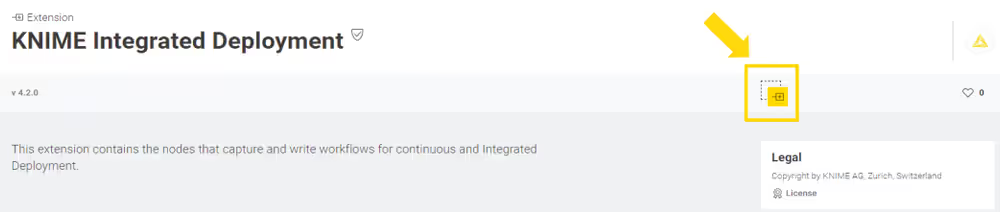
A window will open asking if you want to search and install the extension or integration. Click Yes and follow the instructions.
Restart KNIME Analytics Platform.
KNIME Analytics Platform:
Go to the Menu in the top right corner of the KNIME Analytics Platform.
Select Install Extensions. The dialog shown here below opens:
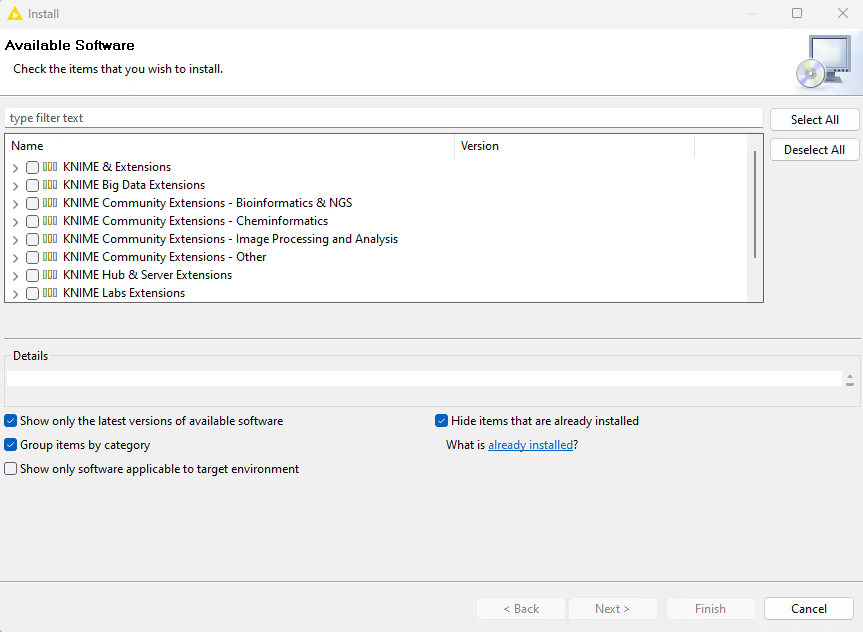
Select the extensions you want to install
Click Next and follow the instructions
Restart KNIME Analytics Platform.
The Install Extensions menu provides the extensions that are available via the update sites you have enabled.
If you encounter issues during the installation of Python based extensions, these might be related to challenges specific to this type of extensions. Find here information about how to troubleshoot these issues.
Uninstalling Extensions
If you need to remove an extension, follow these steps:
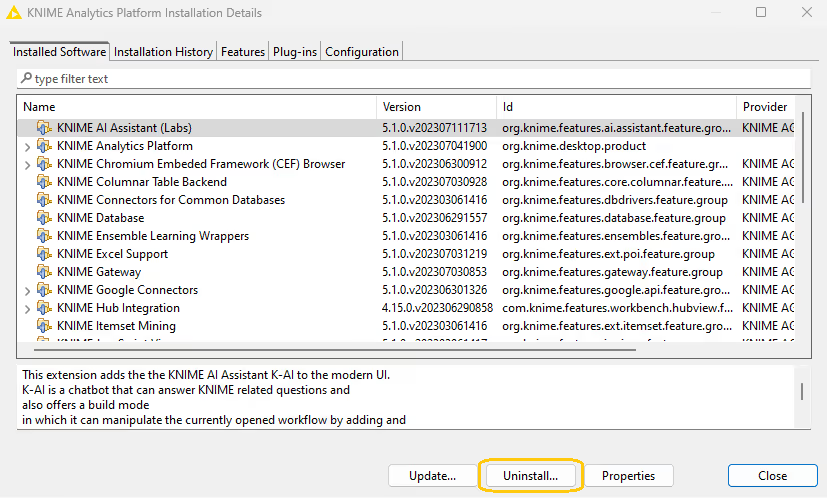
- Go to the Menu in the top right corner of KNIME Analytics Platform
- Select About KNIME Analytics Platform
- In the window that opens, click Installation Details
- Select the extension you want to uninstall
- Click Uninstall…
- Follow the prompts and restart KNIME Analytics Platform when prompted
Updating KNIME Analytics Platform and Extensions
It is good to make sure that you always use the latest version of KNIME Analytics Platform and its extensions.
To do so:
- Go to the Menu in the top right corner of the KNIME Analytics Platform.
- Select Check for updates. In the dialog that opens, select the available updates you want to install and then click Next.
- Proceed by following the instructions. KNIME Analytics Platform has to be restarted in order to apply the updates.
Update Sites
The Update Sites are where KNIME retrieves additional software in the form of extensions as well as updates. To see or edit the available update sites, click Preferences in the top right corner of the user interface. This opens the Preferences dialog. Select Install/Update → Available Software Sites.
Default Update Sites
These four updates sites are provided by KNIME and are always available:
KNIME Analytics Platform Update Site: Provides all extensions and integrations maintained by KNIME: R, Python, H2O Machine Learning, Apache Spark for big data, and many more. Contains KNIME Labs Extensions, which are extensions that are not yet part of the set of stable KNIME extensions because their functionality may not yet be finalized.
KNIME Community Extensions (Experimental): Provides additional extensions created by the KNIME community. Note: this update site is not enabled by default.
KNIME Community Extensions (Trusted): Provides trusted community extensions, i.e. extensions created by the KNIME community, which have been tested for backward compatibility and compliance with KNIME quality standards.
KNIME Partner Update Site: Provides extensions created by KNIME partners.
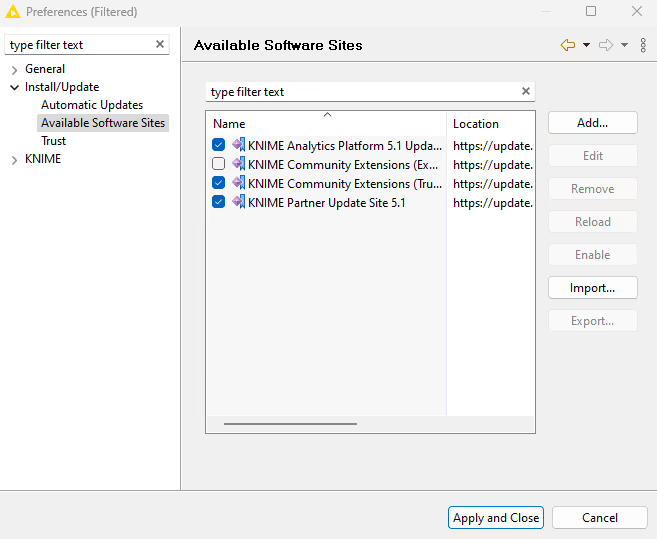
KNIME Analytics Platform Update Site, KNIME Community Extensions (Trusted), and KNIME Partner Update Site are enabled by default.
Adding External Update Sites
To install extensions that are not part of the above update sites, click Add to manually add the relevant update site, inserting the Name and Location:
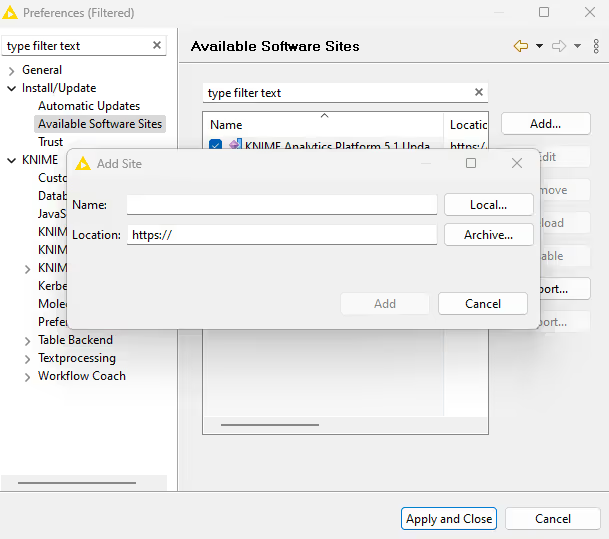
After adding a new update site you will see it listed in the Available Software Sites. You must now enable it by selecting it from the list.
Adding Local Update Sites
If your working environment has limited internet access or you receive an error message “Proxy Authentication Required” when connecting to a remote update site (provided by a URL), you can install extensions from a local zip file.
Download KNIME update sites as zip files at the following links:
For KNIME Analytics Platform latest standard update sites:
For KNIME Analytics Platform LTS update sites:
- KNIME Analytics Platform Update Site
- KNIME Partner Update Site
- For KNIME Community Extensions find the list of available update sites here
Save the zip file containing the extensions to your local system
Click Preferences in the top right corner of the user interface. This opens the Preferences dialog. Select Install/Update → Available Software Sites and enter the path to the zip file by clicking Add → Archive…:
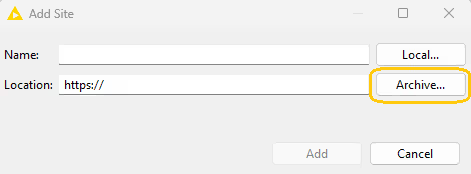
If the same extensions are provided by a URL, you will first have to disable the update site by disabling it in the list.
- Now click Apply and Close
If the same extensions are also provided by a remote update site, you will first have to disable that update site by deselecting its entry in the Available Software Sites dialog and confirming via Apply and Close.
Working with the Nightly Builds
Once a night, a new version of KNIME Analytics Platform is created directly from our development branch. The Nightly Build versions available here provide insight into what’s coming up in the next regular release. However, for real work, always use a version of a standard KNIME release. Also read the following disclaimer before proceeding:
Really, really, really important disclaimer
This is most definitely not production quality code. These nightly builds are what we use internally to validate and test recent developments, so they are not tested as thoroughly as standard KNIME releases. Furthermore new nodes or functionality may change substantially (or disappear entirely) from one build to the next. It’s even possible that workflows you edit or create with nightly builds stop being readable by future (or past) versions…
These nightlies are a great way to get a sneak peek at what may be coming in the next version of KNIME and provide feedback and suggestions. They are not a particularly safe way to do real work.