User usage monitoring
The User Usage Monitoring data app gives you insight into how users interact with your Knime instance:
- Monitor active users and detect unused license seats.
- Analyze peak login times to identify usage patterns.
Configure a Keycloak service client
This data app requires a Keycloak service client that can retrieve session events.
Log in to the Keycloak Admin Console at
https://auth.<base-url>(see Access Keycloak for users management).Select the
knimerealm (or your custom realm).Under Realm Settings > Events > User events settings, activate Save events and define how many days to keep session events.
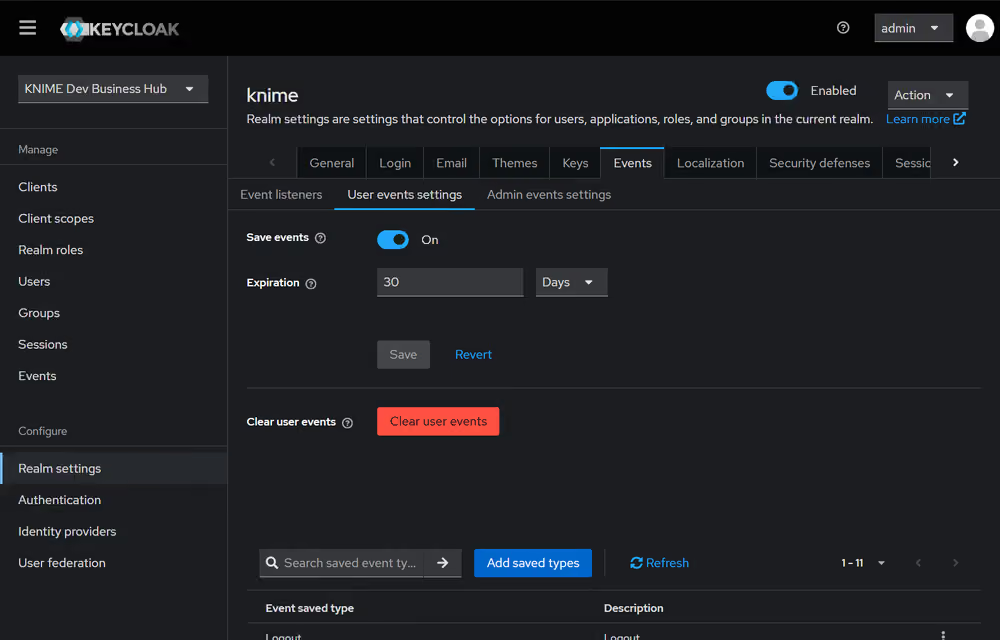
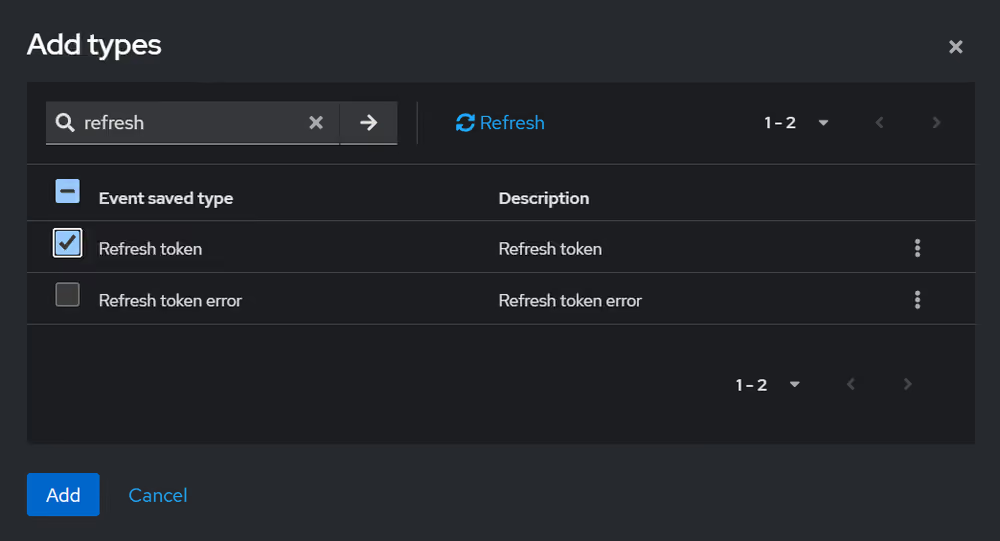
Select Add saved types and include the refresh token event.
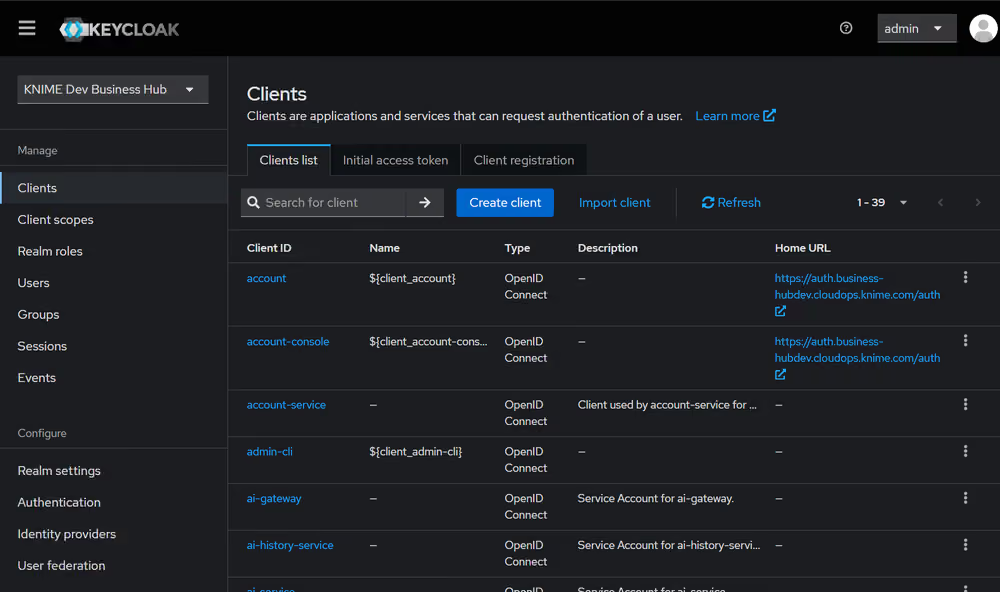
Create a new client under Clients.
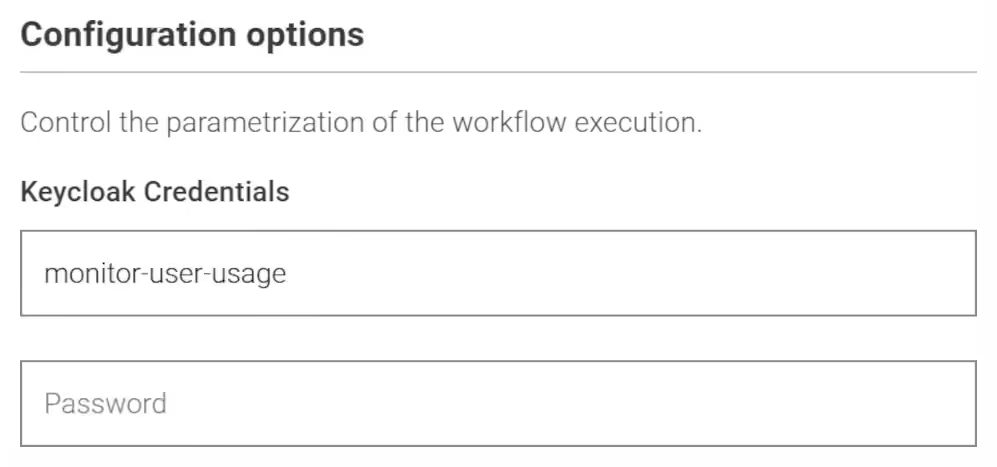
Provide a Client ID (for example,
monitor-user-usage) and optionally a name and description.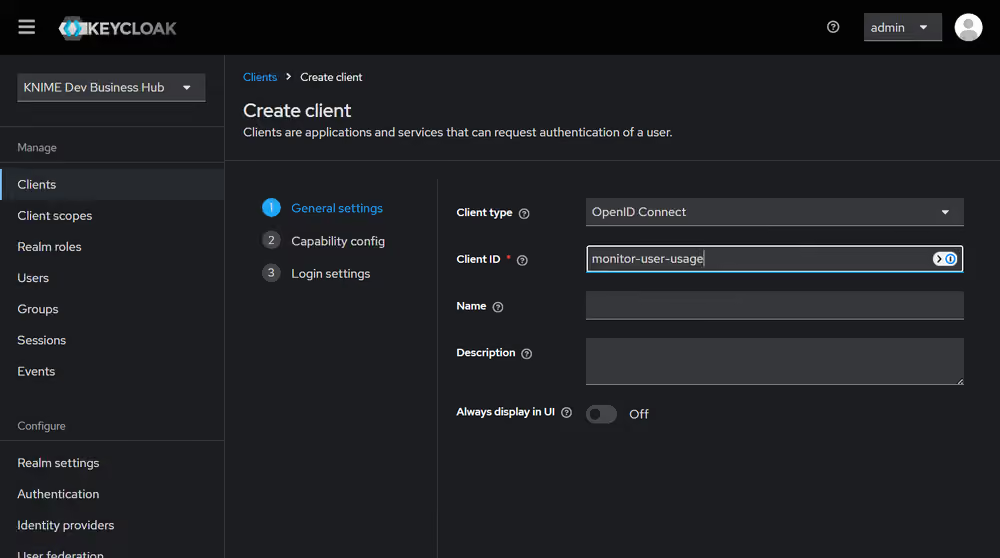
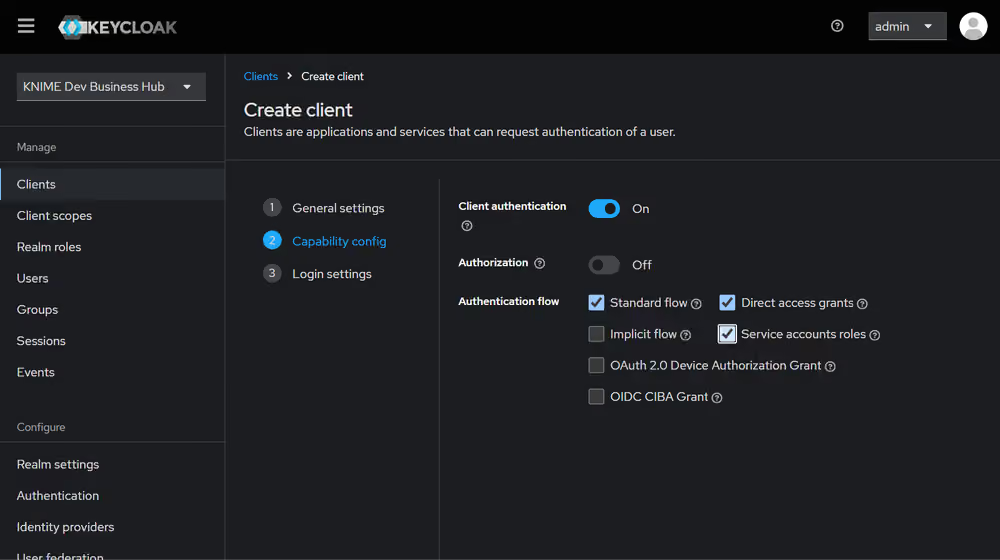
Under Capability config, enable Client authentication and select Service account roles. Save the client.
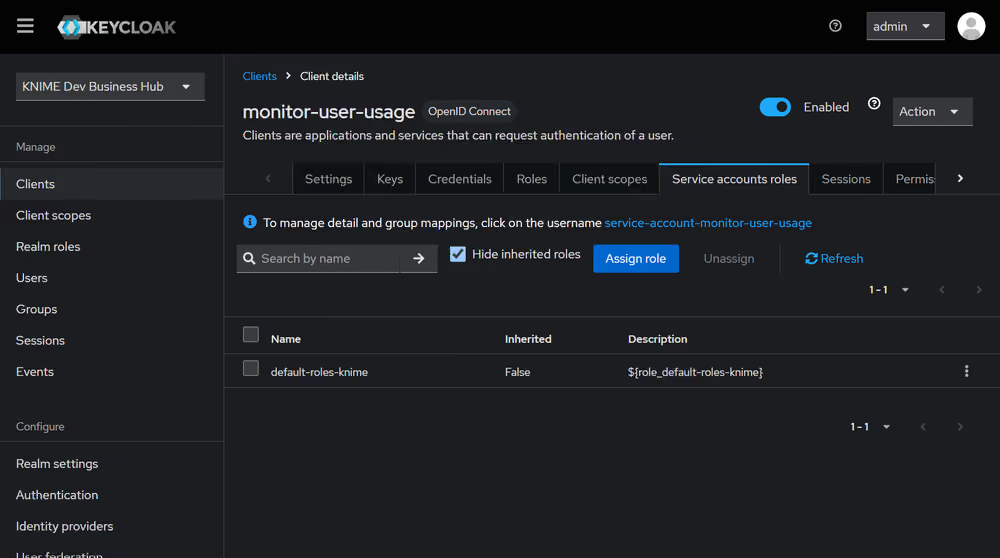
Open the new client and configure its service account roles.
Filter by clients, search for
view-events, and assign the role.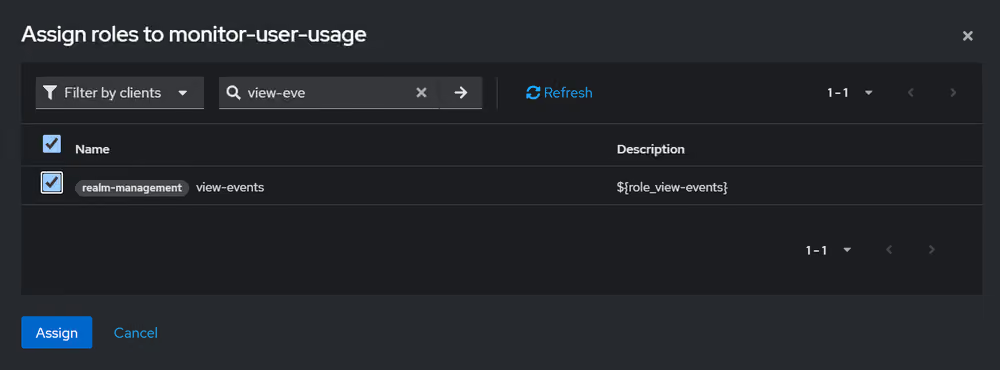
Assign the
manage-usersrole as well.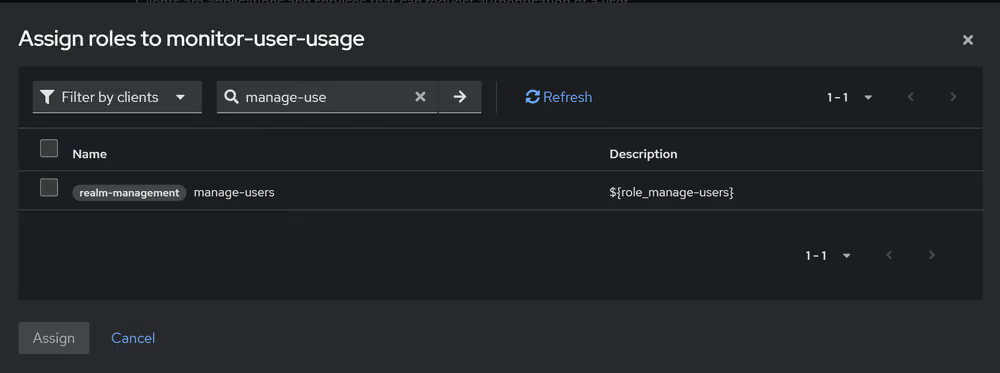
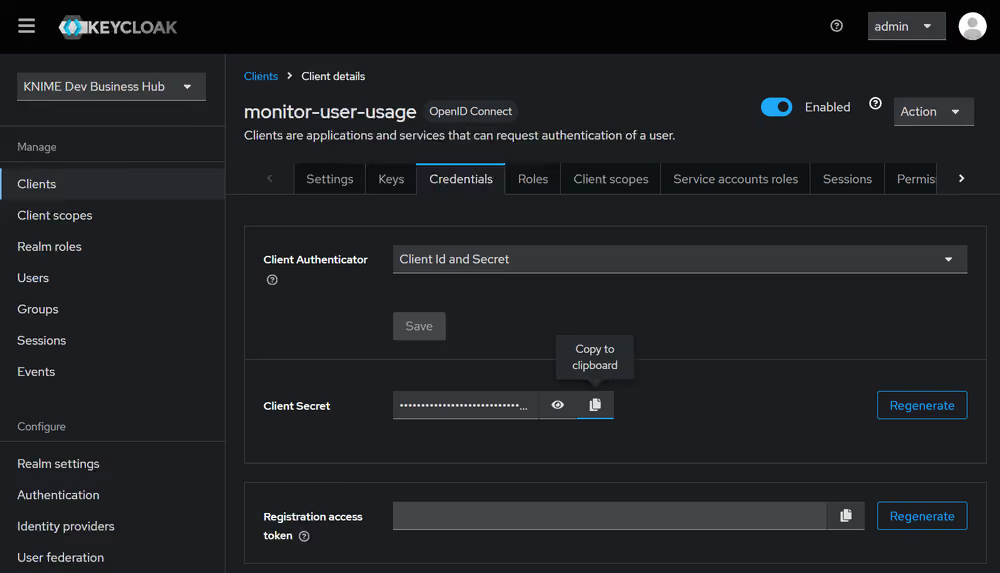
Retrieve the Client ID and Client secret from the Credentials tab.
Deploy the data app
Follow the general data app deployment steps. When you reach the run configuration, also provide the Keycloak service client ID and secret you gathered above.