
Create a team
Teams can only be created by users who have the global admin role.
To create a new team, follow these steps:
Go to your Knime instance URL and sign in.
Click the three dots next to your user name in the lower left corner of the page and select Global administration to go to the administration page.
Click Teams in the menu on the left to see an overview of all existing teams.
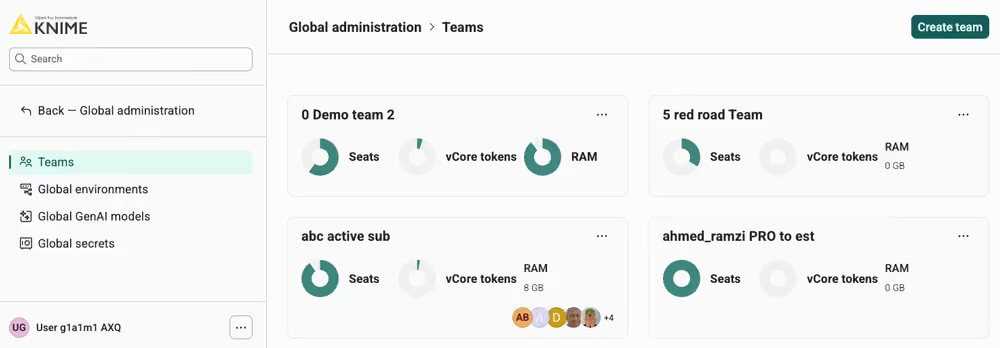
Click Create in the upper right corner. Enter a team name, and optionally a team description and upload a team avatar (note that the maximum image size for the avatar is 100 KB).
Click again Create. Knime creates the team and opens the new team's page.
Add a team admin
Each new team needs a team admin to manage its members. Add the first member to the team and give them the team admin role.
Click on the three dots next to the team name, and select Manage team members.
Click Add seats in the right sidebar that opens to allocate resources for the team. You can change these values later. Click Save.
In the right sidebar, click Add and enter the user name to add the first team member. Grant them team admin rights so they can add further team members themselves. Click Invite to add them to the team.
Click the trash can icon to remove yourself from the team. Click Apply to save the changes.
The new team is created and a team admin is assigned. The team admin can now take it from there.