
Keycloak
Keycloak, an open source identity and access management solution, is embedded in Knime and is where users are managed in the backend.
However, if you want to see the users that have access to your Knime instance you can go to the Administration page and select Users from the menu on the left. The list shows all users that have already logged into your Knime instance.
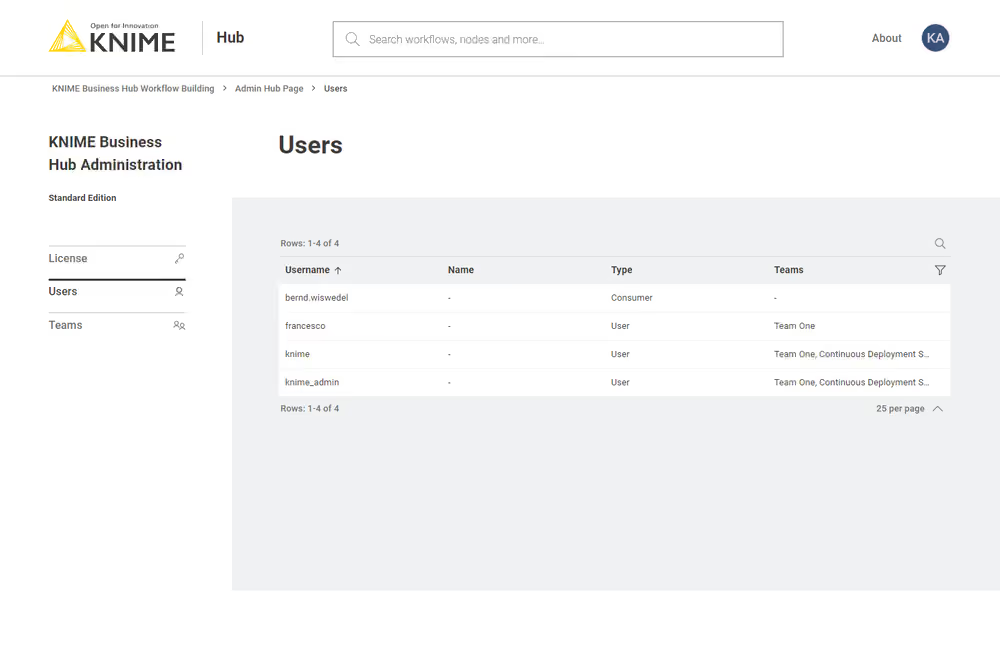
Here you can filter the users based on their team, the type of users and their username and name. To do so click the funnel icon in the users list. You can also search the users by using the magnifier icon and typing the keyword in the field that appears.
Users that only exist in your identity provider are not known to Knime. If you want to create users before they log in, e.g. in order to assign them to groups or share deployments with them, you can provision users with SCIM. See Provisioning users and groups with SCIM (Enterprise and Standard edition only) for details.
Access Keycloak for users management
- Get the Keycloak self-service credentials for your Knime instance. If you don't have them, contact Knime support.
- Then go to
https://auth.<base-url>/auth/and log in.
Delete a user
To delete a user:
- Delete the user from the Administration page. Click the three dots and select Delete. You will need to confirm the user deletion in the window that opens by clicking Delete user. Be aware that this action will also delete all data from the deleted user and it will not be possible to restore the user.
- Delete the user from Keycloak. Follow the steps in the next section to access Keycloak and manage users.
Make a user global admin
The operation of promoting a registered user to the global admin role is done in Keycloak.
To promote a user to the global admin role, follow these steps:
First, access Keycloak admin console by going to
https://auth.<base-url>/auth/and logging in.Follow the instructions in the section Access Keycloak for users management if you need to retrieve Keycloak credentials.
In the top left corner click the dropdown and select the "Knime" realm, if you are not there already.

Navigate to the Users menu and search for the user by name or email:

In order for a user to appear in this list, it is necessary that they have logged into your Knime instance at least once.
Click the user and go to the Groups tab. Click Join Group and either expand the hub group by clicking it, or search for "admin". Select the admin group you want (global admin or management admin) and click Join:

Done. The user now has the global admin role, and can access the admin pages from within Knime to e.g., create teams or delete users.