
Quickstart: Clean input data with Python
This tutorial covers how to execute a Python script for data cleaning, and return results to a KNIME workflow.
Objective
You will use the Python Script nodes and the bundled Python environment to convert messy string-based price data (e.g., "$1.2k", "~500") into numeric formats using Python's regular expression capabilities.
What you need
- KNIME Analytics Platform: Download and install the latest version.
- Python Integration: If you don't have it yet, KNIME will ask you to install this extension when you open the example workflow.
- Basic Python knowledge: Familiarity with pandas and regular expressions will help, but you can also follow along and ask K-AI for assistance in the script editor.
Step 1. Download the Example Workflow
Before starting, you need the workflow file and the pre-defined sample data on your computer.
- Visit the Clean Price Data example on the KNIME Hub.
- Click Download to save the workflow file (
.knwf). - Import the file into your Local Workspace and open it.
Step 2. Configure the Python Script
The Python Script node is where you write the data cleaning logic. Start by importing the data, then write a function to clean the prices.
Import data and libraries
- Open the Python Script node editor.
- Use this code to load your data into a format Python can read (a "DataFrame"):
python
import knime.scripting.io as knio
import pandas as pd
import re

# Access input table
df = knio.input_tables[0].to_pandas()
Use the Column Shortcut
To save time, go to the Input Port panel on the left and click the 'raw_price' column name. The editor will automatically insert the code knio.input_tables[0]["raw_price"] at your cursor.
Define data cleaning logic
Now write a clean_price function to handle missing values, symbols, and the k shorthand. You can use K-AI in the script editor to help you write these rules.
Apply the function and output the result
Add this code to run your function on the 'raw_price' column and send the data back to KNIME:
python
df["clean_price_usd"] = df["raw_price"].apply(clean_price)
knio.output_tables[0] = knio.Table.from_pandas(df)
View Full Solution
python
import knime.scripting.io as knio
import pandas as pd
import re

# Access input table
df = knio.input_tables[0].to_pandas()

def clean_price(value):
    if pd.isna(value): return None
    text = str(value).strip().lower()

    # Remove noise tokens
    for noise in ["approx.", "approx", "usd", "$", "~"]:
        text = text.replace(noise, "")

    # Handle 'k' shorthand
    multiplier = 1000 if text.endswith("k") else 1
    if multiplier == 1000: text = text[:-1].strip()

    # Extract numeric part
    text = text.replace(",", "")
    match = re.search(r"\d+(\.\d+)?", text)
    return float(match.group()) * multiplier if match else None

# Map function and return to KNIME
df["clean_price_usd"] = df["raw_price"].apply(clean_price)
knio.output_tables[0] = knio.Table.from_pandas(df)
Step 3. Execute and Verify
- Execute the Python Script node.
- Open the Table View or right-click the node to view the "Output Port Data."
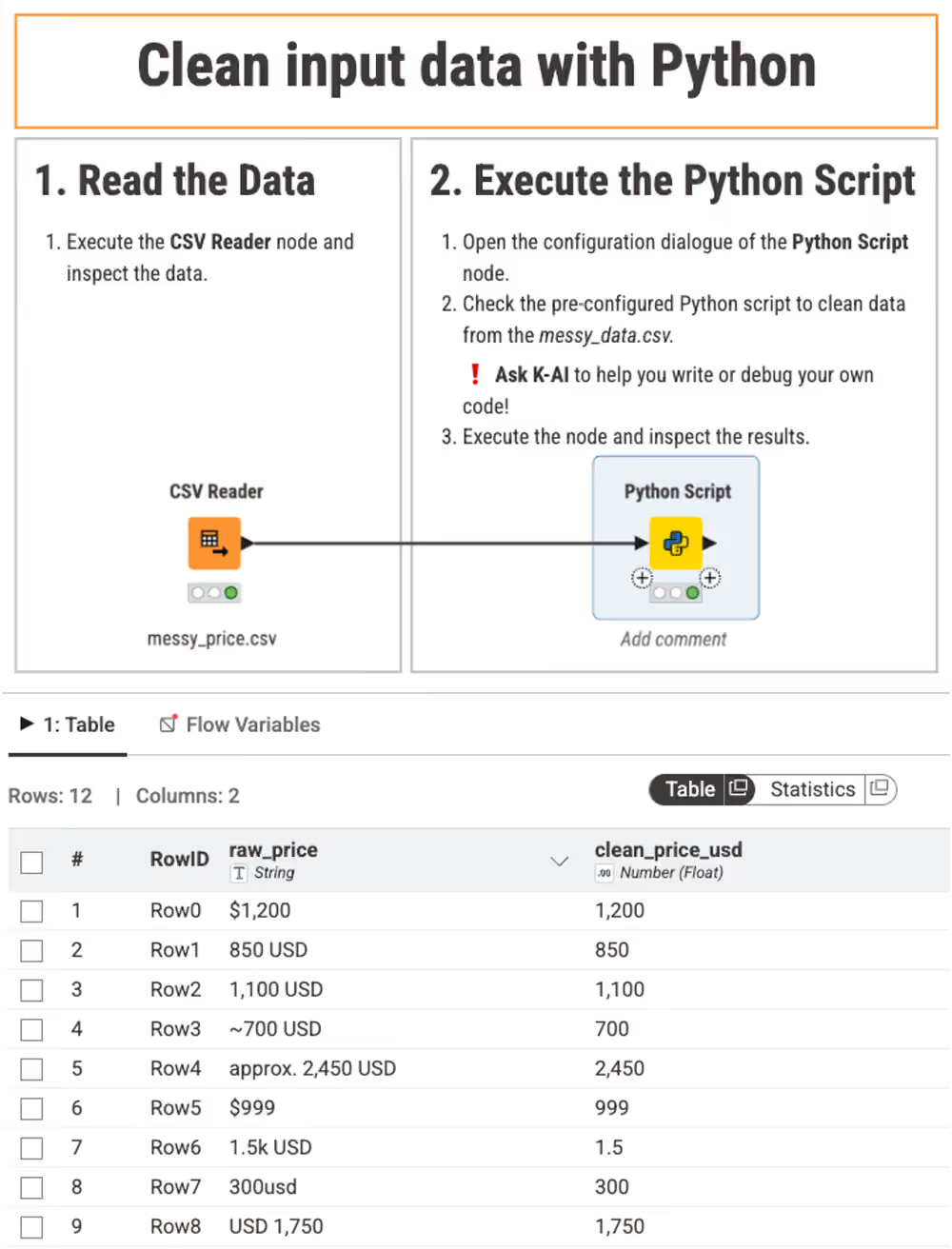
- Verify: Ensure the new
clean_price_usdcolumn contains standardized numeric values (e.g.,1.5k USDis now1500.0).
Result
These are the results you should see after executing the Python Script node, visualized with a Table View node:
Next steps
- Tutorial: Create a data app with a Plotly visualization: Learn how to build an interactive dashboard using Python visualizations.