
Troubleshooting
In case you run into issues with KNIME's Python integration, use this guide to gather information and resolve common problems. If issues persist, contact KNIME support or ask for help in the KNIME Forum.
1. Gathering Debug Information
Accessing the KNIME Log
The knime.log contains detailed error messages from node execution.
- In KNIME Analytics Platform: View → Open KNIME log
- On Disk:
<path-to-knime-workspace>/.metadata/knime/knime.log - Tip: Increase logging verbosity in File → Preferences → KNIME.
Python Environment Export (Conda Only)
If you are using a Conda-based setup, export your environment specification to share with support:
bash
conda activate <env_name>
conda env export
Installation Logs (Pixi & Bundled)
If extension installation fails with "An error occurred while installing the items":
- Locate the Plugin: Go to the KNIME installation folder →
plugins. Find the folder starting withorg.knime.pythonscripting.channelor similar. - Open Logs: Inside that folder, go to
bin/. Checkcreate_env.errandcreate_env.out.
2. Environment Management Issues (Pixi)
Identifying Environment Details
If you are unsure which Python environment or executable a node is currently using, hover your mouse over the environment input or output port of the Python Script or Python Environment Provider node. A tooltip will appear showing the full path to the active Python executable and the environment's storage location.
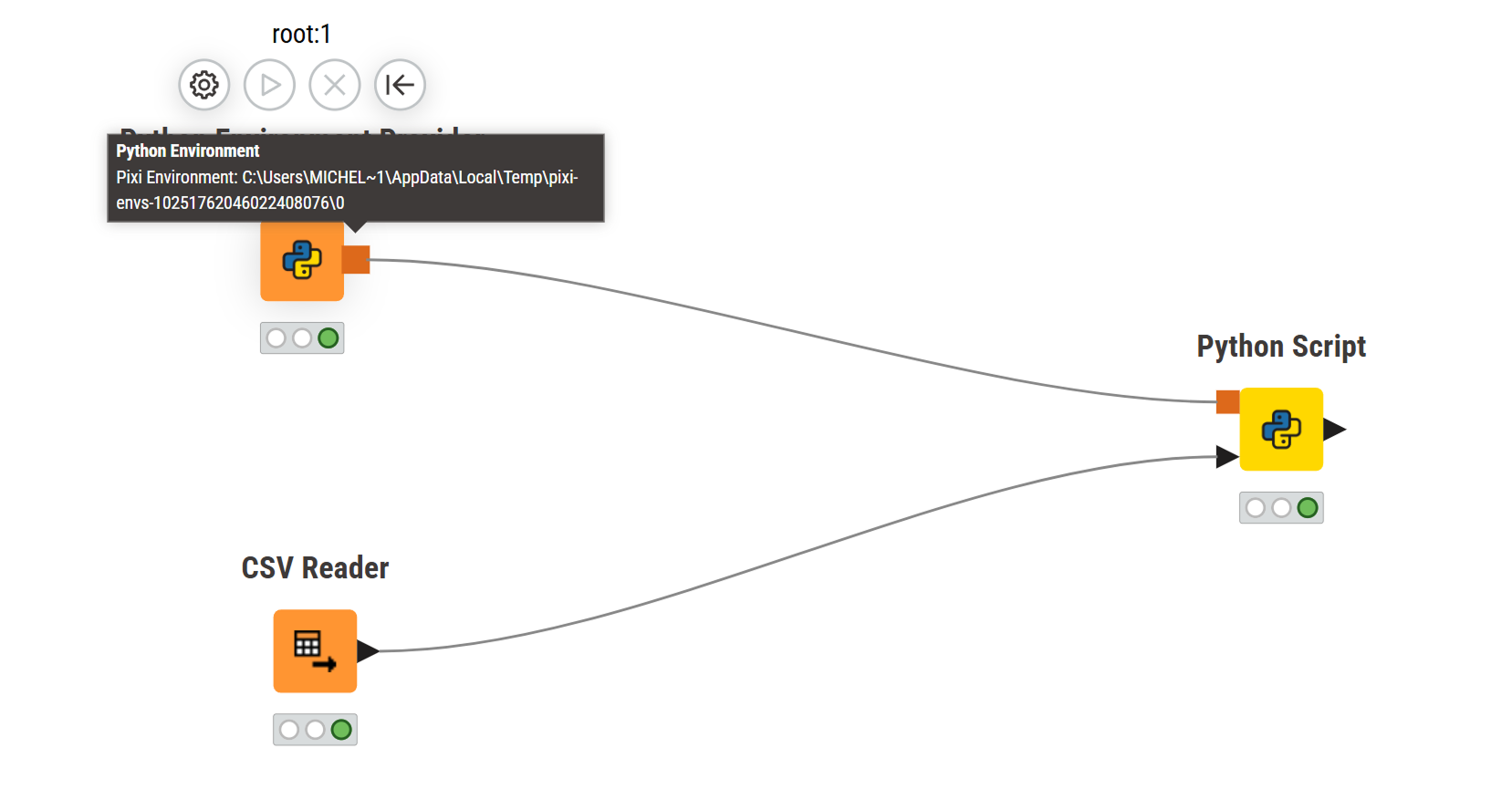
You can find further details about the installed packages, their versions and transitive dependencies by clicking Open port view in the node monitor of the Python Environment Provider node.
Modifying a Permanent Environment
Issue: My permanent environment is missing a package. Should I add it manually to the folder?Recommendation: Do not manually modify the environment folder. Pixi uses a strict lock-file system. If you inject packages manually, the environment becomes out of sync and may fail when shared. Fix: Open the Python Environment Provider node, add the missing package to the list, and re-execute. This ensures the lock-file is updated and the environment remains portable.
Read/Write Permission Errors
Issue: Execution fails with "access denied" or permission errors when building an environment.Fix: Redirect the Pixi Environment Base Path to a folder where you have full permissions (e.g., a non-system drive or a dedicated folder in your user directory):
- Go to File → Preferences → KNIME → Python.
- Change the Pixi Environment Base Path.
- Restart KNIME.
3. Scripting & Execution Errors
"No module named knime.api"
Cause: You likely installed a package named knime via pip in your environment, which clashes with the internal KNIME scripting API. Fix: Run pip uninstall knime in your terminal for that environment.
Conda channel access on the executor
Issue: On-the-fly environments fail to install because the executor cannot reach public conda channels (e.g. conda-forge). Cause: The executor runs behind a firewall or in a restricted network without access to external package repositories. Fix: For environments created by the Python Environment Provider node, configure a channel mirror in Pixi's system-wide configuration file (/etc/pixi/config.toml in the executor image) — see Channel Mirrors & Air-Gapped Setups. A .condarc file does not affect these environments.
For environments created by the legacy Conda Environment Propagation node, add a .condarc file to the executor instead. The correct location in the executor image is:
/home/knime/.condarcSee the conda documentation for available settings, including channel mirrors and proxy configuration.
SSL Errors
Issue: Python nodes fail with SSL errors while other KNIME nodes (like GET Request) work. Fix: Add -Dknime.python.cacerts=AP to your knime.ini file. This forces Python to use the same certificate authorities trusted by KNIME.
Unsupported Data Types
Issue: ValueError: Data type 'uint32' ... is not supported. Fix: Cast the column in your script: df["col"] = pd.to_numeric(df["col"]).
Windows Long Path Issues
Issue: Installation or execution fails due to deeply nested folders. Fix: Enable long path support in the Windows Registry at HKEY_LOCAL_MACHINE\SYSTEM\CurrentControlSet\Control\FileSystem by setting LongPathsEnabled to 1.